


video tutorials for social media
How to add a logo to video online
If you are trying to figure out how to add a logo to your video, you are already thinking about making your content become more authentic. Consistent branding is beneficial for your content and your brand, and it does not matter whether you post on TikTok, Instagram, YouTube, or create videos within your business. Adding a logo to your video or a watermark to the video is forever a smart move and SubtitleBee helps you do it online in three simple steps.
In this blog, I will show you how to add logo to your video, what are the right logo files to add in video, and what to do if you do not have a logo.
What is the right file logo format to add in video?
To add a logo to your video, you need the logo to be transparent so it does not block your video or other relevant information on the video canvas. You also need the logo to be clear and sharp. Now, to get these qualities in a logo, you need to have the right file format for the logo before it is added to your video.
Let’s check what the other logo file format options are and why PNG is the best choice.

PNG (Recommended)
That right file format for the logo is PNG. PNG supports transparency, so your logo does not show a white or colored box behind it, and it uses lossless compression, which means that your logo image stays sharp and crisp even after you edit or resize it.
To seamlessly add logo in video with a transparent background, save it in PNG file format. This file format is compatible with nearly every platform.

JPG / JPEG (good for non-transparent logos)
Works if your logo has a fully solid background and it does not need transparency. Because JPG uses lossless compression and has a smaller file size, it might compress the sharp edges of a logo, and the logo text may blur when saved in a JPG or JPEG file.
However, if you are creating a simple logo that does not need transparency, this file format is ideal.

WebP (recommended when the editor supports it)
WebP is comparatively a newer image format that offers both transparency and good compression. The logos made in WebP are smaller in file size and do not lose quality. This logo file format is becoming more common, but is still not supported everywhere.

GIF
Although GIF supports transparency and is widely accepted, it has serious drawbacks. From a logo creation POV, it offers lower image quality for detailed graphics due to its limited color depth (max 256 colors only). Plus, the file size is very small, which does not guarantee crisp logo edges.

How to add logo to video in 4 simple steps?
Adding logo to video is fairly simple in SubtitleBee, as you combine subtitles and branding in one workflow. You can also use SubtitleBee’s 99% accurate AI to effectively create audio transcription or video translations.
Related Read: Getting started with AI-powered SubtitleBee
To add logo to video follow the four simple steps ahead.

1. Login and upload your video
The first thing you need to do is to log in and upload your video to SubtitleBee. It accepts common formats (MP4, MOV, WMV, AVI, WebM, etc.).
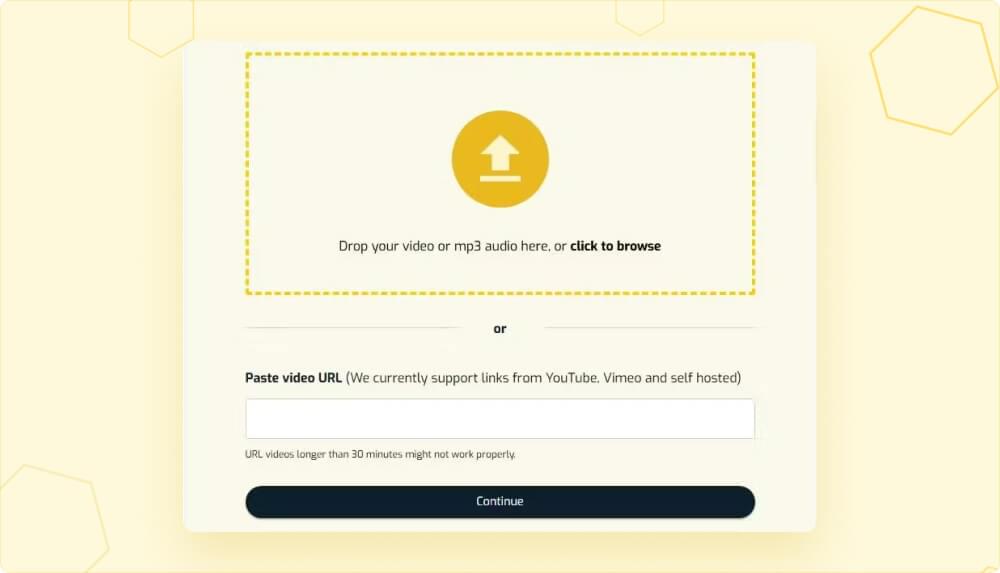
You can also paste a video link (URL) if your video is available online. Once the video uploads, select the language of your video for auto-subtitling.

2. Go to Export tab
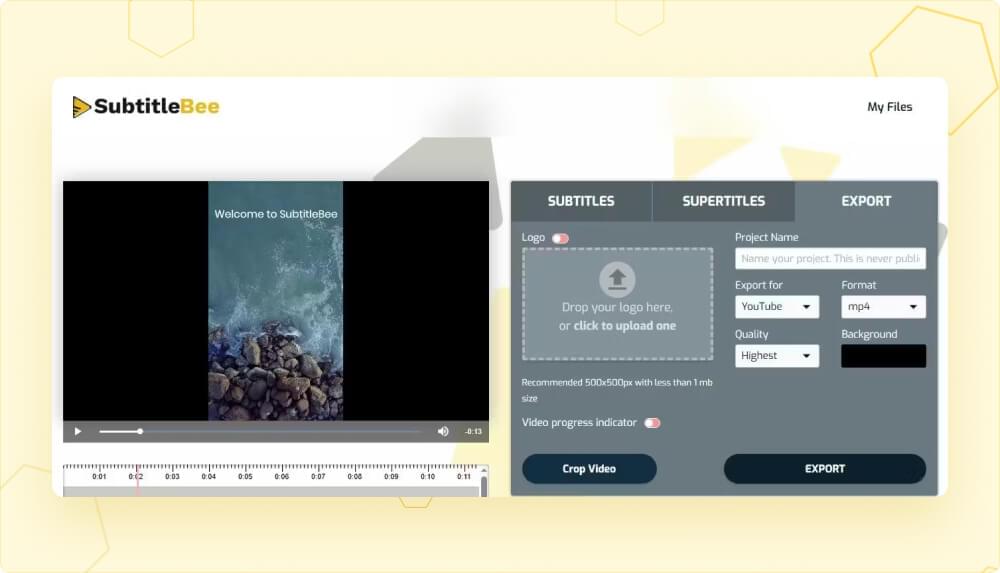
Go to the Export tab on the dashboard. You will see your video on the left side of the screen. On the right side, click within the box under “Logo” toggle to upload the logo picture from your device.
SubtitleBee recommends the standard 500×500px logo picture, under 1 MB for optimal results.
3. Adjust and resize the logo
Adjust and resize the logo using the handles. Click and drag the logo picture to the right place. You want to place the logo where it stands out and stays prominent and does not blend with the background or hide behind subtitles or headings/supertitles either. Try placing it in corners.
You can use the “Preview as” option under the time-stamp bar to change the video dimension as per your target video platform (YouTube, TikTok, Instagram, Facebook, etc) and then play the video to check if the logo needs replacing to another corner.
This logo will appear throughout the video.
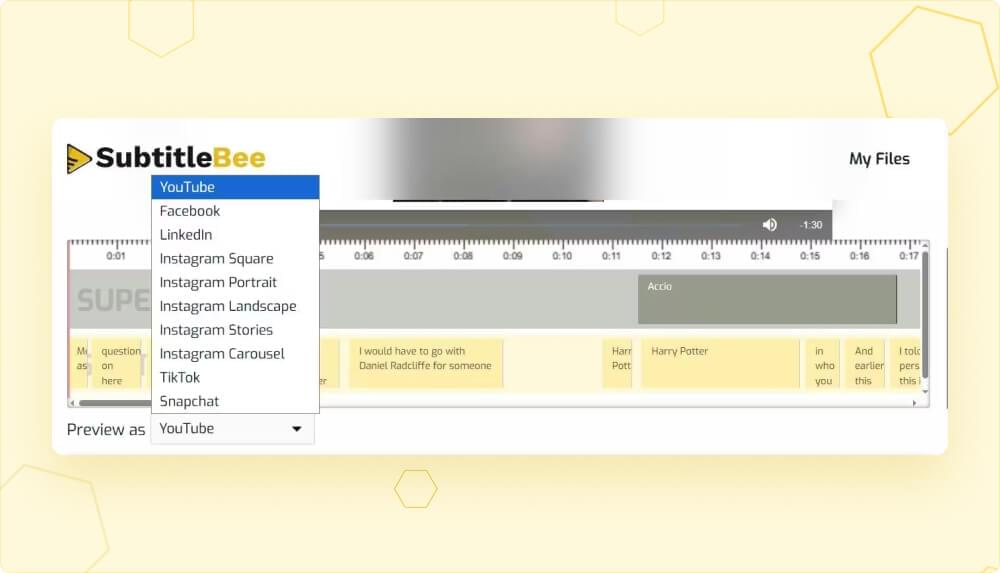
Here’s how it looks for YouTube.

4. Export and download the video with logo
Before you export, we recommend you edit the subtitles, although it is optional if you just want to add logo to video. Since SubtitleBee’s AI automatically generates subtitles for your video, you just have to review them and adjust format or their position on screen to fit your video style.
Once done, give your project a name in the Export tab and click the Export button. The result will have burned-in subtitles + your logo embedded in the video.
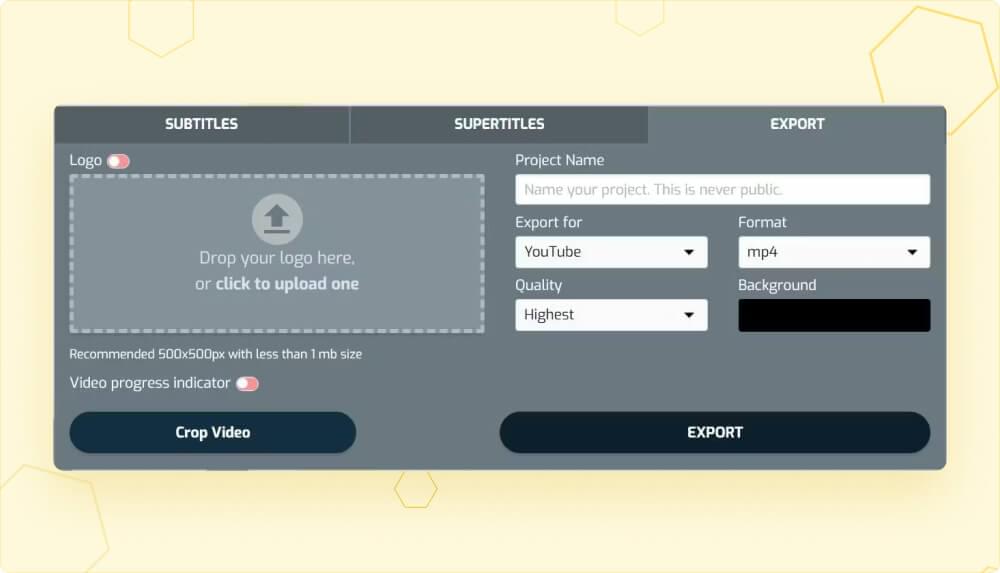
Download your final video. Now you have a fully subtitled, branded video that is ready to be uploaded to social media.
What to do when you do not have a logo?
If you do not have a logo yet, you can quite easily use text as your logo. You can use your name or your business name as a logo in video.
To use text as a logo, you can go to the “Supertitles” tab in SubtitleBee and click on “Create Supertitle”.
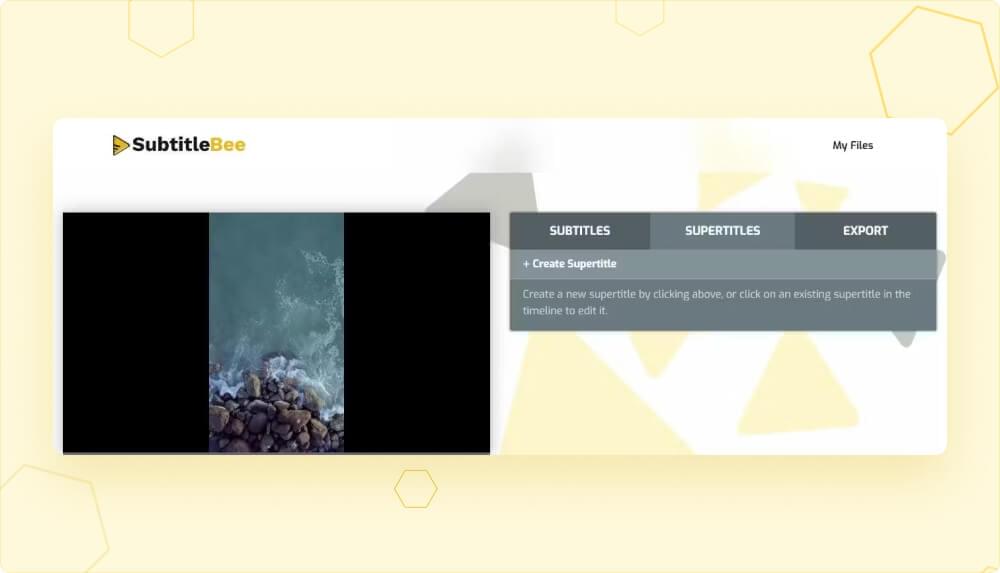
Type-in the text as a headline or a regular text in the box. Change the color, size and background of the text as required. Now you can drive it around your screen top-to-bottom using the V.Position option to choose where you want your logo to appear. Use the time-stamp bar to adjust when the logo should appear on the screen.
Once you have added the logo to video, in the export tab, give your project and name and click the Export button.
What makes a great logo for video content?
Logos are one of the assets or identities that has to look consistent across every video you create. A good logo must always look sharp, readable and be compatible. Here are some simple but effective tips to keep in mind when you design a logo to when you add logo to video.
Tip #1: Use high-contrast colors
Having high-color contrast between your video and logo helps it stay visible on any type of video background. You do not want your logo to be blending in, rather, you want it to stand out from your video.
To do so you can choose to give background to your logo for example, a white or a black background logo.
Tip #2: Maintain brand style
Even if you are creating or using a text logo, use the same color, size and text style in all your content. Try to place the brand logo in the same position in every video. Maintaining this brand consistency becomes your identity and over time, viewers begin to recognize your videos instantly.
Tip #3: Use standard logo size
Create a 500×500px square logo because this sized logo fits well on most screens even without resizing. Another good rule is to keep the file size under 1 MB so that logo file uploads easily and does not affect the overall size of the video file.
Tip #4: Choose the right file format
Use the file formats that can keep the logo graphics clear and support transparency. Use PNG file format for this sake and it is highly supported online. WebP is also a great file format option if supported by your platform.
Avoid formats such as PDF, EPS, BMP, or GIF because they are either too heavy, not designed for video, or may cause quality and compatibility issues.
Conclusion
Now that you know how easy it is to work with SubtitleBee. Whether you are signing up to add logo to video or to add subtitles to videos or audio content, you can do that by following simple steps.
So, now it’s your turn to sign up, upload your first video, and start branding your video to connect with your audience in any language.
Related Reads:
3 ways to add subtitles to video online free without watermark
How to Rotate and Convert a Horizontal Video to Vertical
720p vs. 1080p: Which Resolution to Choose
FAQs
How do I insert a logo in a video?
You can upload your logo directly inside SubtitleBee. Just go to the Export tab, turn on the Logo option, upload your logo image, place it where you want on the video frame, and export. Your logo will appear throughout the video.
How do I insert an image in a video?
SubtitleBee allows you to insert an image in a video, for example a logo. Upload your video on SubtitleBee and go to Export tab. Upload the image in the Logo section, position it, and the platform will burn it into the final exported video.
How do I put watermark over a video?
A watermark is simply a logo placed on the video. In SubtitleBee, upload your video. Upload the watermark image under the Logo toggle in the Export tab and choose its size and placement. When you export, the watermark becomes a permanent part of the video.
Can I use logos in my videos?
Yes. SubtitleBee supports adding logo to any video, be it your personal or business logo. This helps with branding, prevents unauthorized reuse, and keeps your videos consistent across platforms.
What app can I use to put my logo on a video?
You can use SubtitleBee to add logo to video easily. It works online, requires no software installation, supports many video formats, and also generates subtitles and translations in 120+ languages. You can add your logo and export a fully branded video in minutes.



Add and translate your subtitles to more than 100 languages with high accuracy
Our solution
SubtitleBee
Make your video understandable by using SubtitleBee for free
Start now for freeTop Articles

Getting Started with AI-Powered SubtitleBee

3 Effective Ways To Add Subtitles To Video Online Without Watermark

VEED vs. Kapwing: Which Subtitle Generator wins?

Kapwing vs. SubtitleBee: Which subtitling tool should you choose?

5 Top Verbit Alternatives for Transcription