



video tutorials for social media
How to add captions to Facebook videos
Billions of people scroll through Facebook every day because video is the best type of content and Facebook video has a lot to offer. But if your Facebook videos don’t have captions, you’re missing out on a huge chunk of your audience like viewers who are deaf, hard of hearing, or those watching on mute. When you add captions to Facebook videos, you let your content be more accessible and engaging.
In this read, we will learn how to add captions to Facebook videos using Facebook and a simple captioning and subtitle generator, SubtitleBee.
How to add captions to Facebook videos using Facebook app
Facebook has built-in tools that can auto-generate captions for your videos in just a few clicks. Here is how you can do it directly on the platform.
Upload your video to Facebook
Login to Facebook & click on What’s on your mind? or the Photo/Video.
Select the video file you want to post and let it upload.
Automatically generate captions
- Once your video is selected, look for the Video Options / Edit → Captions.
- Switch on the auto-generate captions option.
Facebook’s AI will listen to your audio and create a text transcript automatically.
Edit captions for accuracy
- Click on Edit Captions to review the text line by line.
Facebook allows you to add translated captions, in case you want to translate your subtitles. Go to ‘caption settings’ → ‘add additional languages’.
You can also upload pre-translated caption files here with your Facebook video.
Save and post Facebook video
- Once you finish editing captions, click Save.
- Finish adding your post description, tags, or title, and click Post.
If you want to get ideas on Facebook post captions, here’s a list of 300 best Facebook post caption ideas to match your taste.
How to add captions to existing Facebook videos
If you have already uploaded a video without captions:
- Go to the video on your profile and click the three-dot (…).
- Select Edit Post and choose to add captions
This feature lets you update all your past videos for better accessibility.
How to add captions to Facebook videos using SubtitleBee
Use SubtitleBee if you want to make your captions look more attractive and appealing like adding stylish colors, fonts and styles. SubtitleBee is an AI subtitle-generating tool that transcribes with 99% accuracy. It helps you to customize your captions, and offers you more than 120 languages to translate captions in.
Let’s look at these steps in detail to add captions to Facebook videos using SubtitleBee:
Upload your Facebook video
Go to SubtitleBee and upload your video file. If you have already saved your video to your device, upload it from there. SubtitleBee also supports links from YouTube, Vimeo and self hosted sites.
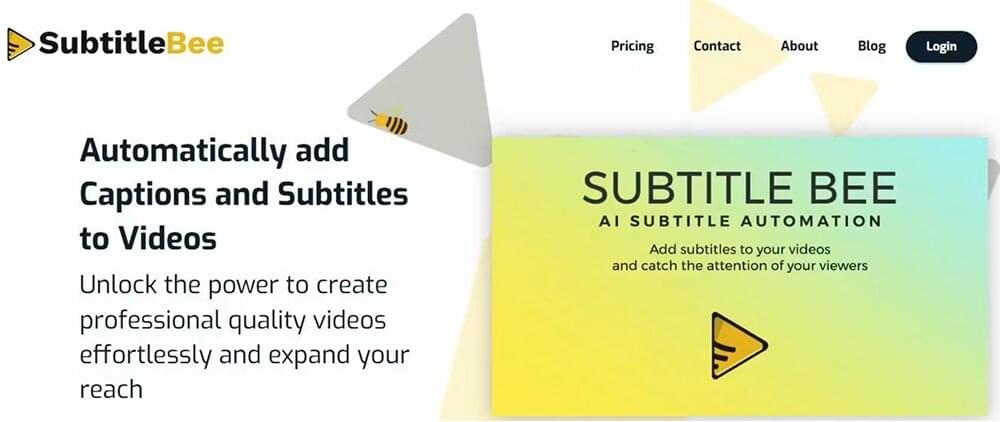
Let the AI generate your subtitles
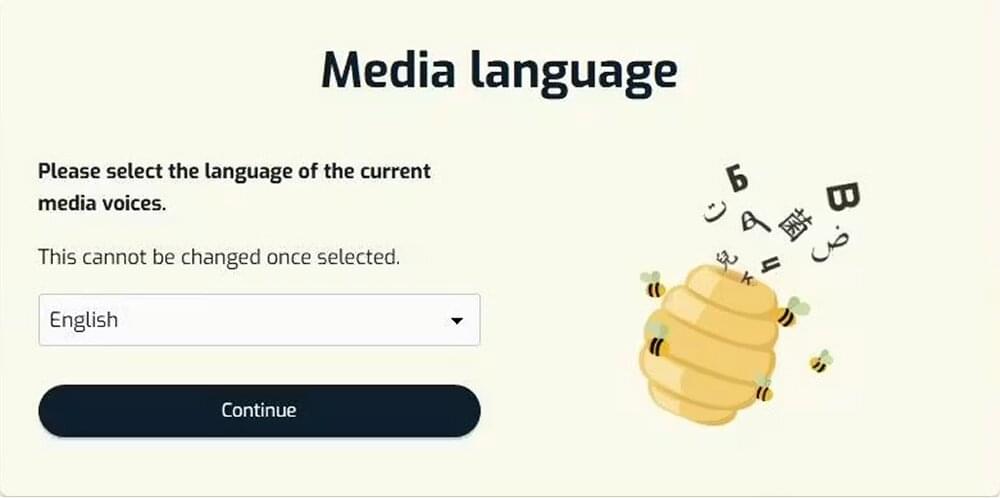
Choose the language spoken in the video and click continue. SubtitleBee’s subtitle generator AI will listen to your video and generate audio to text transcription in seconds.
Edit text and timing
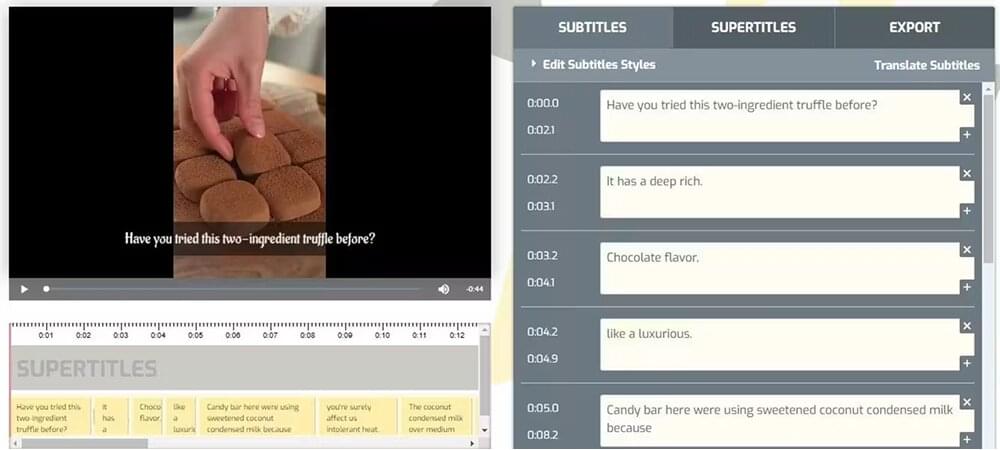
In the SubtitleBee dashboard, you have full control to fix spellings, adjust timing or how and when the captions will appear and disappear on the video.
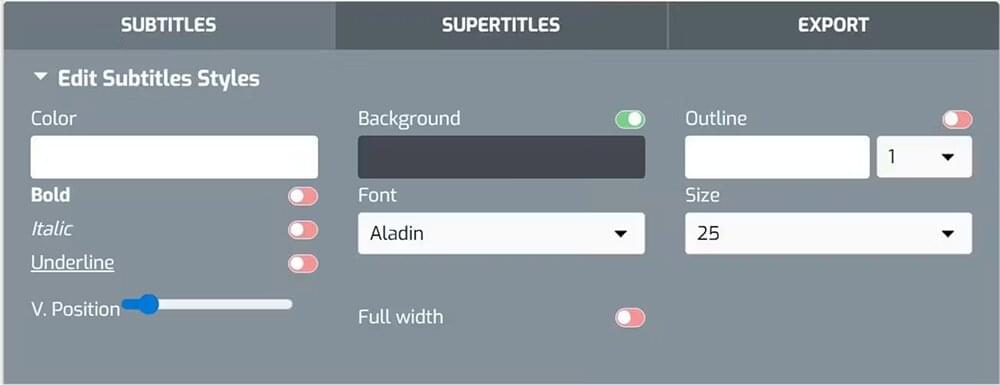
Style your captions
There are many reasons why SubtitleBee is the preferred choice for Facebook video captioning. Here’s a list:
- Font: pick from a wide library that fits your brand
- Color: primary text color, outline, shadow, background
- Position: drag captions anywhere on screen, including the safe zones
- Size: scale up for emphasis on keywords
- Animation: you can choose between word-by-word reveals, karaoke-style highlights, and clean static captions
Translate (optional)
If you need to translate your Facebook video captions, click “Add Subtitles”. SubtitleBee will give you a list of 120+ languages to choose from for translation. You get to download the caption file in translated language in the end as well. This step is optional however.
Download and upload to Facebook
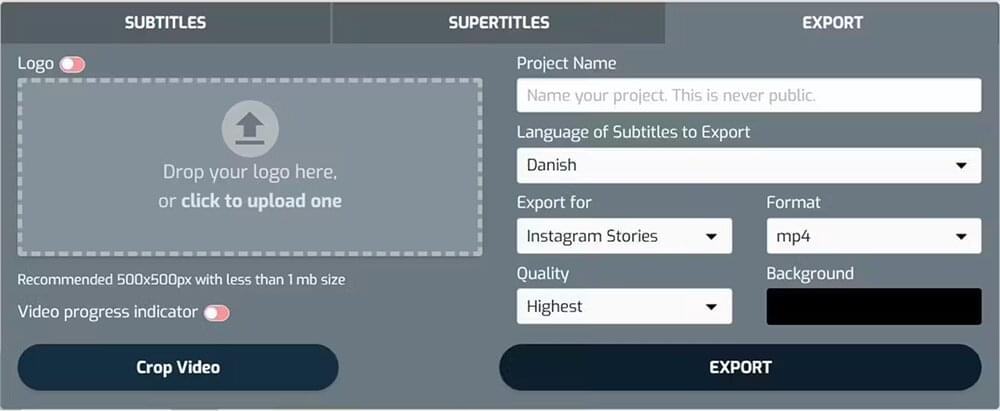
Go to the ‘Export’ tab, this is where you export your video with the subtitles burned in or embedded (open cc). Click here to understand closed vs open captions.
Save it to your device, then upload to Facebook. The captions are already part of the video, so they will play on every device without needing to turn them on.
Export your newly localized Facebook video with hardcoded subtitles to any platform, or download the caption file as a separate SRT, TXT, ASS or VTT file for manual caption uploading.
Sign up for SubtitleBee free and add subtitles to your first Facebook video in minutes.
Why add captions to Facebook videos?
If you are wondering why I should add captions to Facebook videos, then please know that Facebook video captions increase your video accessibility and viewers engagement. Captions let everyone enjoy it and people follow along better with text. Here are a few more reasons why you should add captions to Facebook videos:
- Up to 85% of Facebook videos are watched without sound. Captions let them consume your content anywhere.
- Captions allow viewers who are deaf or hard of hearing to enjoy your videos without missing anything.
- Videos with captions hold viewers’ attention longer, leading to higher watch times, more likes, and more shares.
- Captions help non-native speakers understand the video better.
How to enable Facebook video captions as a viewer
If you are watching a Facebook video and the sound is off, you can manually turn captions on if the creator provided them:
- Click or tap on the video while it is playing.
- Look for the CC (Closed Captions) icon in the bottom corner of the video player.
- Click the CC icon to toggle captions on or off.
- If you want to change default caption settings for your entire account, go to your Facebook Settings & Privacy → Settings → Video, and turn Always Show Captions to On.
Conclusion
Technology is continuously changing, and maybe soon adding captions to Facebook videos won’t be needed. Until then, Facebook video captions are a must. They make your content accessible, engaging, and easy to watch. Whether you use Facebook’s built-in automatic generator or SubtitleBee for extra style, do take a few extra minutes to caption your Facebook videos. This will help you connect with a much bigger Facebook audience. Good Luck!!
Frequently Asked Questions About Adding Facebook Captions
What are Facebook’s caption file requirements?
Facebook has a rule for the caption files names.
To upload an .srt subtitle file to Facebook, you must use the country and language codes to your file name (for example, filename.en_US.srt for American English).
Facebook created this format so its system can assign the correct dialect and locale to viewers.
Does Facebook automatically caption videos?
Yes, Facebook features an automated captioning tool powered by AI speech recognition. When uploading a video, you can turn on the auto-caption feature, which transcribes your spoken audio into text within seconds. You can then review and edit the generated text to fix any typos or misheard words before publishing.
Why can’t I read captions on Facebook videos?
Automated closed captions might be turned off in your account settings. Check Settings & Privacy → Settings → Video and toggling ‘Always show captions’ to On.



Add and translate your subtitles to more than 100 languages with high accuracy
Our solution
SubtitleBee
Make your video understandable by using SubtitleBee for free
Start now for freeTop Articles

Getting Started with AI-Powered SubtitleBee

3 Effective Ways To Add Subtitles To Video Online Without Watermark

VEED vs. Kapwing: Which Subtitle Generator wins?

Kapwing vs. SubtitleBee: Which subtitling tool should you choose?

5 Top Verbit Alternatives for Transcription