



video tutorials for social media
Can You Edit Captions on TikTok? Yes, Even After Posting
Yes, you can edit captions on TikTok, both before and after you post. On a live video, tap the caption on screen and choose Edit captions to fix the subtitles, or use Edit post from the More options (…) menu to change the description, hashtags and cover without deleting the video.
A lot of the confusion online comes from the word “caption”. TikTok uses it for two different things: the subtitles that appear on the video while it plays, and the description text under your username, which many people also call the caption. TikTok has separate tools for each, and both now work after posting.
This guide shows how to add and edit TikTok captions before posting, how to fix them after posting, how to change the description, hashtags and cover of a live video, and what to do if the edit option is missing. The steps below follow TikTok’s help center as of 2026. TikTok changes button names and menus often, so your app may look slightly different.
Table of Contents
- What are TikTok Video Captions (Subtitles), Description and Text?
- How to Add TikTok Captions in a TikTok Video?
- Can You Edit Captions on TikTok After Posting?
- How to Edit Video Description and Hashtags on TikTok After Posting?
- Can You Change the Cover Picture on TikTok After Posting?
- Edit Captions Option Missing? Common Fixes
- Why Are Video Captions Important on TikTok?
- FAQs
What are TikTok Video Captions (Subtitles), Description and Text?
On a TikTok screen, “captions” can mean three different things. Knowing which one you want to change tells you which tool to use.
- Captions (subtitles): on-screen text that shows what is being said as the video plays. TikTok offers two kinds. Auto-generated captions use speech recognition to transcribe the audio of videos you upload, based on the video language you select. Creator captions are captions you turn on with the Captions button while editing, then review and style yourself (font, color and more). Both are a form of closed captions (CC) and help people who are deaf or hard of hearing, or anyone watching on mute.
- Text: anything you add with the Text tool, such as titles, hooks, labels or manual subtitles. Text is part of the video edit.
- Description: the text under your username at the bottom left of the video. This is where you write your post text, add hashtags, emojis and @mentions. Many people call this the TikTok caption too.
| What you want to change | Tool to use after posting |
|---|---|
| Subtitles (auto captions) | Tap the caption on the video, then Edit captions |
| Description and hashtags | More options (…) > Edit post |
| Cover (thumbnail) | More options (…) > Edit post > Edit cover |
| Text added with Text tool | Usually not editable; edit the video and repost |
How to Add TikTok Captions in a TikTok Video?
Adding captions only takes a few taps and makes your video easier to follow for everyone. Here is how to turn on creator captions while you create a video.
1. Record or Upload a Video
Open the TikTok app and tap the Add post (+) button at the bottom to start creating your video. Record a new clip or upload one from your device.

2. Proceed to the Editing Screen
After recording or uploading, continue to the preview screen, where you can add effects, text, stickers and captions.
3. How to add ‘Captions’?
Tap the Captions button on the side panel. TikTok transcribes the speech in your video into text automatically. If you are using creator captions for the first time, TikTok asks you to turn the feature on.
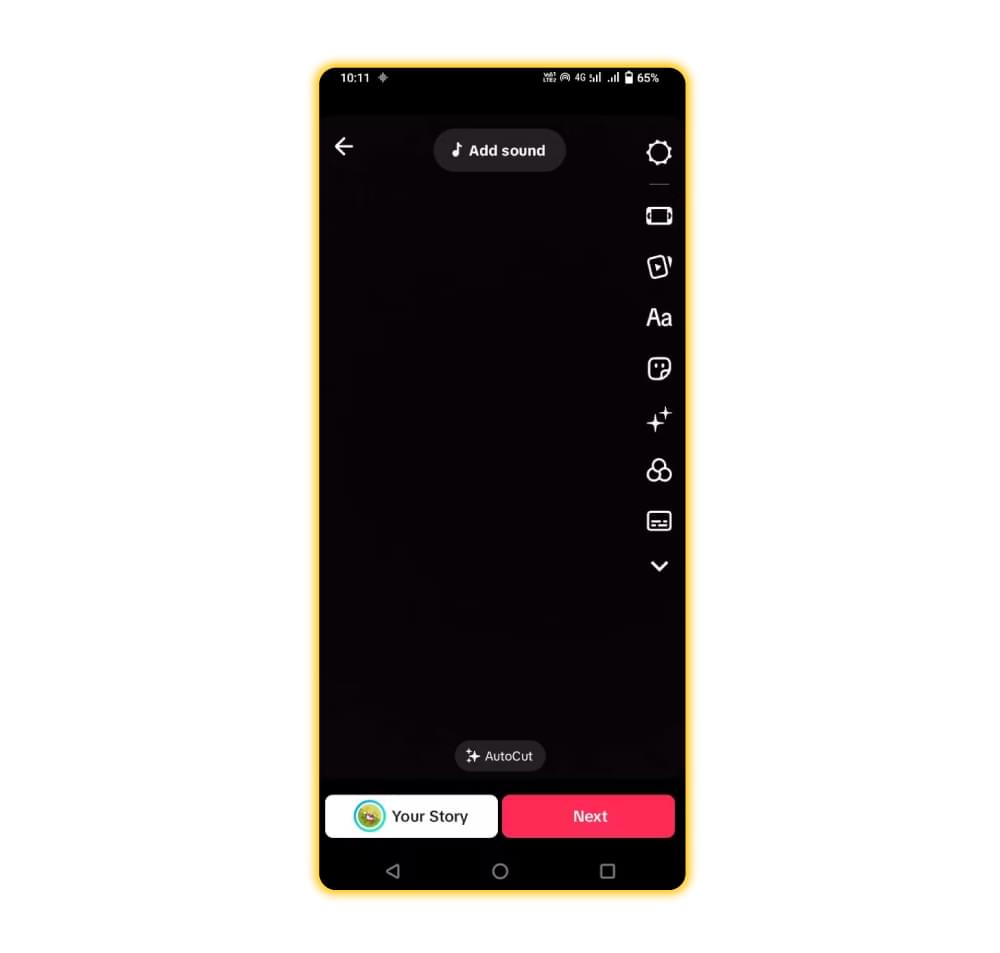
4. Edit Auto-Captions
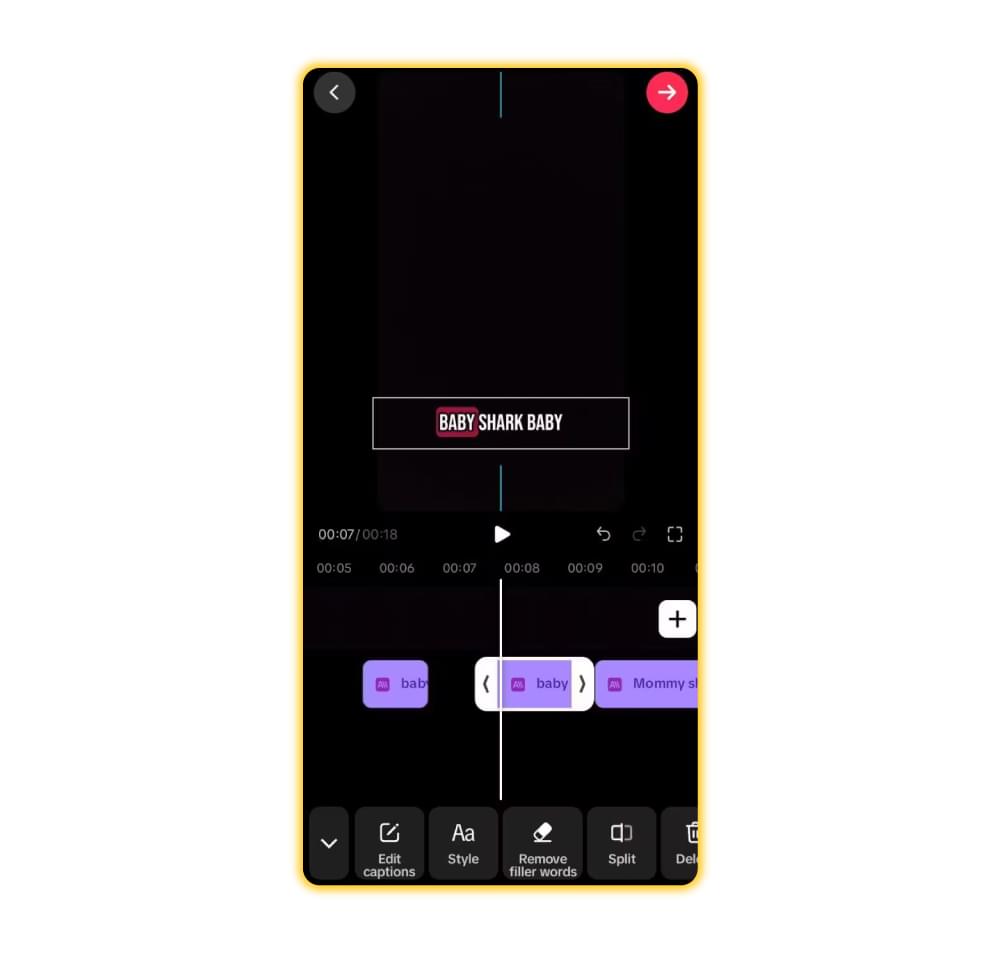
Once the captions are created, preview and edit each line. Fix misheard words, names, punctuation and slang, or delete lines you do not want. You can also change the font style and color. When you are happy with the captions, tap Save.
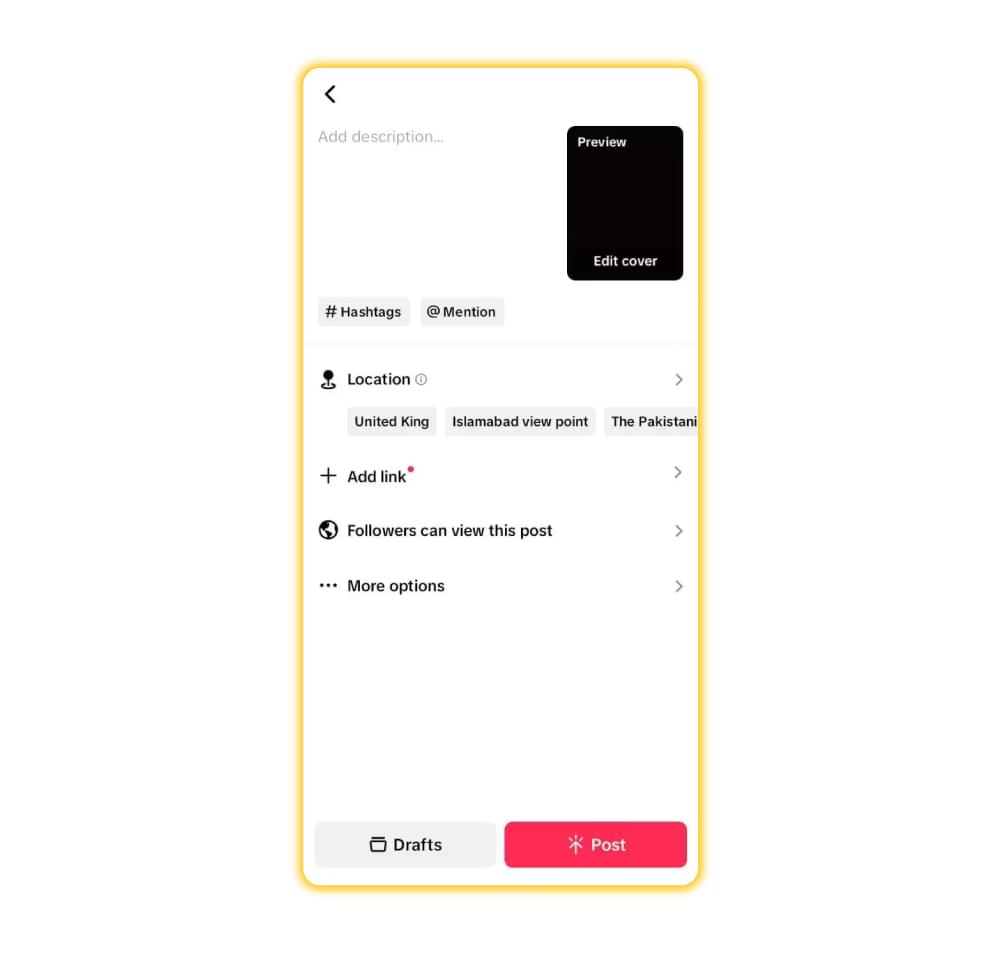
5. Add Video Description and Hashtags
On the post screen, write your description and add relevant hashtags and mentions. Under More options, you can also tap Select video language so TikTok generates auto captions in the right language.
6. Save and Post
Tap Post to publish your video.
If you want more control over caption style, or you post the same video on several platforms, you can also add subtitles before uploading. Here is how to use a third-party tool like SubtitleBee to add subtitles to your TikTok video automatically.
Can You Edit Captions on TikTok After Posting?
Yes. You can edit or remove the captions on a TikTok video after it is posted, without deleting it and without losing views, likes or comments. Before TikTok added this option, the only way to fix a typo in the captions was to delete the video and upload it again.
TikTok’s help center describes these steps for editing auto-generated captions on a posted video:
1. Open the video you want to edit
Go to your profile and open the posted video that has captions.
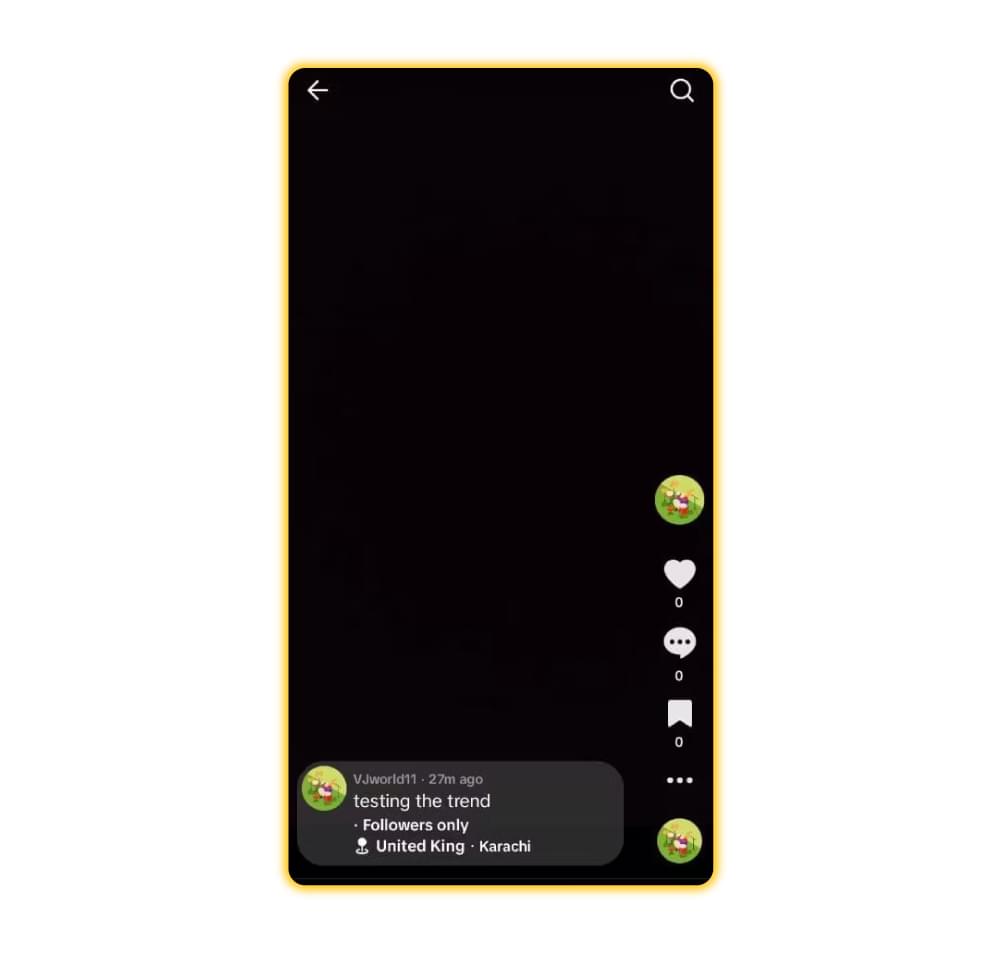
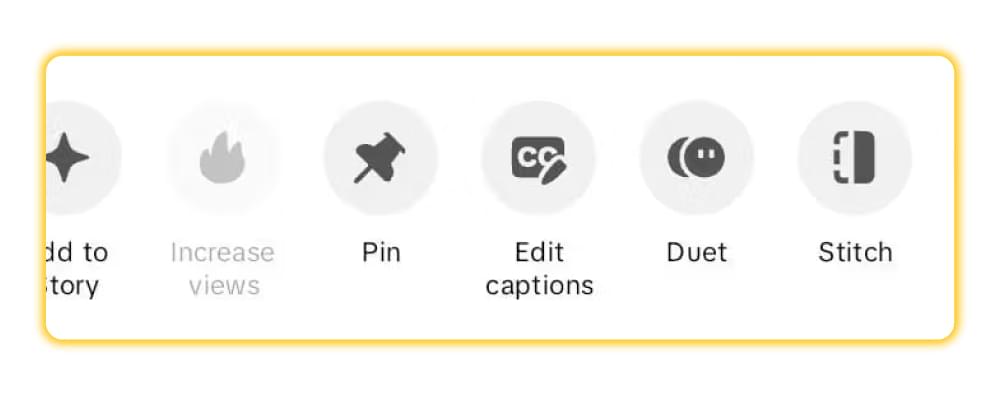
2. Tap Edit captions
Tap the caption on your video, then tap the Edit captions button. In some app versions you can also find Edit captions by tapping the More options (…) button on the side of the video.
3. Edit the text
Your existing captions appear line by line. Correct words, fix punctuation or remove lines you do not want.
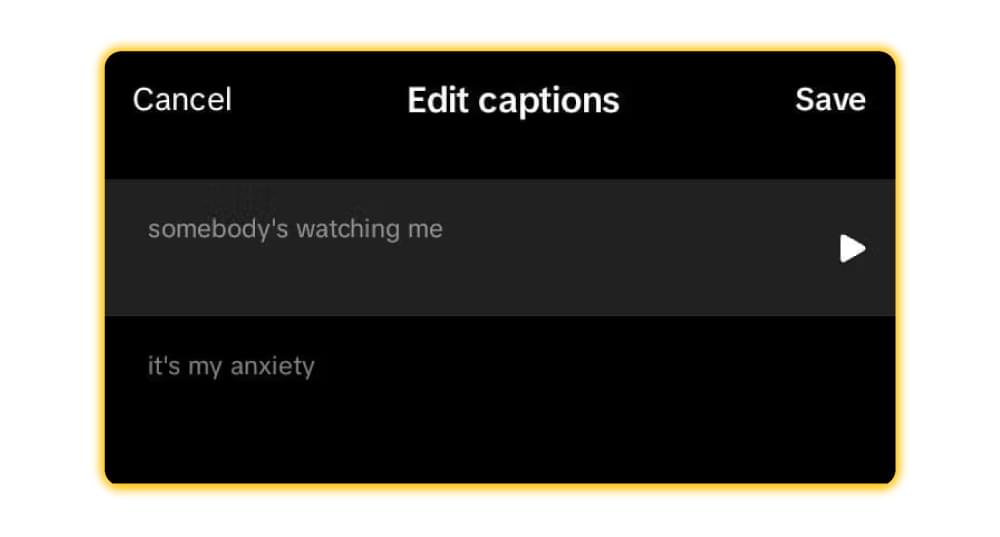
4. Tap Save
Tap Save at the top to update the captions on your video.
This is useful for fixing misheard words, brand names and slang, which speech recognition often gets wrong. You can watch the steps in this video.
Tip: Edit captions only appears on videos that have captions. If your video was posted without them, there may be nothing to edit, so turn on captions before you post.
How to Edit Video Description and Hashtags on TikTok After Posting?
Yes, you can also edit the TikTok video description, hashtags and mentions after posting, using the Edit post option. TikTok’s help center confirms the More options (…) > Edit post path for posted content.
Here is how to do it:
Go to your profile and open the posted video you want to edit.
Tap the More options (…) button on the side of the video.
Tap Edit post from the menu options.
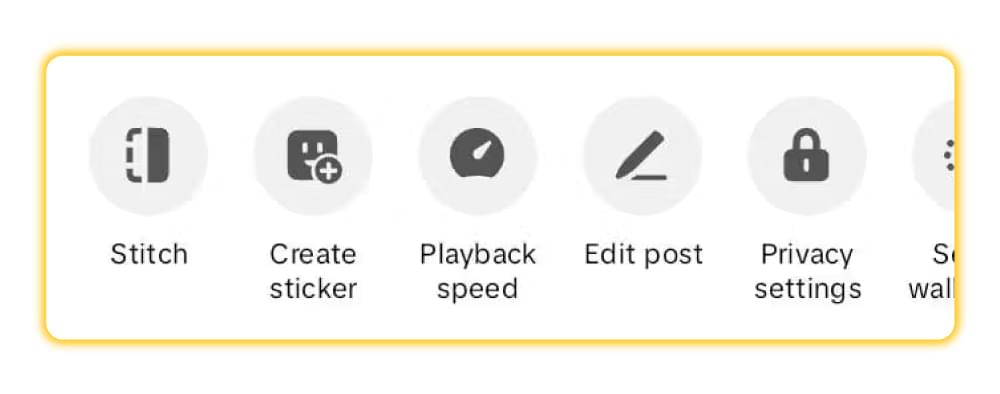
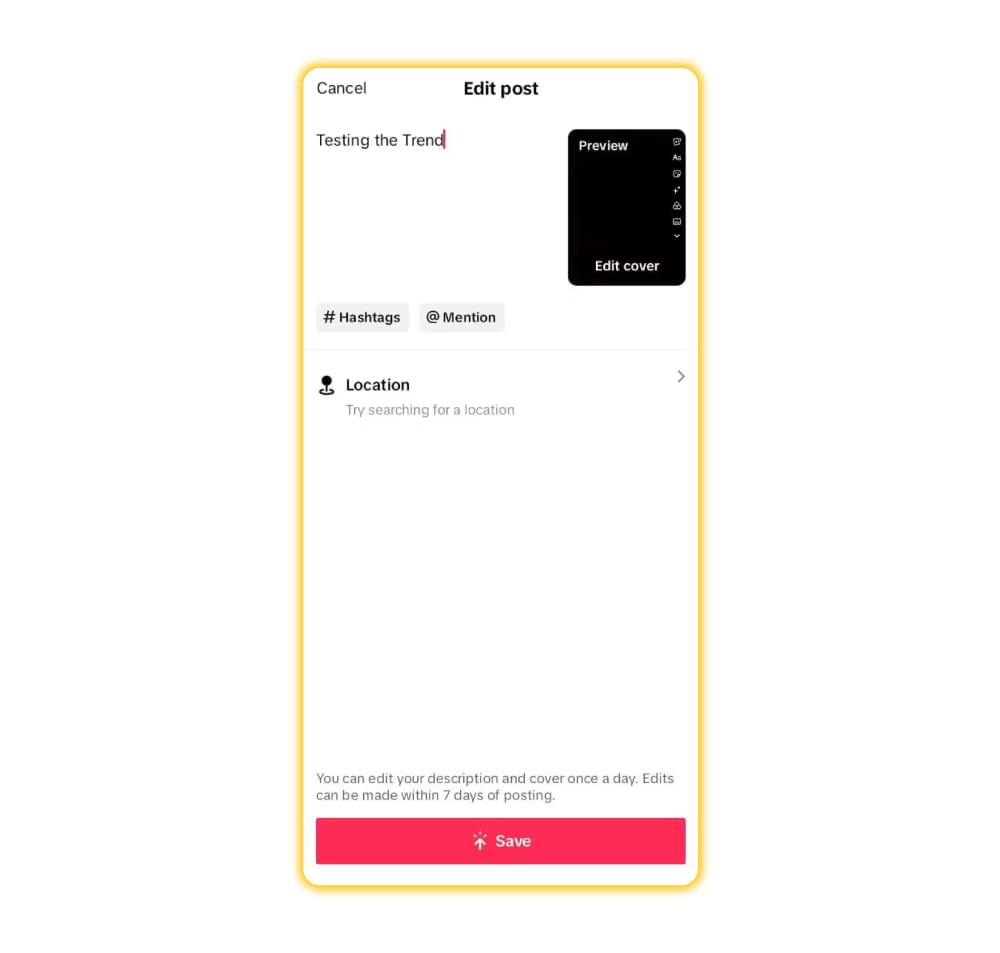
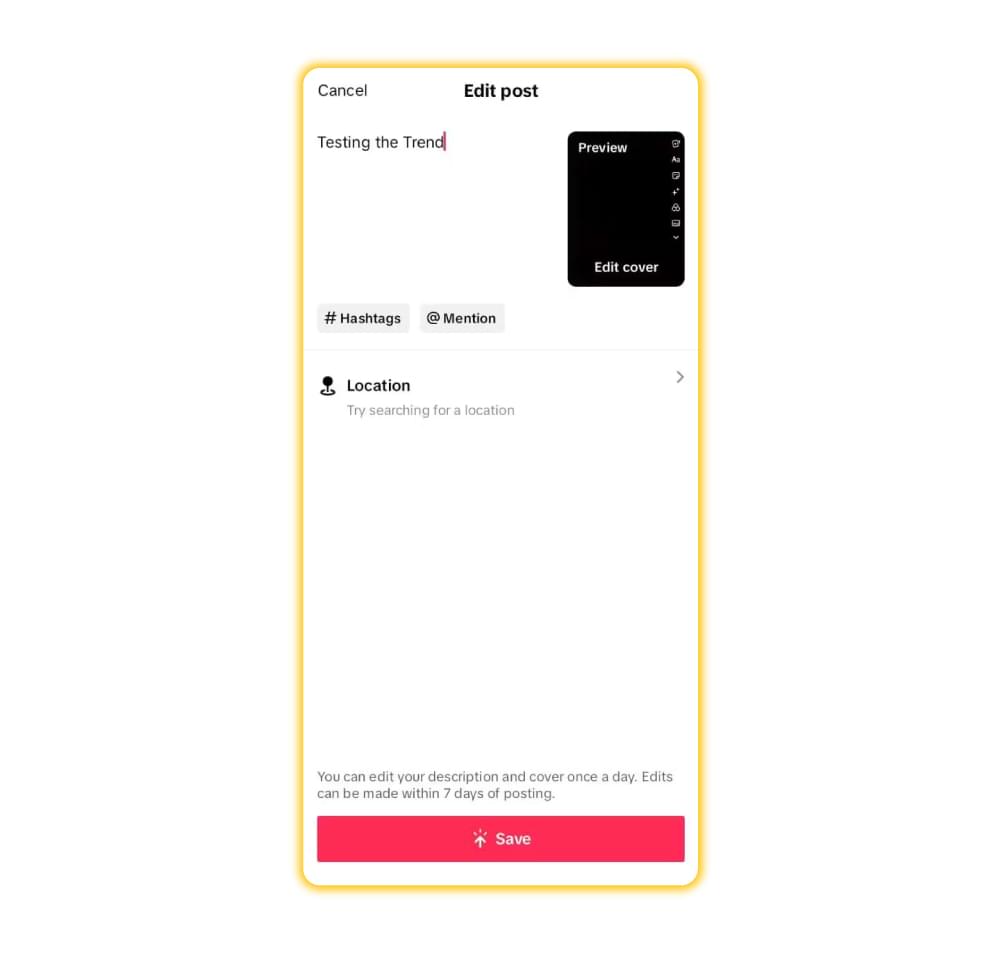
Change the description, hashtags or mentions. You can also change the cover from this screen.
Tap Save to apply the changes.
The post keeps its link, views, likes and comments, because it is the same post. Watch this video tutorial to see it in action.
Limits to know: TikTok does not publish the exact rules in its help center, but the app shows a notice about edit limits. Creators commonly report that posts can be edited only within about 7 days of posting and about once per day, and that edits may go through a review before they appear. If the option is greyed out, check the message in the app.
Can You Change the Cover Picture on TikTok After Posting?
Yes. The Edit post screen also lets you change the cover picture (thumbnail) of a video that is already live, so you do not need to delete and reupload it to fix a weak thumbnail. Your views, likes and comments stay the same.
Here is how to change the cover image on a posted TikTok video:
Go to your profile, open the video and tap the More options (…) button.
Select Edit post.
- Tap Edit cover to choose a new thumbnail.
- Pick a frame from the video, or tap Upload to use an image from your device. You can also add text to the cover.
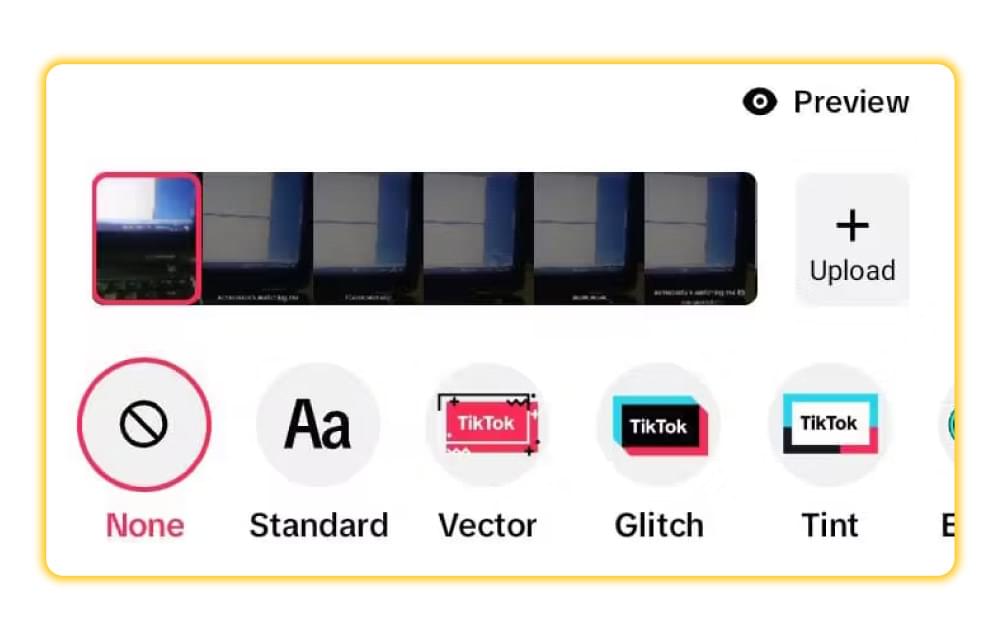
- Tap Save to apply the changes.
A clear cover with a short title helps your video stand out on your profile grid and in search results.
Edit Captions Option Missing? Common Fixes
If you cannot find Edit captions or Edit post, work through these checks:
- Update the app. New editing options only appear in recent versions of TikTok.
- Check that the video has captions. Edit captions only shows up on videos that were posted with auto-generated or creator captions.
- Check the video language. Auto captions are only generated for eligible videos in the language you selected, so a video in an unsupported language may have no captions to edit.
- Check the post age and edit count. If Edit post is unavailable, the app usually explains why, for example if the post is too old or you already edited it recently.
- Try TikTok Studio. The TikTok Studio app also lets you add and edit captions for your posts, so try it if the main app does not show the option.
- Repost as a last resort. If none of this works, save the video, fix the captions, and post it again. The new post starts with zero views, so only do this for recent videos.
Why Are Video Captions Important on TikTok?
People often search how to improve the reach of their TikTok videos or how to go viral on TikTok. Good captions will not make a weak video go viral, but they make every video easier to watch and understand.
1. Captions Make Your Videos Accessible
Captions let people who are deaf or hard of hearing follow your video, and they help anyone watching with the sound off, for example while commuting or in a quiet place. If you post a cooking video with captions like “Step 1: Melt the butter” and “Add chopped garlic and stir for 1 min”, someone watching on mute can still follow the recipe.
2. Bring Clarity
Sometimes the audio is not clear: the background is noisy, your voice is quiet, or you use slang or have a strong accent. Captions fill in the gaps so nothing gets lost.
3. Boost Engagement
On-screen text catches the eye while people scroll. A clear line at the start of the video gives viewers a reason to stop and keep watching.
Tip: Many creators put a short hook in large text at the start, such as “Wait for the end” or “This changed my morning routine”, to build curiosity.
4. Subtitles Help with Language Learning and Global Reach
Captions help non-native speakers follow your content and help viewers who are learning your language. If you want to reach viewers in other languages, SubtitleBee can generate subtitles with up to 95% accuracy and translate them into 100+ languages. You can style the font, color, size and opacity, then download the video with burned-in subtitles or get the subtitle file as .srt, .ass, .vtt or .txt. The free plan includes 10 minutes of auto subtitles.
Related Reads:
Best TikTok caption ideas for 2025
TikTok emojis revealed: secret codes and list 2025
How to turn on captions on TikTok
FAQs
Can I Edit a TikTok Caption After Posting?
Yes. To fix the on-screen captions, open your video, tap the caption, then tap Edit captions, make your changes and tap Save. To change the description text under your username, tap More options (…) > Edit post instead. Neither option requires you to delete or repost the video.
How do I Edit Text on a TikTok Video After Posting?
It depends on the text. Captions can be edited with Edit captions, and the description, hashtags and cover can be edited with Edit post. Text you added with the Text tool is part of the video itself, so in most cases you need to edit the video again and repost it to change it.
How Do You Edit Subtitles on TikTok After Posting?
Subtitles on TikTok are the captions, so the steps are the same:
Go to your profile and open the video.
Tap the caption on the video.
Tap Edit captions.
Edit or remove any lines.
Tap Save at the top.
Is it Possible to Edit TikTok Video Captions, Video Descriptions or Hashtags and Cover Picture After Posting?
Yes. Use Edit captions for the subtitles and Edit post for the description, hashtags, mentions and cover. Edit post has limits that the app shows when they apply. Creators commonly report a window of about 7 days after posting and one edit per day.
Why Can’t I Edit My TikTok Caption?
The most common reasons are an outdated app, a video that was posted without captions, or a post that is past the edit window or already edited today. Update TikTok, check that captions were turned on, and read the message the app shows. If nothing works, fix the video and repost it.



Add and translate your subtitles to more than 100 languages with high accuracy
Our solution
SubtitleBee
Make your video understandable by using SubtitleBee for free
Start now for freeTop Articles

Getting Started with AI-Powered SubtitleBee

3 Effective Ways To Add Subtitles To Video Online Without Watermark

VEED vs. Kapwing: Which Subtitle Generator wins?
Kapwing vs. SubtitleBee: Which subtitling tool should you choose?

5 Top Verbit Alternatives for Transcription