



video tutorials for social media
How to hardcode subtitles? A complete guide for 2026
If you upload videos on social media, you are likely already familiar with the issues of soft subtitles. These issues include incorrect sync, poor appearance, or sometimes softsubs can even disappear for no reason. This is why nowadays we see hardcoded subtitles (also called open captions) on most of social media videos.
Let’s see in detail what exactly hard-coded subtitles are and how to hardcode subtitles.
What are hardcoded subtitles?
Hardcoded subtitles, sometimes also called burned-in subtitles, open captions, or hardsubs, are subtitles that have been permanently added into the actual pixels of a video. It means the text becomes part of the video itself permanently, just like a watermark or a logo. If you want the subtitles burned in without a tool’s watermark on top, here are 3 free ways to add subtitles to a video online without a watermark.
Once a subtitle is hardcoded, it cannot be turned off, changed, or removed. It will also appear on every device and in every player, regardless of subtitle settings or compatibility.
You can think of hardcoded subtitles as printing text directly onto an image with a marker. The words are now part of the picture and not a sticker you can peel off.
What are the differences between hardcoded vs softcoded subtitles?
Before we discuss in detail how to hardcode subtitles, it is important to understand how they are different from softcoded subtitles (also called closed captions)
Hardcoded vs softcoded subtitles
| Feature | Hardcoded Subtitles | Softcoded Subtitles |
|---|---|---|
| Location | Burned into the video frames | Stored as a separate file (SRT, VTT, ASS) |
| On/off toggle | No | Yes (e.g. the CC button on YouTube) |
| Editable after export | No | Yes, by editing the subtitle file |
| Multiple languages | One language per video | Multiple language tracks possible |
| Display compatibility | Plays everywhere with similar appearance | Dependent on player and platform support |
| File size | Same as the original video | Slightly larger |
| Best for | Social media, ads, hardcoded translations | Streaming, accessibility, multilingual videos |
Related: Open caption vs closed caption
2 best methods to hardcode subtitles
There are 2 reliable ways you should know about how to hardcode subtitles into a video. Both of these methods are suitable for beginners as well as pro-level video experts.
Here’s a quick comparison of each method:
SubtitleBee vs HandBrake
| Method | Description | Best for | Difficulty | Speed | Cost |
|---|---|---|---|---|---|
| SubtitleBee | Online AI subtitling tool | Content creators, social media platforms, and users needing fast results | Easy | Minutes | Free trial available to get started |
| HandBrake | Open-source desktop software | Long videos, batch processing, full control | Medium | 10–60 min per video | Free |
Now let’s see how to hardcode subtitles with both of these tools:
Method 1: How to hardcode subtitles with SubtitleBee?
SubtitleBee is a user-friendly tool to generate accurate and hardcoded subtitles for your video automatically online. You can easily access the tool in your browser, and you don’t have to install any external software for this.
The best part is that all you need if your video to automatically generate the subtitles. You don’t need any subtitle file. Instead, the entire subtitle generation as well as the hardcoding process can be completed in the same dashboard of SubtitleBee.
Overall, SubtitleBee is the best tool to hardcode subtitles because:
- There’s no need to install external software
- It supports AI-powered transcription and subtitle generation with 99% accuracy in 120+ languages.
- You can translate the generated subtitles into different languages
- You can also edit the subtitles in terms of style, fonts, and colors.
- Video with hardcoded subtitles can be exported completed within a few minutes.
Here are the 4 steps you should follow to hardcode subtitles online using SubtitleBee:
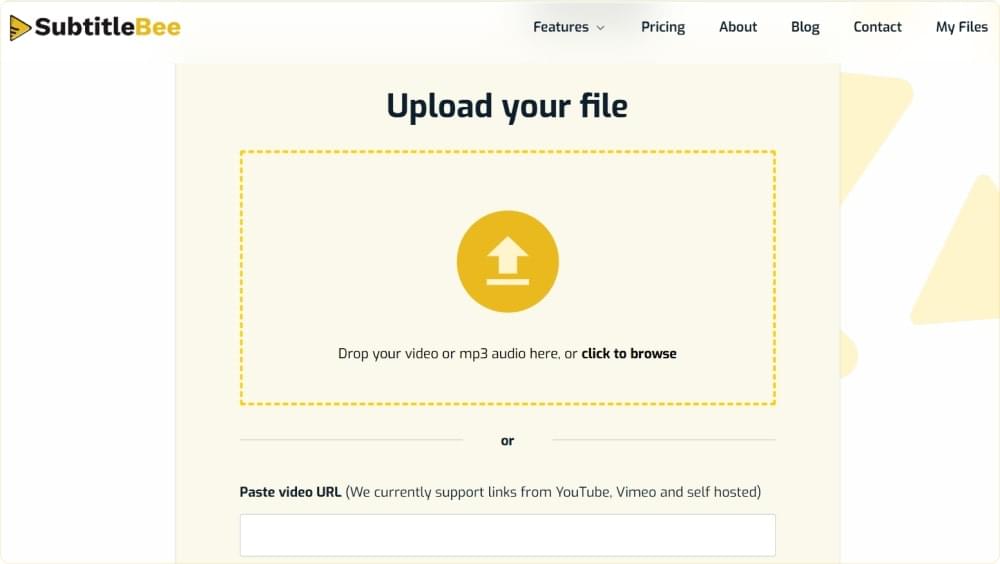
Step 1: Upload your video
Open SubtitleBee and sign in (or sign up for a free account). Choose the media language of your video and upload the video either from your computer or via a self-hosted URL.
Step 2: Generate subtitles automatically
The AI will transcribe the audio of your video and create perfectly timed and synchronized subtitles in just a few minutes, even for long videos.
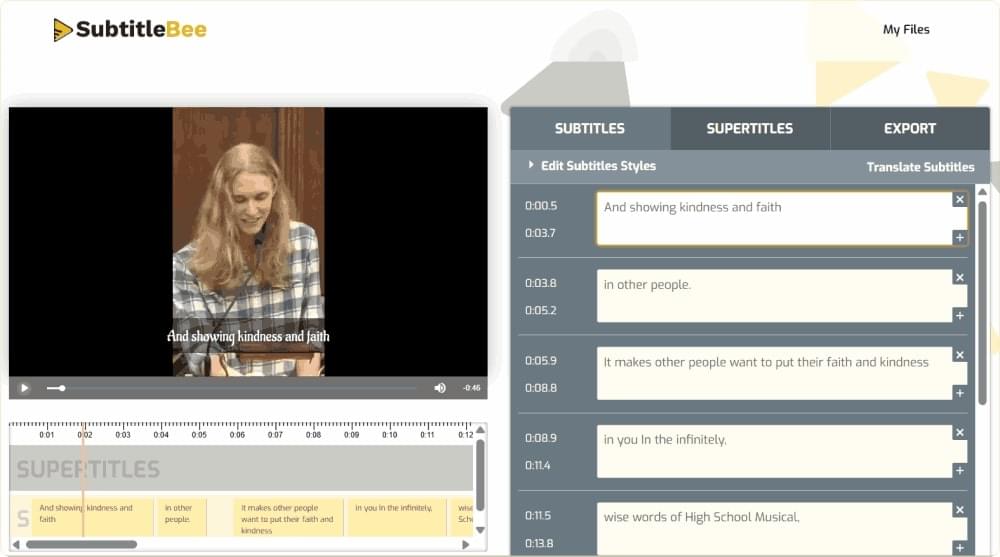
Step 3: Edit and style your subtitles
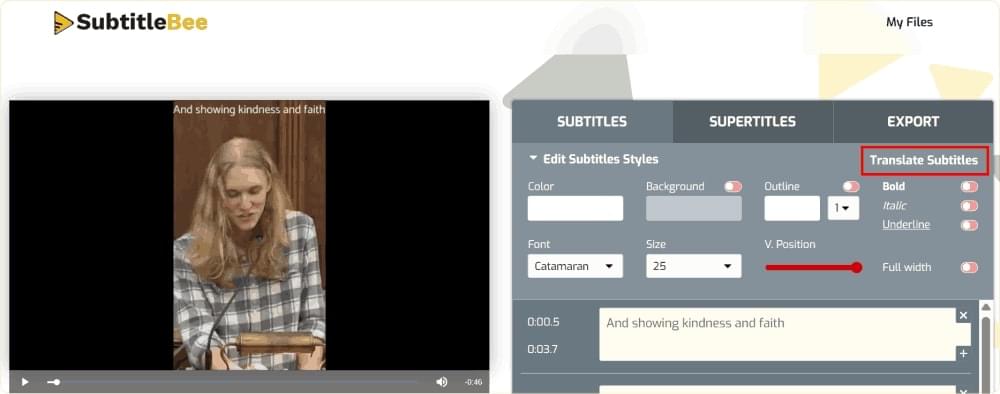
You can review the generated subtitles in the editor and fix any words the AI missed. There are also editing options available in SubtitleBee dashboard, including the options to change the font, color, size, position, and add background highlights to make your hardcoded subtitles pop on social feeds.
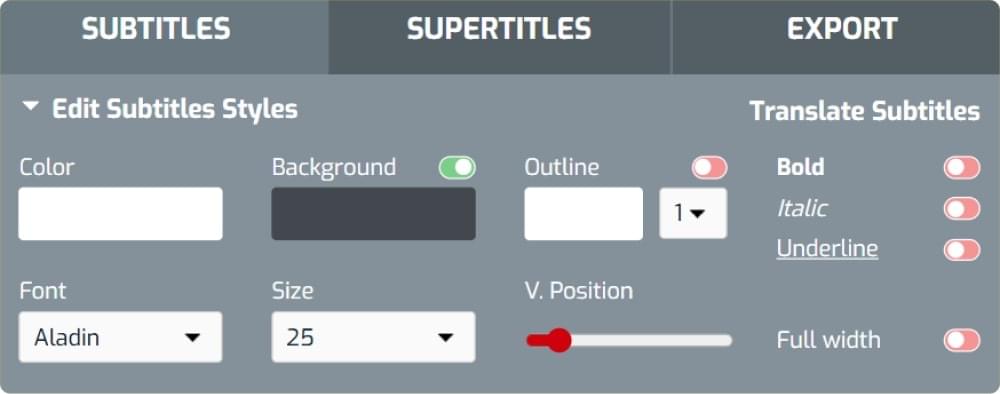
Additionally, you can also click on the translate option to translate into 120+ languages. SubtitleBee will create a translated version automatically.
Step 4: Export with hardcoded subtitles
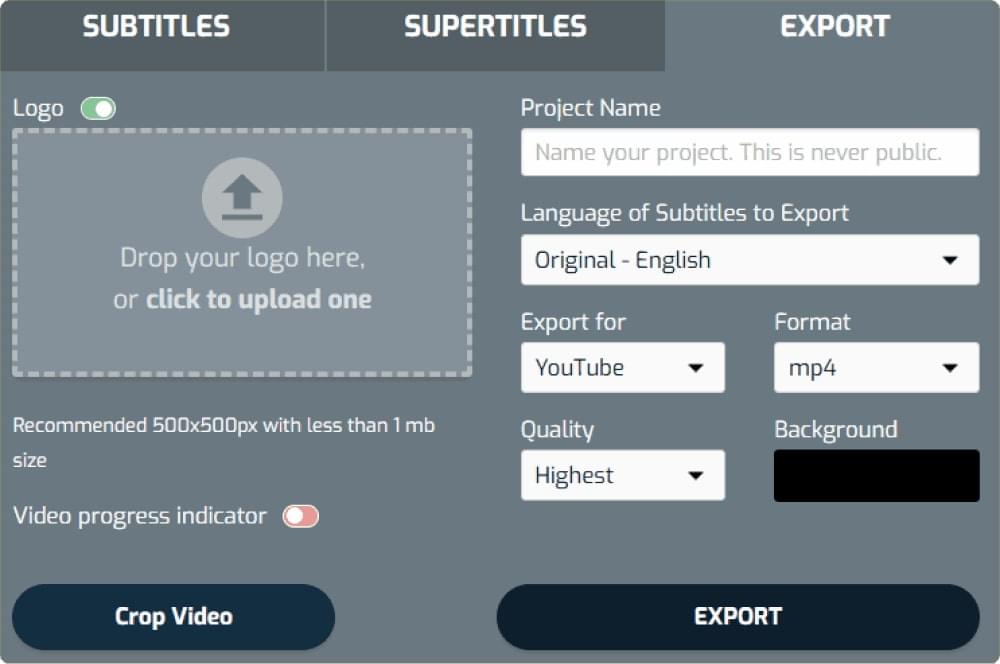
Once you have finalized the subtitles and you are happy with them, click the Export button. SubtitleBee will render the final video with your subtitles hardcoded directly into the frames. Moreover, you can download the finished file suitable for any major social media platform as SubtitleBee has built-in profiles to support different platforms and aspect ration.
Also read: The best guide to add subtitles to your video in 5 minutes
The whole process usually takes a few minutes to hardcode subtitles, which is a big reason creators prefer this approach over desktop tools.
Method 2: Hardcode subtitles with HandBrake
HandBrake is a popular and free video transcoder available for Windows, macOS, and Linux. Many people use it for burning subtitles into video because it gives you maximum control over output quality, codec, and container. You can do all of this without writing a single command.
However, keep in mind that you’ll need an existing subtitle file (usually .srt) to hardcode subtitles with HandBrake. In other words, HandBrake is not a subtitle generator, but just a tool to add subtitles to the video. If you don’t already have an SRT file, you can create an SRT file with an auto subtitle generator.
Here’s how you can use HandBrake to hardcode subtitles:
Step 1: Install HandBrake and load your video
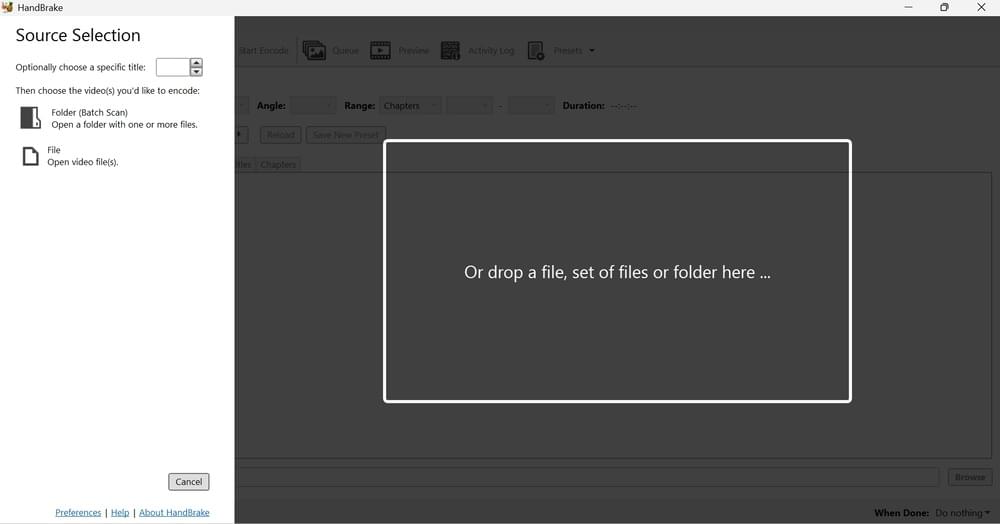
Download HandBrake from the official website and install it on your computer. Open the software, click Open Source, and choose the video you want to add subtitles to.
Step 2: Import your subtitle file
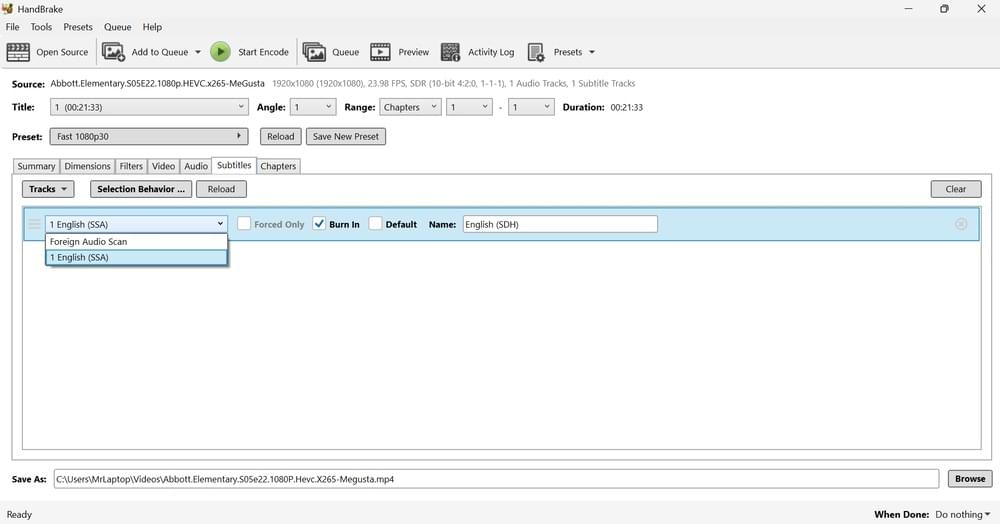
Click the Subtitles tab. You can select your .srt file from the Tracks dropdown and choose the Import Subtitle option. Make sure the language you choose matches your audio.
Step 3: Enable Burn In Option
This is the most important step to hardcode subtitles. You have to check the Burn In box in the subtitle track row. This will make sure the subtitles are actually burned-in / hardcoded onto the video frames.
Step 4: Choose where to save and start encoding
HandBrake will re-render the video with your hardcoded subtitles. The encoding time is dependent on the video’s length and your computer’s speed.
Conclusion
The bottom line is that hardcoding subtitles is one of the most reliable and effective ways to make sure the content in your video reaches every viewer, on every device, no matter which device or screen size they are using. Hardcoded subtitles are perfect to make social media videos highly accessible, especially because the entire process can be completed within a few minutes.
Overall, SubtitleBee stands out as the ultimate solution to hardcoding subtitles because it generates subtitles as well as burns them onto the video. If you opt for another method like HandBrake, you will still have to use another tool to generate subtitles file.
So, try SubtitleBee for free and create a video with synchronized hardcoded subtitles in minutes without any headaches.
Frequently Asked Questions About Hardcoding Subtitles
What does it mean to hardcode subtitles?
Hardcoding subtitles means permanently rendering the subtitle text into video frames. This is also called burning in the subtitles. Hardcoded subtitles are a permanent part of the image and cannot be turned off.
Are hardcoded subtitles the same as burned-in subtitles?
Yes, hardcoded subtitles are also called burned-in subtitles, open captions, and hardsubs. They all refer to subtitles being permanently embedded into the video image.
Can I hardcode subtitles for free?
Yes. HandBrake, VLC, and FFmpeg are some of the tools you can use for free to burn subtitles into video with no cost, as long as you already have an SRT file. Moreover, online tools like SubtitleBee also offer free trials, so you can generate and hardcode subtitles without paying any upfront.
What’s the best way to hardcode subtitles into MP4?
The best and easiest way to hardcode subtitles into MP4 is with an AI subtitle generator like SubtitleBee to generate subtitles and hardcode them.
Can hardcoded subtitles be removed?
No. By nature, hardcoded subtitles are meant to be part of the video, so you cannot remove them. Of course, there are workarounds like cropping the video, but you cannot expect a clean result.



Add and translate your subtitles to more than 100 languages with high accuracy
Our solution
SubtitleBee
Make your video understandable by using SubtitleBee for free
Start now for freeTop Articles

Getting Started with AI-Powered SubtitleBee

3 Effective Ways To Add Subtitles To Video Online Without Watermark

VEED vs. Kapwing: Which Subtitle Generator wins?

Kapwing vs. SubtitleBee: Which subtitling tool should you choose?

5 Top Verbit Alternatives for Transcription