



video tutorials for social media
How to turn off subtitles on Netflix for every device
Netflix brings you a big grand library of video content. Since it has international content, Netflix video subtitles are a basic feature used by millions of Netflix viewers. However, there are times when you might find Netflix captions as a distraction rather than a help. Whether you accidentally toggled them on or a previous viewer left them active, knowing how to turn off subtitles on Netflix is better.
This guide provides you with step-by-step instructions to get rid of subtitles on Netflix across all major devices or platforms like web browsers, mobile devices, smart TVs, and gaming consoles.
How do Netflix subtitles work?
Before we head to learn how to remove Netflix subtitles on any device, know that subtitles and Closed Captions (CC) are two different features of digital media.
Open Captions or otherwise known as ‘Subtitles’, translate dialogue, while Closed Captions include descriptions of background noises and sound effects for the hearing impaired.
You will find them under the same Netflix menu, but the process to disable Netflix subtitles and CC is different depending on the device you are using.
How to get rid of subtitles on Netflix?
It depends what device you are using to watch it. Since the interface changes based on your device, the steps to look up the menu vary. Follow these steps to remove subtitles on Netflix.
How to turn off subtitles on Netflix desktop & web browser
This method applies to Chrome, Safari, Firefox, and Edge.
- Open Netflix and play the movie.
- Hover your cursor over the video player to bring up the control overlay.
- In the bottom right corner of the screen, look for a squared off icon that resembles a speech bubble.
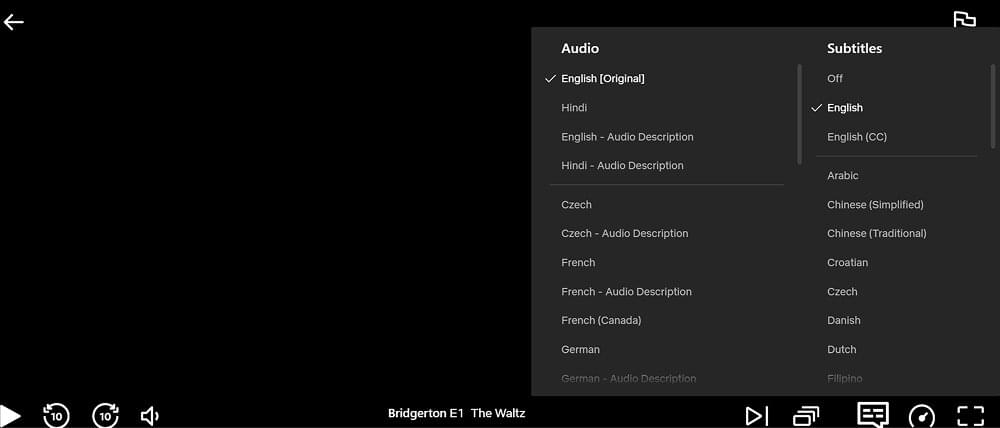
- Click on it for audio and subtitle options. Under the “Subtitles” column, click the “Off” option.
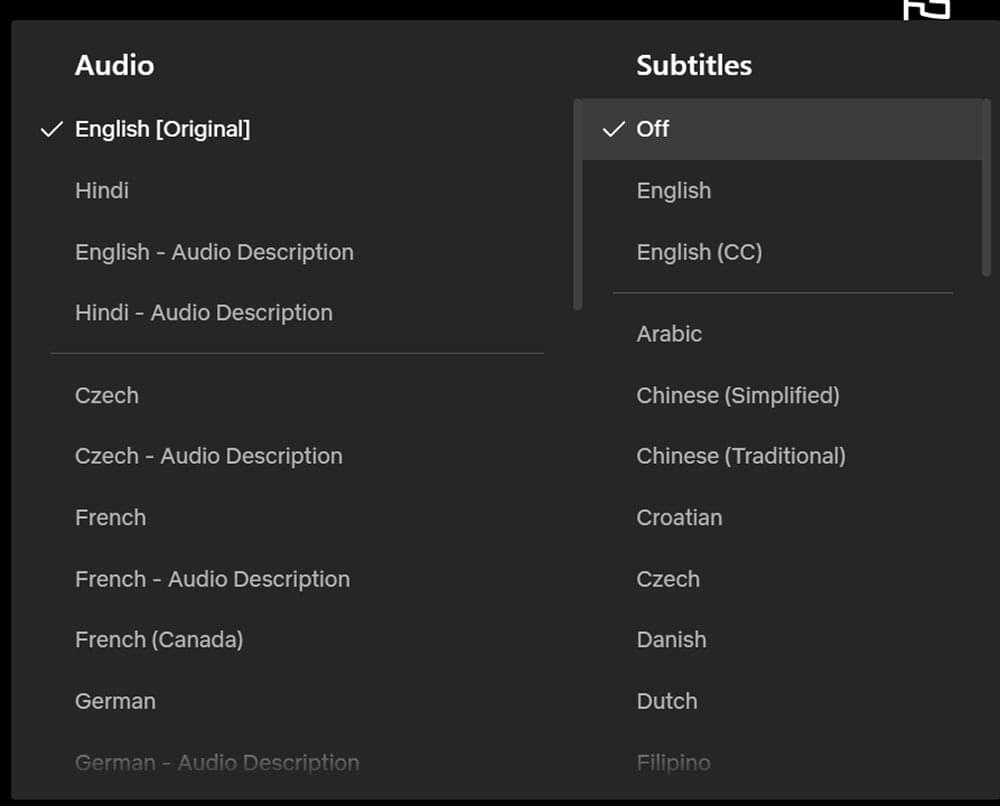
The checkmark will move to “Off,” and the captions will disappear instantly.
Getting rid of Netflix subtitles on iOS & Android
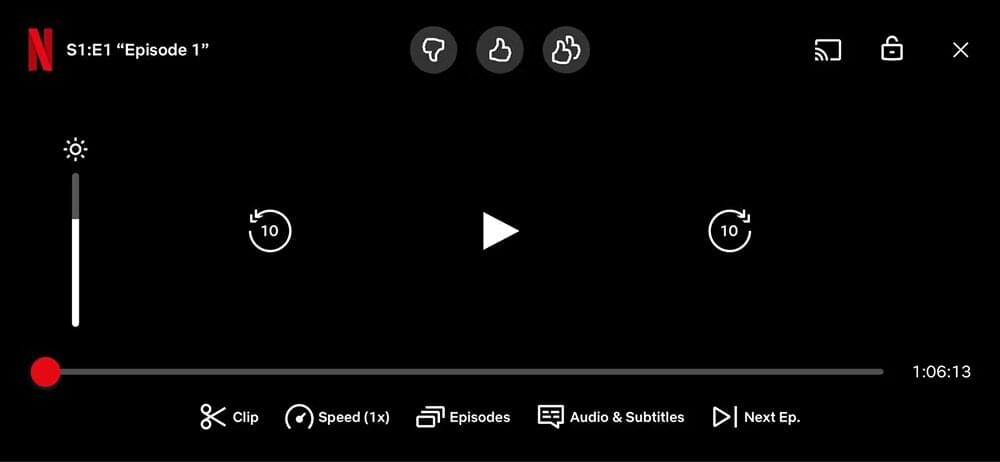
The Netflix mobile app is optimized for touch controls and the audio and subtitles option appears at the bottom of the screen. The interface remains consistent with an iPhone, iPad, or Android smartphone.
- Tap anywhere on the screen to show the controls when the video is playing.
- At the bottom center of the screen, select “Audio & Subtitles”.
- A menu will pop up. Locate the “Subtitles” section on the right side and tap “Off.”
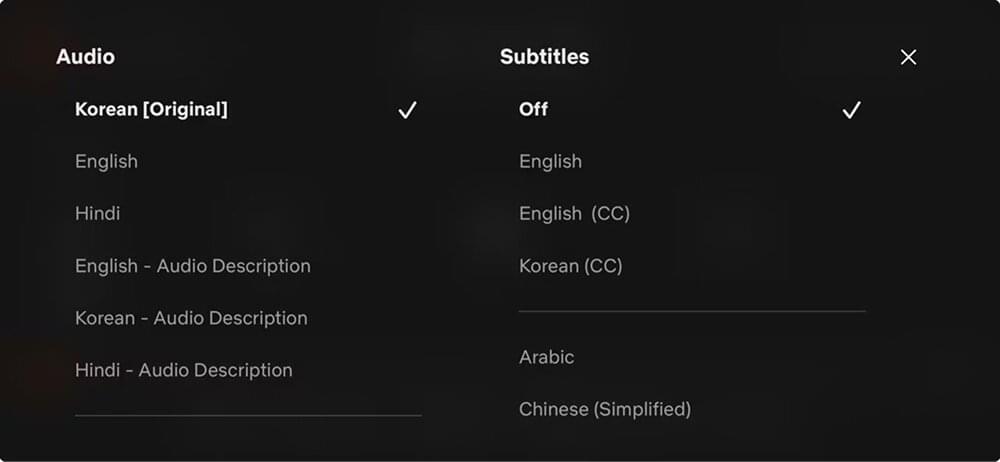
- Tap “Apply” or the “X” in the corner to return to your video.
Disable Netflix subtitles on smart TVs & gaming consoles
Samsung, LG, Sony, Vizio and all gaming consoles use a “Leanback” UI designed for their remotes and controllers. Follow these steps to turn off subtitles on Netflix video on your such devices.
- On your remote or controller, press the up or down direction buttons and bring up the playback menu.
- Select the “Audio & Subtitles” icon. On some TV models, this is found under the “Other” or “Settings” gear icon first.
- Use the selection button to choose “Off” under the Subtitles heading.
Press the back button or “Play” to continue watching without Netflix subtitles.
Turn off Netflix subtitles on Apple TV
Apple TV (2nd generation through the latest 4K models) has a new navigation system compared to other streaming boxes. Here’s how to get rid of Netflix subtitles on an Apple TV.
- For Siri remote (2nd Gen or later): Press the “Up” button or swipe up on the clickpad to bring up the menu. Navigate to “Subtitles” and select “Off.”
- For Siri remote (1st Gen): Swipe down on the touch surface to see the “Info” and “Subtitles” menu. Swipe right to “Subtitles” and select “Off.”
- For Older Apple TVs: Hold down the center button on the Apple Remote to access the subtitle settings directly.
Why wouldn’t my Netflix subtitles turn off?
If you have followed the steps above and the text remains on the screen, you may be facing one of the below scenarios.
Your Netflix video is displaying hardcoded (burned-in) subtitles
If you are watching a foreign language title and subtitles appear even when turned “Off,” they might be “hardcoded subtitles“. This means the text is part of the actual video file and cannot be removed. Subtitle generating tools like SubtitleBee embed subtitles on the video.
Hardsubs are also common for “Forced Narratives“, where a character speaks a different language for just one scene.
Check your account-level settings
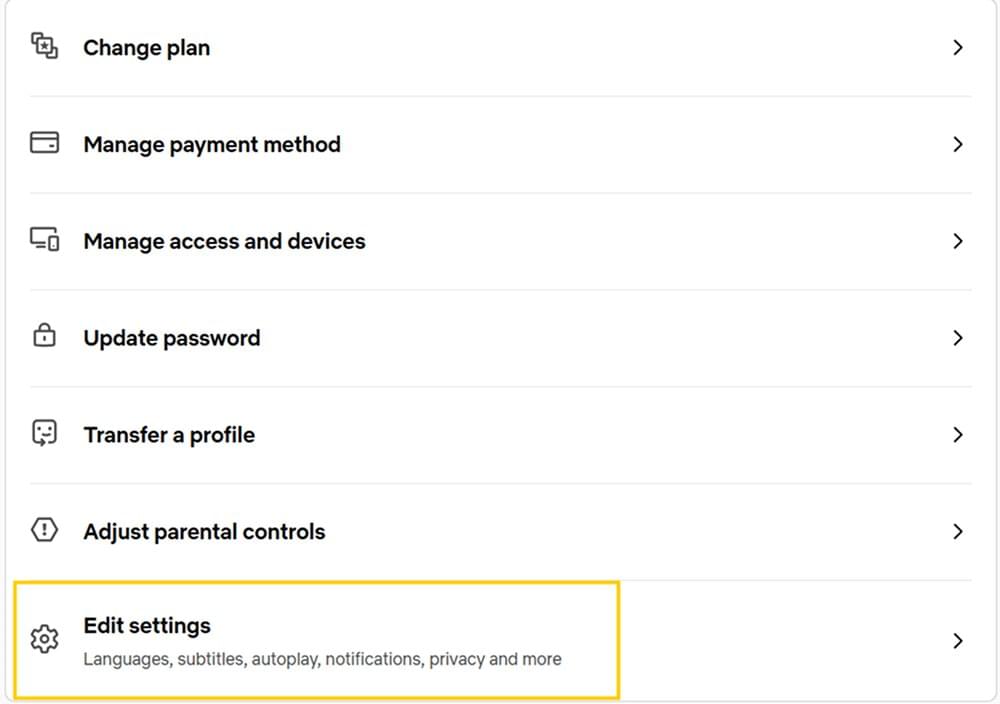
In some cases, subtitles are enabled at the profile level. To fix this, log in to Netflix via a web browser, go to Account → Edit settings, and select your profile.
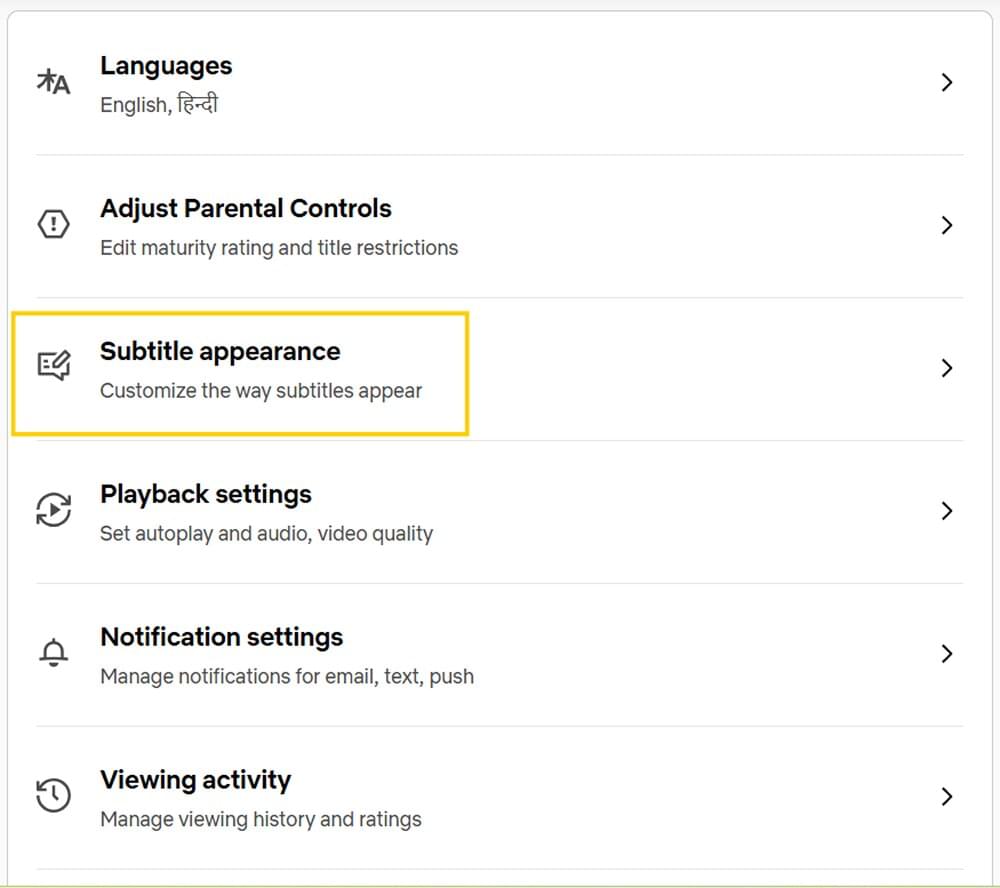
Check the “Subtitle Appearance” settings for any forced overrides that are active.
Your Netflix app needs the “reload” trick
On Smart TVs, the Netflix app may cache old settings. To refresh the app, go to the “Get Help” menu within the Netflix app and select “Reload Netflix.” This restarts the app’s processes without logging you out. This common trick often fixes any sync issues between the server and your screen.
Why does Netflix keep turning on subtitles?
Netflix can turn on subtitles due to your accidental remote clicks. This can also be caused by “Forced Narrative” subtitles meant for specific foreign-language scenes. If not that then the language setting mismatches, or system glitches where the app fails to remember your preferences might be the reason.
Try replaying the episode from the main menu or refresh the app from Get Help → Refresh Netflix option.
If that fails, check for an app update or “Reloading” the app from the settings menu usually resolves the bug.
Also check your device settings (like Xbox or Apple TV) outside the Netflix app.
Customize Netflix subtitles instead of turning them off?
Sometimes the issue isn’t the presence of Netflix subtitles, but how they look. If they are too large or their font or colour is distracting, you can customize them rather than removing them entirely. Following steps are for web browsers.
- Go to Account Settings → Subtitle appearance option. Change the font style, text color, background transparency, and font size to your liking.
Once saved, these changes will apply to every device linked to that specific Netflix profile. However, to learn to change subtitle appearance on other devices individually, click here.
Conclusion
Manage your viewing experience by customising or turning off subtitles on Netflix and watch your favourite content just the way you like. For those who frequently switch between devices, remember that Netflix usually remembers your last used setting for that specific profile.
FAQs
How to get rid of stuck subtitles on Netflix?
Netflix subtitles won’t turn off? Turn off the subtitles from the “Audio and subtitle” option or from “Settings” option.
If you see the option to turn off subtitles but can’t disable them, you are most probably watching a show or movie produced in another language and the subtitles you see on screen may not be turned off. Some Netflix shows/movies will show subtitles in your region’s primary language by default.
How do I turn off subtitles on Netflix permanently?
Netflix will save your last preference. If you turned subtitles off on one show, they should remain off for the next.
If they keep coming back, check your Profile settings on a web browser and ensure the default audio/subtitle language is set to your primary language.
Can I turn off subtitles using voice commands?
Yes, if you use a device like Fire TV (Alexa) or Apple TV (Siri), you can say, “Turn off subtitles” while the video is playing, and the device will attempt to toggle the setting for you.
How to turn off subtitles on Netflix from remote?
To turn off subtitles on Netflix from a remote press any of the directions buttons. From the menu, select Audio & Subtitles → Subtitles → Off.



Add and translate your subtitles to more than 100 languages with high accuracy
Our solution
SubtitleBee
Make your video understandable by using SubtitleBee for free
Start now for freeTop Articles

Getting Started with AI-Powered SubtitleBee

3 Effective Ways To Add Subtitles To Video Online Without Watermark
VEED vs. Kapwing: Which Subtitle Generator wins?
Kapwing vs. SubtitleBee: Which subtitling tool should you choose?

5 Top Verbit Alternatives for Transcription