


video tutorials for social media
How to add subtitles to TikTok videos? Explore three different methods here
8 out of 10 people watch TikTok videos with the sound turned off. This is how the audience watch videos nowadays. Your video might have the funniest punchline of the week, but if no one’s listening to it, it’s a waste without the right subtitles
That’s why TikTok subtitles are recommended. They turn a video that people watch silently into something they actually pay attention to and watch till the end. They make your content accessible and help TikTok’s algorithm know what your video is about. This will help you reach millions of people who don’t speak your language.
The good news is that you do not need to be a video editor for this task. TikTok has a built-in feature that automatically adds captions. You can also add subtitles manually or use AI subtitle tools like SubtitleBee. Using AI tools, you can generate TikTok video captions in minutes with personalized styling, timing, and translation.
In this blog, you will learn all three methods to add subtitles. You will also get to know about caption styles that work well for popular TikTok videos and how to fix problems with subtitles. Let’s get into it.
Subtitles vs captions on TikTok: What’s the difference?
Technically, there is a difference between the two. Subtitles only show the spoken words, while captions include spoken words plus other audio cues like [music] or [laughter].
However, on TikTok, the platform uses both terms for the same feature. In this guide, we will use Captions and subtitles to mean the same thing, just like TikTok does.
Related: Understanding the difference between subtitles and captions
Why you should add subtitles to your TikTok videos
Adding TikTok subtitles directly impacts how many people watch your content and how far it travels.
1. Most people watch on mute. Surveys consistently show that the majority of mobile video is watched without sound. If your video relies on audio to grab people’s attention, you will lose most of your viewers.
2. Captions feed the algorithm. The platform uses subtitles to figure out what your video is about.
3. They’re an accessibility essential. There are about 1.5 billion people in the world who have hearing problems. If you do not add subtitles, these people cannot understand your videos.
4. Subtitles unlock global reach. TikTok’s auto-captions are English-heavy. With translation tools, you can repurpose one video for dozens of language markets without re-shooting anything.
Related: Analyzing the Impact of Captions and Subtitles on Video Engagement Metrics
Let’s look at the key methods to add subtitles to TikTok videos:
Method 1: Use TikTok’s built-in auto captions
TikTok’s native TikTok auto captions feature is the fastest way to add subtitles. It’s a free built-in feature and takes about two taps. Here is how to use it.
Step 1: Record or upload your video
Open the TikTok app and tap the + icon at the bottom of your screen. To record a new video, tap the red button at the bottom. You can also tap the gallery thumbnail to upload a video from your phone.
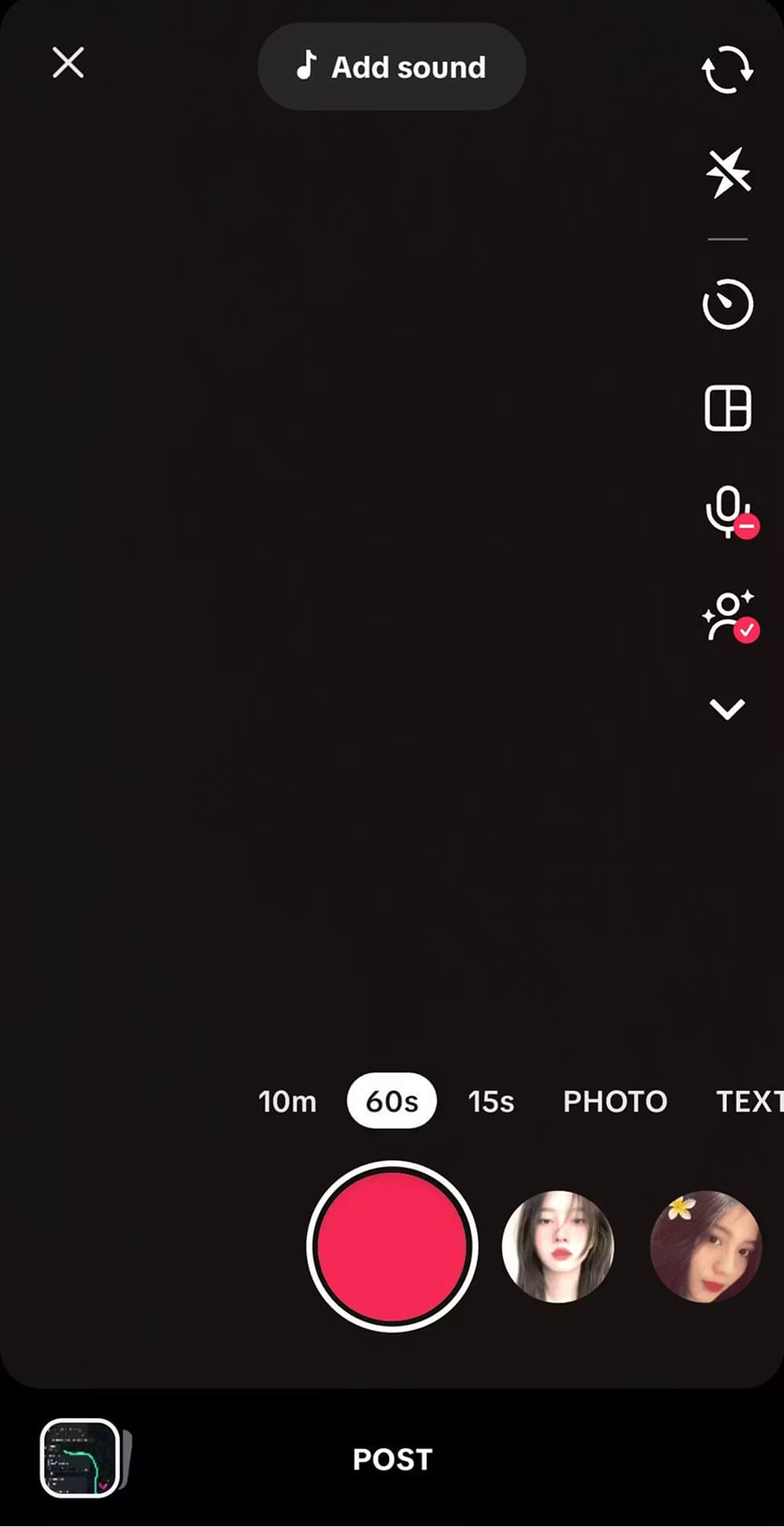
Step 2: Tap the checkmark to go to the editing screen
Once your video is ready, tap the checkmark (or “Next”) in the bottom right corner. This takes you into TikTok’s editing interface.
Step 3: Find the captions button
Look at the right-side toolbar. You’ll see a “Captions” button. If you don’t see it, your app might need an update to the latest version.
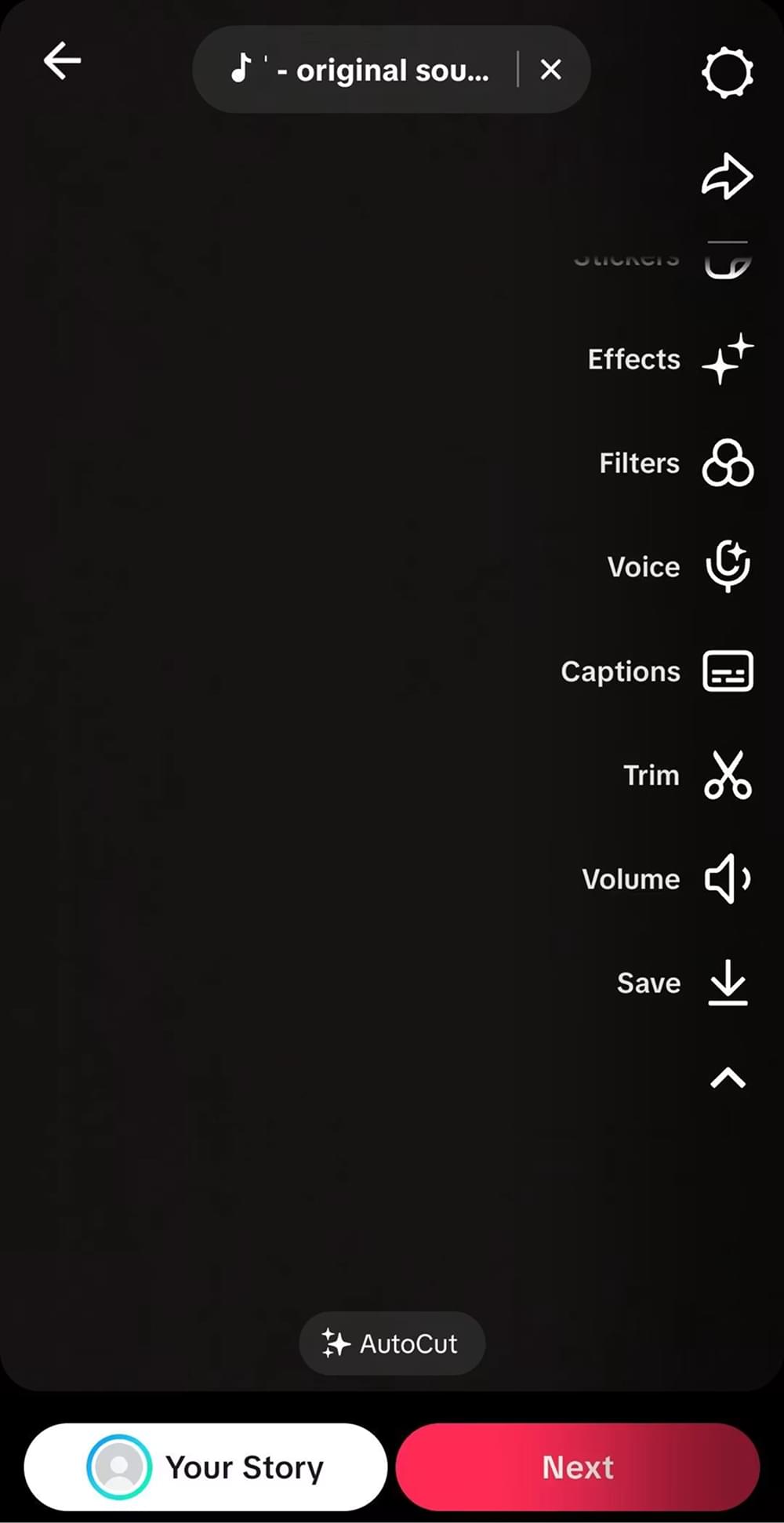
Step 4: Generate captions
Tap “Captions,” and TikTok will process your audio. After a few seconds, your subtitles will appear. They are synced to your speech. The accuracy is often good. It is 85–90% for clear English audio.
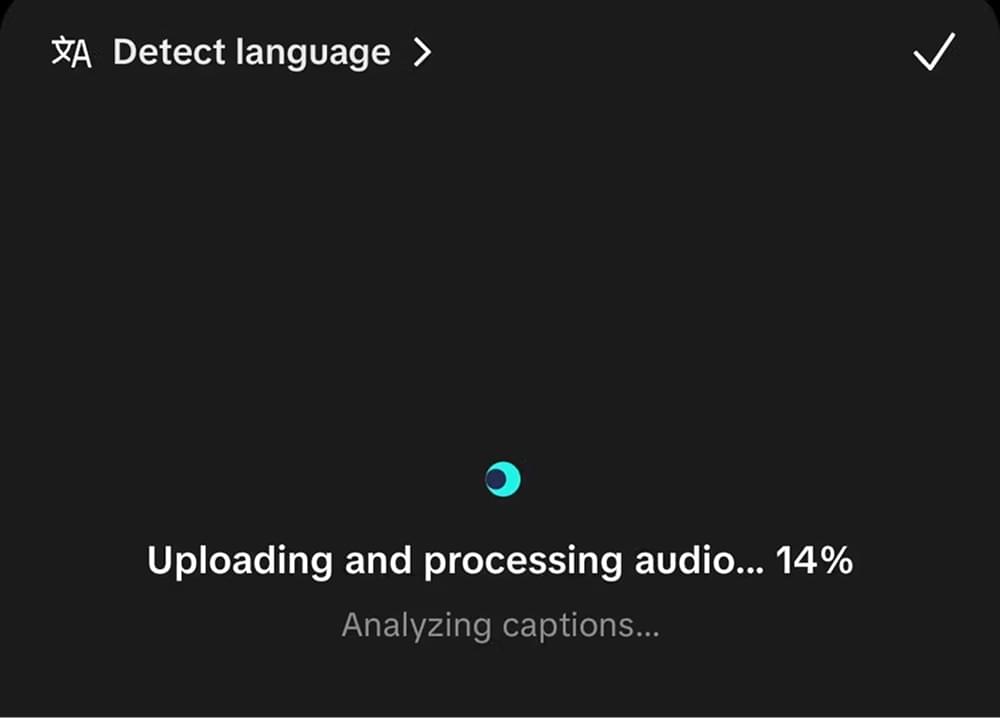
Step 5: Review and edit
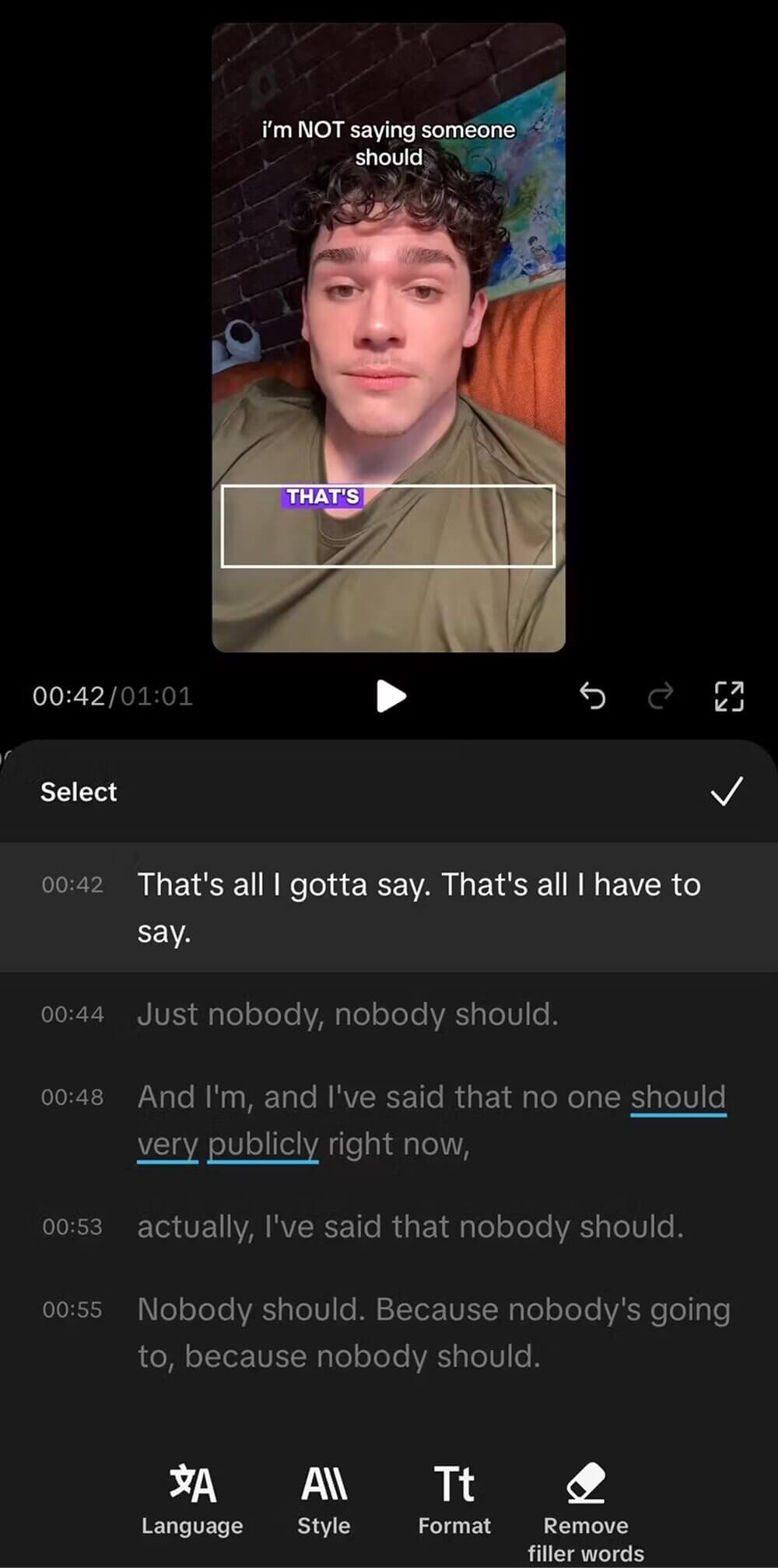
Tap each caption block to read it. If TikTok got something wrong, tap the segment and use the keyboard to fix the spelling.
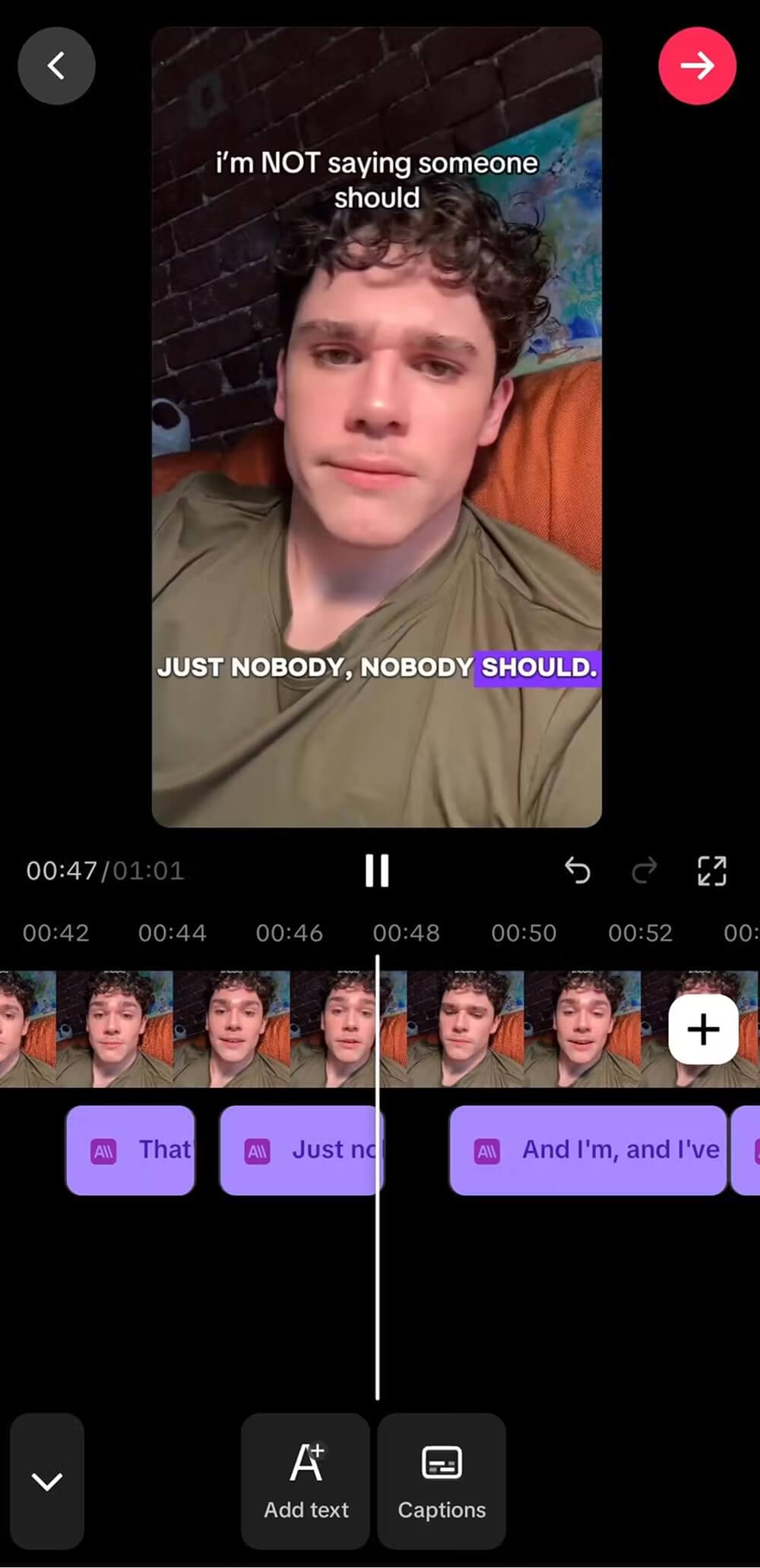
Step 6: Style your captions
You can change the font, color, alignment, and position. Drag the captions wherever you want them on screen. Stick to high-contrast colors so they’re readable on any background.
Step 7: Post
When everything looks good, hit “Next,” add your description, and post.
What TikTok’s auto-captions are great for
- Quick and casual content where speed matters more than polish
- English-language videos with clear audio
- Creators who don’t want to leave the app
Where TikTok’s auto-captions fall short
- You can’t edit the timing. If a caption shows up a little late, you are stuck with it.
- The styling is basic. There are not fonts to choose from and you cannot add animations unless you use the templates that come with TikTok.
- Accuracy drops with accents, background music, or technical terms.
- Translation is limited. You can generate captions in a small set of languages, but the auto-translate feature doesn’t work well.
- You can’t reuse the captions. Since you cannot export them as SRT files, you cannot use the subtitles on YouTube, Instagram, or any other platform.
For a lot of creators, that’s enough. But if you want to use video on other platforms, you will quickly see the problems with TikTok’s auto-captions.
Method 2: Add captions manually using TikTok’s text tool
Adding captions manually takes a lot of time. However, there is one benefit. You get more creative control. You can use this method when there’s no speech to transcribe or when TikTok’s auto-caption feature isn’t working. If you need a full text version instead, see how to transcribe a TikTok video to text.
Step 1: Open the text tool
After recording or uploading your video, tap the checkmark on TikTok to enter the editor. Then, on the right-side toolbar, tap the “Text” button (the “Aa” icon).
Step 2: Type your caption
Type out what you want to appear on screen. Try to keep it short, as long captions don’t work in vertical format.
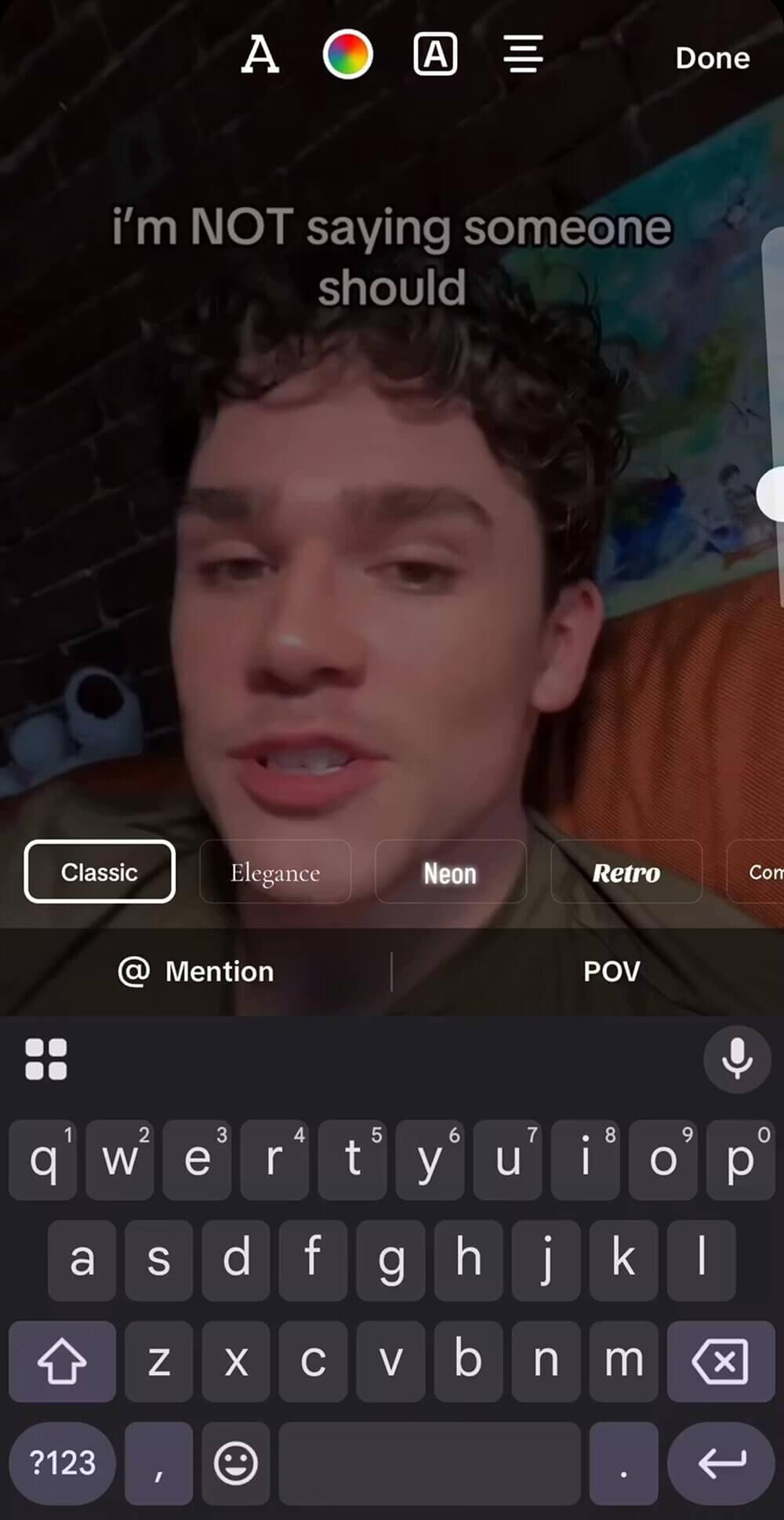
Step 3: Style it
Pick a font, color, background, and alignment. TikTok has multiple font options and styles. You can also use the color picker to match text with your branding.
Step 4: Set the duration
This is an important part that most people miss. After tapping the text box, click the small clock icon. You’ll see a timeline at the bottom of your screen. Drag the slider to set when your caption appears and disappears.
Step 5: Repeat for each line
Manual captions are done word by word. For videos, this can take a lot of time. That’s why most creators use this way only for clips or special moments.
Step 6: Post
Once all your captions are in place, finish your video as usual.
You can use manual captions for:
- Short videos under 15 seconds
- Stylized text-on-screen content (storytime intros, jokes, reveals)
- Videos in languages that TikTok’s auto-caption doesn’t handle well
- Times when you need precise control over each caption
For longer videos, manual captioning is very hectic. That’s why we recommend AI subtitle tools.
Method 3: Use SubtitleBee for AI-generated subtitle
SubtitleBee is an AI subtitle-generating tool that transcribes with 99% accuracy. It helps you to customize your captions, and works with more than 120 languages.
Let’s look at these steps in detail to add subtitles to your TikTok videos using SubtitleBee:
Step 1: Upload your TikTok video
Go to SubtitleBee and upload your video file. If you have already saved your video to your phone, you can upload it from there.
Step 2: Let the AI generate your subtitles
SubtitleBee processes the audio and generates accurate subtitles in minutes. Most short TikToks take less than a minute.
Step 3: Edit text and timing
You can click into any caption to fix spelling, change wording, or adjust timing. With this tool, you have full control over when each caption appears and disappears.
Step 4: Style your captions
This is why SubtitleBee is the preferred choice for TikTok. You can change:
- Font: pick from a wide library that fits your brand
- Color: primary text color, outline, shadow, background
- Position: drag captions anywhere on screen, including the safe zones
- Size: scale up for emphasis on keywords
- Animation: you can choose between word-by-word reveals, karaoke-style highlights, and clean static captions
Step 5: Translate (optional)
SubtitleBee helps you translate 120+ languages with just a single click. This means now you can approach non-English audiences as well.
Step 6: Download and upload to TikTok
At the end, you export your video with the subtitles burned in. Save it to your device, then upload to TikTok. The captions are already part of the video, so they will play on every device without needing to turn them on.
Sign up for SubtitleBee free and add subtitles to your first TikTok video in minutes.
Best practices for TikTok subtitles that boost engagement
Adding subtitles is the first step. Getting them to actually help your performance is the main thing. Here is how you can make TikTok subtitles stand out.
Keep lines short
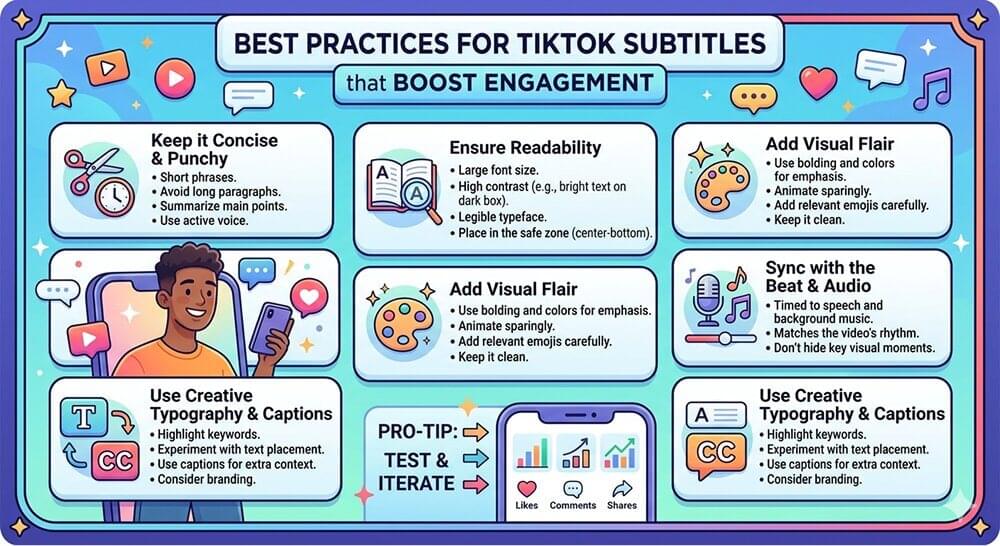
Tiktok’s vertical videos are narrow. Long captions wrap awkwardly and force viewers to read instead of watch. Try to have 3 to 5 words per line, with no more than 2 lines on screen at any moment.
Use high-contrast styling
White text with an outline or shadow works well for most videos. It’s easy to read on dark or busy backgrounds. Avoid thin fonts and low-contrast colors like yellow on white.
Respect TikTok’s safe zones
TikTok’s interface covers parts of your video with usernames and buttons. If your subtitles are under the button, nobody will read them.
The safe zone for subtitles is roughly the center-middle to upper-middle third of the screen. For exact dimensions, see our TikTok video dimensions guide.
Match your subtitles to your brand
If your videos all look completely different, viewers won’t develop a visual association with your account. Pick a font, color, and style, and use it across every video. SubtitleBee lets you save subtitle styles as templates so you don’t have to set them up each time.
For details about the best fonts, read the best subtitle fonts for your videos and what font does TikTok use.
Sync precisely to speech
Subtitles that lag behind the audio break the flow. Word-by-word styles work well on TikTok because they match the rhythm of speech.
Use the viral caption styles people actually click
Open TikTok right now and look at the captions on the most-viewed videos. You’ll see a few patterns repeat:
- Word-by-word highlight (karaoke style): One word at a time appears or changes color in sync with speech.
- Single-word emphasis: Big, bold, and all-caps single words pop up on the punchlines.
- Centered captions: Larger and centered text usually dominates the frame.
- Lower-third clean: Small, white, and sans-serif text appears in the lower third.
You don’t need to try all of these at once. Pick one that fits your content style and go with it.
How to translate TikTok subtitles for a global audience
The biggest mistake of most creators is to not pitch the global audience. Why would you stop after spending hours producing a video for an English-speaking audience? The same video translated into Spanish, French, Portuguese, or Hindi could double or triple your reach without a single extra minute of filming.
To be fair, TikTok’s built-in translation features are limited. You can only translate auto-captions into a small list of languages.
SubtitleBee makes this part easy. Once you’ve generated subtitles for your video:
- Click the translate option in the editor.
- Pick from 120+ languages.
- SubtitleBee translates your subtitles automatically while keeping timing intact.
- You can export multiple language versions of the same video and upload them to TikTok separately.
If you’re targeting any specific markets, you should prioritize the languages with the largest TikTok users. Spanish, Portuguese, Indonesian, and Hindi are considered top users globally.
Also read: How to translate English to Spanish video subtitles
How to turn on subtitles when watching TikTok
Sometimes, the viewers who want to see captions on the videos search for “TikTok subtitles” too. If that’s you, this is what you can do:
On a video that has captions:
- Tap the video you’re playing.
- Look for the captions icon at the bottom or right side of screen.
- You can click it to toggle captions on or off.
In your account settings (to enable captions by default)
- Go to your profile and tap the three lines (or three dots) in the top right.
- Open Settings and privacy.
- Tap Accessibility.
- You will find Auto-generated captions or Always show captions. Toggle it to turn on or off.
For a more detailed and step-by-step process, see how to turn on captions on TikTok.
Common TikTok subtitle problems (and how to fix them)
Even with the best tools, things can sometimes go wrong. Here are the most common issues creators face and their solutions.
My TikTok captions aren’t showing up
If this is you, there can be three common causes:
- Your app is out of date. You should update TikTok to the latest version.
- Your audio isn’t being detected. If there’s no clear speech in your video, TikTok won’t generate captions. In this case, you can add manual text instead.
- The captions toggle is off. On the video, tap the screen and look for the captions icon. If it’s grayed out, this means the video doesn’t have captions.
The auto-captions are wrong
Sometimes, the TikTok’s speech recognition gets confused by accents, background music, slang, and technical terms. If that’s the case, tap each caption block in the editor and correct the spelling manually. However, if accuracy is a recurring issue, we recommend switching to an AI tool like SubtitleBee. It allows you to handle a wider range of audio conditions.
I can’t edit the caption timing
This is a real limitation of TikTok’s native auto-captions. If timing matters to you, your only options are:
- Typing captions manually
- Using a third-party tool like SubtitleBee to generate, edit, and burn in captions before uploading
My captions are covering the TikTok UI
If that’s the case, just move them. Tap the caption block and drag it into the safe zone i.e. the center-middle to upper-middle area of the screen.
My captions are in the wrong language
In the caption settings, tap the language dropdown and pick the correct one. If TikTok doesn’t support the language you need, generate the subtitles externally with SubtitleBee.
I want my subtitles to look like the ones I see on viral TikToks
TikTok’s native styling is limited compared to what top creators are using. Most of those creators rely on third-party AI subtitle tools for animations and custom fonts.
Final thoughts
If you still think subtitles are an extra step, you can not be more wrong. They’re part of how your video gets watched and discovered. Although TikTok’s native auto captions are fine for a quick post, we recommend using AI tools like SubtitleBee. It gives you precise and polished captions with access to 120+ languages. For creators who post multiple times a week, AI subtitle tools can help you save a lot of time.
Try SubtitleBee free and add professional subtitles to your TikTok videos in minutes.



Add and translate your subtitles to more than 100 languages with high accuracy
Our solution
SubtitleBee
Make your video understandable by using SubtitleBee for free
Start now for freeTop Articles

Getting Started with AI-Powered SubtitleBee

3 Effective Ways To Add Subtitles To Video Online Without Watermark
VEED vs. Kapwing: Which Subtitle Generator wins?
Kapwing vs. SubtitleBee: Which subtitling tool should you choose?

5 Top Verbit Alternatives for Transcription