



video tutorials for social media
What is text overlay? A complete guide for video creators
You’ve probably scrolled past it a thousand times: a bold headline on an Instagram reel or a motivational quote fading over a sunset. That’s text overlay. It’s one of the easiest ways to make your videos more engaging for viewers.
And here’s the thing: 85% of videos on social platforms are watched without sound. People are scrolling on mute, which means your visuals and on-screen text are doing most of the work.
This guide covers everything about text overlay, it’s different types, why it matters, and how to add it to your videos in just a few minutes.
Table of Contents
- What does text overlay mean?
- Text overlay vs. subtitles vs. captions: what’s the difference?
- Common types of text overlays
- Why text overlays matter for video content
- Best practices for using text overlay
- Top methods to add text overlay to a video
- Tips to add text overlays on different social media platforms
- FAQs
What does text overlay mean?
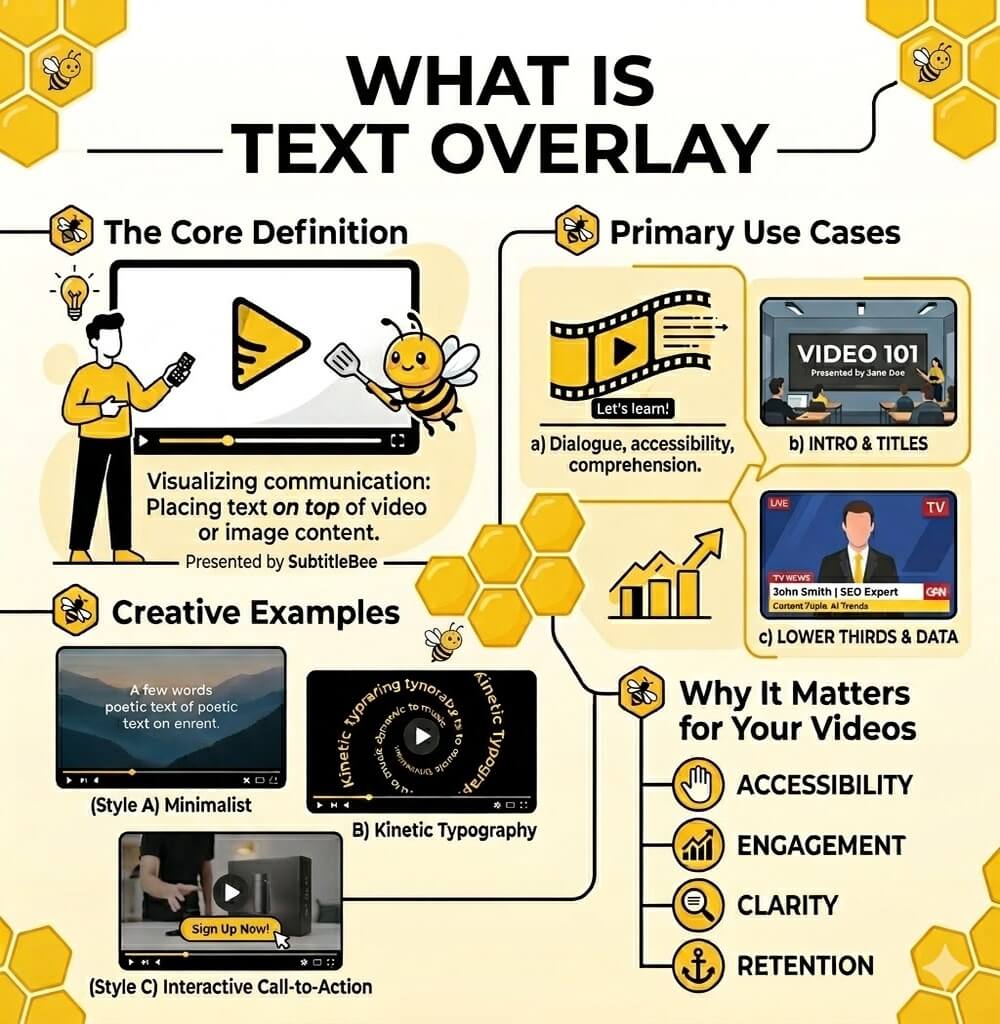
Text overlay refers to any words that appear directly on top of a video or image. Basically, the text appears in the front while the video or image plays behind it. It allows viewers to read a message, follow a story, or absorb key information without needing audio.
You can also say it as a layer of words sitting over your original footage. That layer can be anything: a headline, a quote, a statistic, a call to action, or just a quick description of what’s happening on screen.
In video editing terms, an overlay is any text, image, logo, or graphic that gets layered over the base footage. Text overlay is when the overlay is words.
The following image perfectly captures what is text overlay and what are its use cases:
Text overlay vs. subtitles vs. captions: what’s the difference?
These three terms get mixed up a lot, but they serve different purposes. Here’s a quick breakdown:
| Feature | Text overlay | Subtitles | Captions |
|---|---|---|---|
| Purpose | Highlights the key message, adds context, or creates visual impact | Translates or transcribes spoken dialogue | Provide a word-for-word transcription of all audio |
| Timing | Can appear at any point | Synced with speech | Synced with all audio |
| Content | Headlines, quotes, CTAs, labels, statistics | Dialogue translation | Dialogue + sound effects + speaker identification |
| Style | Highly customizable (fonts, colors, animations) | Standardized, readable formatting | Standardized formatting with additional audio cues |
| Who it’s for | General audience | Viewers who speak a different language | Deaf or hard-of-hearing viewers, or anyone watching on mute |
Common types of text overlays
Some types of text overlay that you might use depending on your goal and platform are:
Title and headline overlays
These appear at the beginning of a video or at the start of a new section. They set the context and tell viewers what the video is about within the first few seconds.
Lower third overlays
A lower third is a graphic overlay usually at the bottom third of the screen. It’s used in news broadcasts, interviews, and professional videos to display a speaker’s name, title, or location.
Subtitle and caption overlays
Subtitles and captions are technically a subset of text overlays. They transcribe spoken dialogue and appear synchronized with the audio. It makes the video accessible to a broader audience, and you can add subtitles to a video online without a watermark using free tools.
Informational overlays
Statistics, facts, labels, definitions, or step numbers fall into this category. They add value and help viewers follow along with complex information. Tutorial and how-to videos rely heavily on the overlays to break down each step of the tutorial or how-to video.
Call-to-action (CTA) overlays
They can be used by viewers to take some type of action (i.e. visiting a website, subscribing, sharing or making a purchase). A good CTA should be concise, easy to see, and timed to coincide with the viewer’s peak level of engagement.
Animated text overlays
Text overlays that animate (i.e. fade, slide, bounce etc.) with the music of the video add energy to the video and help keep the video visually appealing. However, an excessive amount of animation can draw attention away from the core message.
Why text overlays matter for video content
Still on the fence about adding text to your videos? Let us tell you a few reasons to try it.
They make your videos work without sound
Most people scroll through their feeds on mute, especially at work, in public, or just out of habit. Text overlays makes sure your message still comes through either way. You’re not losing viewers just because they didn’t have their volume up.
Boosting engagement and watch time
Here is something interesting: videos with text on the screen do better than videos without text. When viewers can read along with the visuals, they’re more likely to stay through the entire video. It is like having two ways to communicate. That keeps peoples attention for longer.
Improving accessibility
As the world is moving more towards inclusivity, you need to make content that everyone can understand. Text overlays make your content accessible to viewers who are deaf and non-native speakers who may struggle with spoken audio. Often, the accessibility guidelines for businesses and organizations recommend this as well.
Also read: How subtitles benefit the deaf and hard of hearing
Driving action
A well-placed call-to-action overlay can significantly improve conversion rates. Text overlays like “Shop now,” “Link in bio,” or “Subscribe for more” guide viewers toward the next step.
Reinforcing your brand identity
Do you want people to know what your brand is like? Every time you add text to a video it is a chance to show your brands personality. Consistent fonts, colors, and style build brand recognition. Viewers will know it is you even before they see your logo.
Best practices for using text overlays
If you want to make your overlays more effective, here is a list of guidelines you should consider:
Keep it short and readable
People do not want to read a lot of text on a video. So, use phrases instead of full sentences for your text overlays. If you have more to say, break the text into parts. The goal is for viewers to understand in one look.
Pick the right fonts
Stick with clean, sans-serif fonts like Arial or Helvetica. Decorative fonts might look nice in a design tool, but they get hard to read quickly, especially on a small phone screen. A font size between 12pt and 16pt usually works well across most video formats.
Also read: The best subtitle fonts for your videos
Make sure your text stands out
If your text blends into the background, people won’t read it. White text over dark footage or dark text over light backgrounds tends to work well.
Mind the safe zones
Platforms like Instagram and TikTok have buttons, icons, and comment sections that can cover parts of your video. Try to keep your text within the center 80% of the frame. Also make sure to always preview your video on the actual platform before publishing.
Get the timing right
Your text should not disappear too fast or stay too long. A general rule is roughly 1.5 to 2 seconds per short phrase. For longer text, give viewers at least 3 seconds.
Consistent branding for each video
If you want to build a brand, use the same fonts, colors, and text styling across all your videos. This helps people recognize your brand and gives your content a more professional look. You can create a simple style guide and reference it every time you edit a video.
Top methods to add text overlay to a video
Here are two different ways to add text overlay to videos.
Method 1: Use an AI-powered video text tool
You should benefit from the advancements of AI by using an AI-powered tool like SubtitleBee to add text overlays. All you have to do is upload the video and choose the option to add “supertitles.”
The entire process of adding text overlay to video can be completed within a few minutes without any advanced editing. Most importantly, if you also want to caption your videos during this process, you can do that as well.
Here’s how the process of adding overlay text works with SubtitleBee:
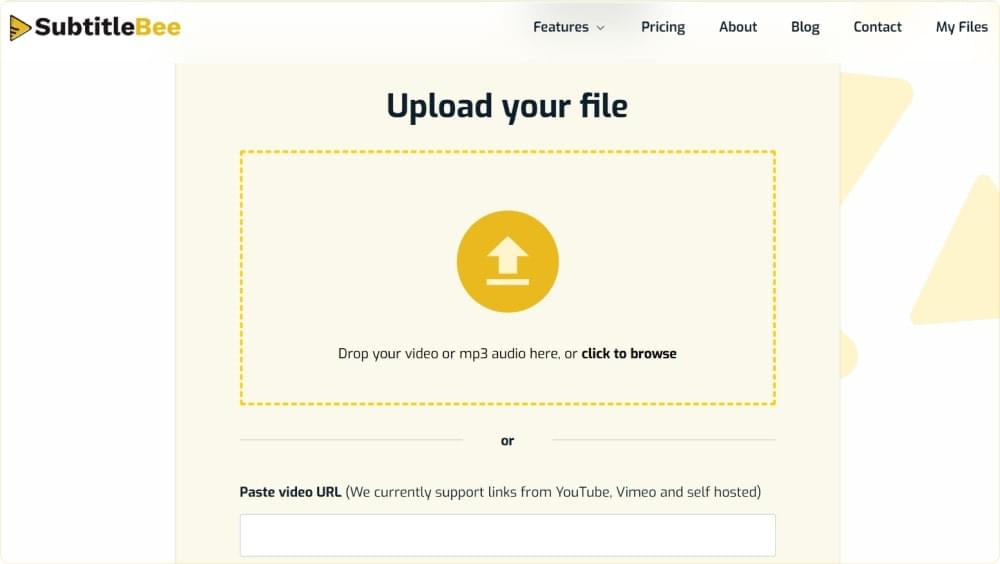
Step 1: Upload your video
Open SubtitleBee, sign-in, and upload the video you want to edit and add text overlay to. The tool supports all popular video file formats, including online links.
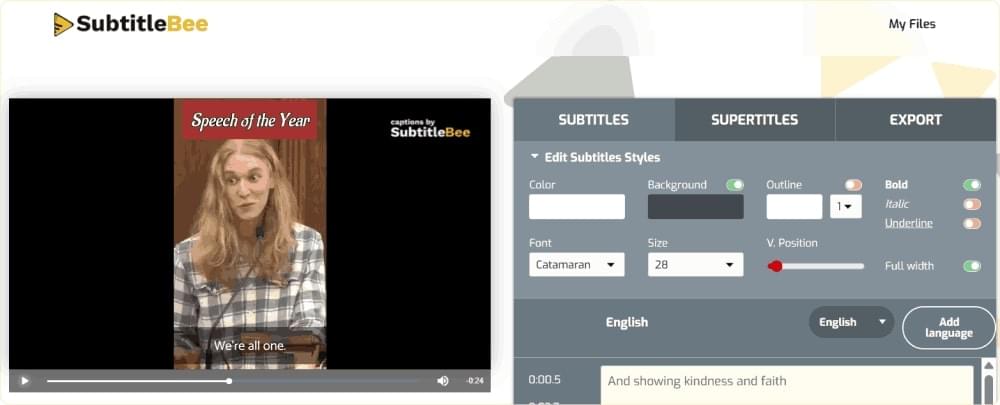
Step 2: Generate subtitles and add text overlays
SubtitleBee’s AI works in two ways. Firstly, it can generate the subtitles automatically with 99% accuracy in 120+ languages. Secondly, there’s a dedicated feature called the “supertitles” that you can use to add text overlays in different styles.

Step 3: Customize the text
You can easily change the font style, size, color, and placement to fit your branding. Explore different subtitle styles, including bold and outlined text features, to find the one that suits your video.
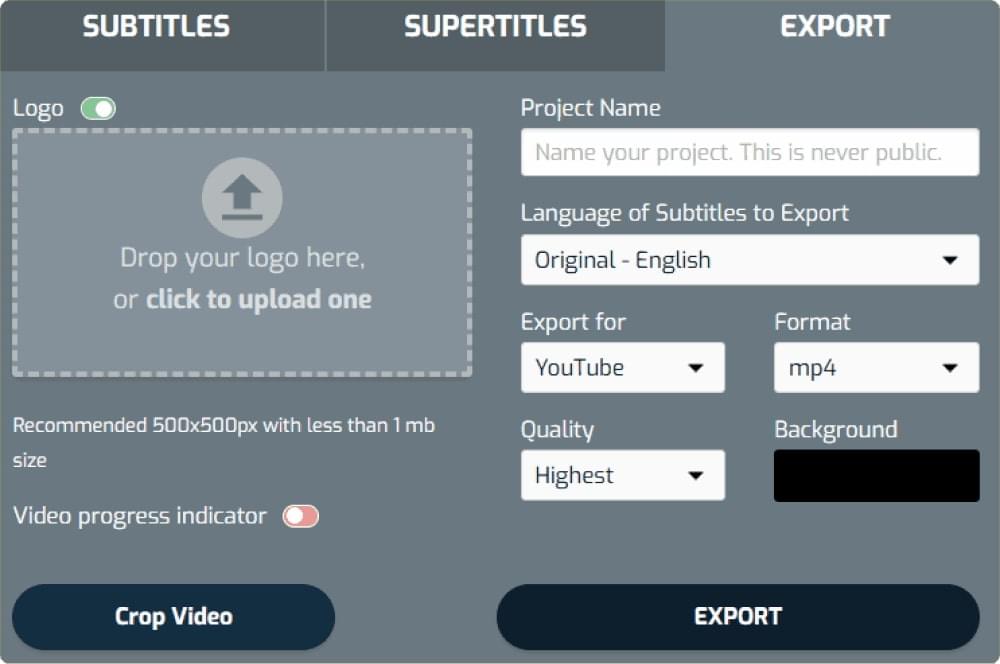
Step 4: Export and share
After finalizing the edits, export the video with the text overlays included and share it on any platform.
Related: How to add text to video online
Method 2: Video editing software
You can also explore tools like Adobe Premiere Pro, Final Cut Pro, DaVinci Resolve, or iMovie to have maximum control over every detail. But keep in mind that these complex tools can take a lot of time to get used to, but they’re perfect for users with advanced editing skills.
Also read: How to add captions and subtitles in iMovie
Tips to add text overlays on different social media platforms
Different social media platform have varying dimensions, audience behaviors, and interface layouts. Therefore, you should customize your text overlays as per the platform’s best practices to get maximum benefits.
Here’s the breakdown of platform-specific tips to add text overlays on different social media platforms.
Instagram Reels and Stories
Instagram users are known for having a short attention span. Therefore, the text needs to be quick, to the point, and bold, It’ll make it easier for the audience to see the content on a phone.
Also, a pro tip is to put your text right in the middle of the screen. This will make sure that Instagram’s own content, like your username or the ‘send’ button, is not covering it up.
Related: How to add captions to Reels
TikTok
A lot of the best TikTok videos tell their whole story just with text. Since it’s a vertical app, there’s not a ton of room on the screen, so where you put your text is really important.
Keep text away from the edges to prevent it from being hidden behind UI elements like captions, likes, or comments.
Related: How to add captions to TikTok
YouTube
If you make YouTube videos, it gives you more space for text placement as they typically play in landscape format. You can consider adding titles for different parts of your video, especially if your video is long. You can also include the main points, or even highlight a cool quote.
Related: How to add captions and subtitles to YouTube Shorts
Facebook users mostly watch videos on mute. This means adding text overlays is necessary to capture viewers’ attention. It is recommended that you use clear and high-contrast text to communicate your message from the very first frame of the Facebook video.
Related: Facebook video subtitles for marketing
FAQs
What is a text overlay in video editing?
A text overlay is any form of text placed over a video. It can be used for titles, subtitles, captions, or even small labels and quotes to provide context.
What is the difference between text overlay and subtitles?
Text overlay is a general term that means any text placed on a video, including titles, labels, or promotional messages. Subtitles, on the other hand, are a specific type of text overlay that displays spoken dialogue in sync with the audio.
Can I add text overlay to a video for free?
Yes. Several online tools let you add free text overlays to videos. SubtitleBee lets you add text and automatically generate subtitles using AI through a simple web-based tool.
How long should text stay on screen in a video?
Short on-screen text appears for about 1.5 to 2 seconds, while more detailed text should be shown for at least 3 seconds.
What font should I use for text overlays?
Fonts such as Arial, Helvetica, Montserrat, and Open Sans are safe and reliable options because they remain clear on screen.
Do text overlays help with video SEO?
Text overlays don’t boost SEO directly, but they can help improve performance metrics like engagement and watch time. These are key factors that algorithms on platforms like YouTube and TikTok take into account and can lead to organic growth.
What’s the best tool for adding text overlay to videos?
SubtitleBee is the best tool to add text overlay to videos because it’s simple and easy to use. Moreover, it can generate the subtitles automatically at the same time. You can also explore other options like Adobe Premiere Pro or DaVinci Resolve for more complex projects.



Add and translate your subtitles to more than 100 languages with high accuracy
Our solution
SubtitleBee
Make your video understandable by using SubtitleBee for free
Start now for freeTop Articles

Getting Started with AI-Powered SubtitleBee

3 Effective Ways To Add Subtitles To Video Online Without Watermark
VEED vs. Kapwing: Which Subtitle Generator wins?
Kapwing vs. SubtitleBee: Which subtitling tool should you choose?

5 Top Verbit Alternatives for Transcription