



video tutorials for social media
Best AI Subtitle Generators - Top 10 Tools
Are you looking for the best AI subtitle generators to add accurate captions to your videos?
In this blog post, we are going to discuss the top AI subtitle generators, so you can choose the right tool for your specific subtitling needs.
What are AI subtitle generators?
AI-powered tools that use automatic speech recognition (ASR) models to convert spoken audio into timed subtitle text are called AI subtitle generators. These tools can auto-generate subtitles in a few minutes, while manually transcribing a video to text can take 60 to 90 minutes for a 10-minute video.
The advancement of AI algorithms and models means the best AI subtitle generators in 2026 can achieve 94 to 99% accuracy on multilingual subtitles. As a result, these tools are an essential part of the video production process nowadays for content creators and businesses all over the world.
Why Do You Need an AI Subtitle Generator?
Before looking at the top AI subtitling tools, it is important to understand why subtitles matter in the first place.
First of all, you should know that a significant number of people watch videos without sound, especially while doomscrolling videos on social media. Statistics also show that videos with subtitles see 20% to 40% higher watch times compared to those without captions. It means the impact of captions and subtitles on video engagement metrics clearly shows up in completion rates and shares as well
Secondly, subtitles also improve accessibility for deaf and hard-of-hearing viewers. Hence, they are not just a preference but a requirement for reaching a wider audience.
You also get significant SEO advantages because search engines like Google and YouTube also index caption text as part of their ranking algorithms. As a result, accurate subtitles can help your videos rank for relevant keywords and attract more viewers over time.
Here is a list of the best AI subtitle generators you should explore in 2026:
1. SubtitleBee
SubtitleBee is a powerful and user-friendly AI subtitle generator. It is built specifically to add captions to videos. SubtitleBee stands out from most of the other subtitle generators on this list because its primary focus is on adding accurate subtitles and exporting HD videos in the right social media aspect ratios and formats quickly.
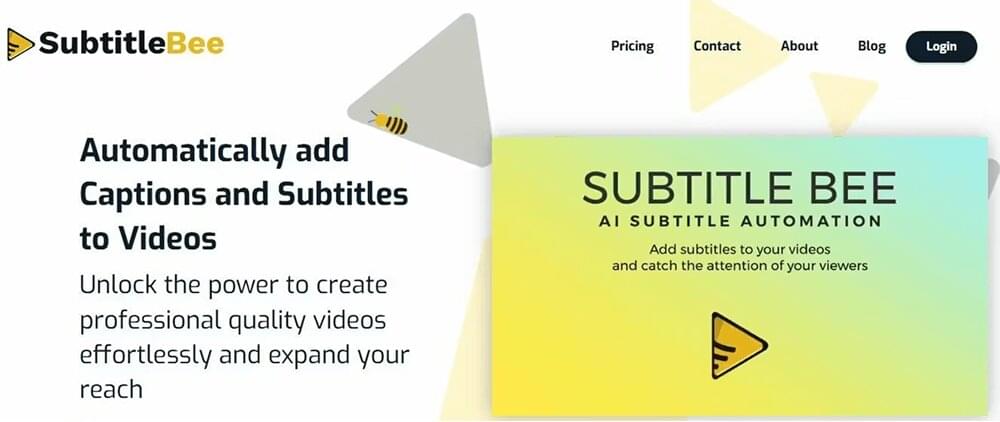
It does not have overcomplicated features that are often part of all-in-one video editors that make the interface cluttered and expensive. Since translation is built into the same workflow of SubtitleBee, you can translate subtitles into multiple languages without exporting your file to a separate translation tool.
You do still get a variety of additional features in SubtitleBee related to captioning, translating, and transcription. But overall, SubtitleBee’s entire interface is designed to generate, style, and export subtitles with maximum accuracy and minimal friction.
Key features
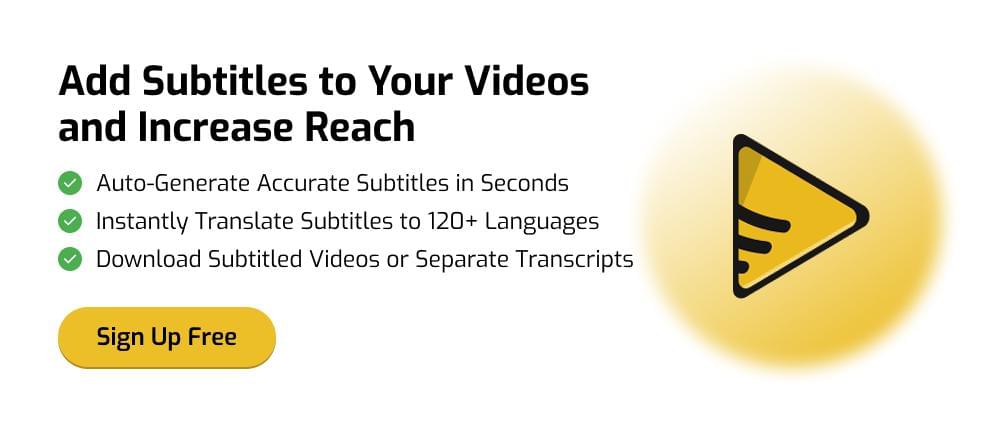
- Auto-generates subtitles in 120+ languages with 95%+ accuracy
- Built-in subtitle translation to any supported language
- Burned-in subtitles (open captions) to permanently embed them into your video file
- Extensive customization: fonts, colors, backgrounds, positioning, and progress bars
- “Supertitles” feature to add appealing header text overlays
- Video resizing and cropping for different social media platforms (Instagram, TikTok, Facebook, YouTube)
- Export subtitle files in different formats, including SRT, VTT, ASS, and TXT formats
- Custom logo watermarking for branding
- Audio-to-text transcription for podcast and audio content
Pros and cons of using SubtitleBee
| Pros | Cons |
|---|---|
| Purpose-built for subtitles, which means the workflow is streamlined and focused | Free plan is limited to 1 video per month (10 minutes max) with a watermark |
| Supports all languages and accents (120+ languages) | Not a full video editor. You’ll need a separate tool for editing, trimming, transitions, etc. |
| Translation feature is free as part of the subtitling feature | The interface of the editing interface can be improved. |
| Affordable compared to tools like VEED or Kapwing | |
| Generous file size limits and multiple export options |
Pricing
- Free: 1 video/month - 10 min max, watermarked
- Starter: $19/month - 12 videos, 20 min each
- Premium: $49/month - 35 videos, 30 min each
- Business: $129/month - highest limits and priority customer support
Best for: Content creators and businesses who need accurate subtitles in multiple languages, especially for social media repurposing across global markets.
2. Maestra
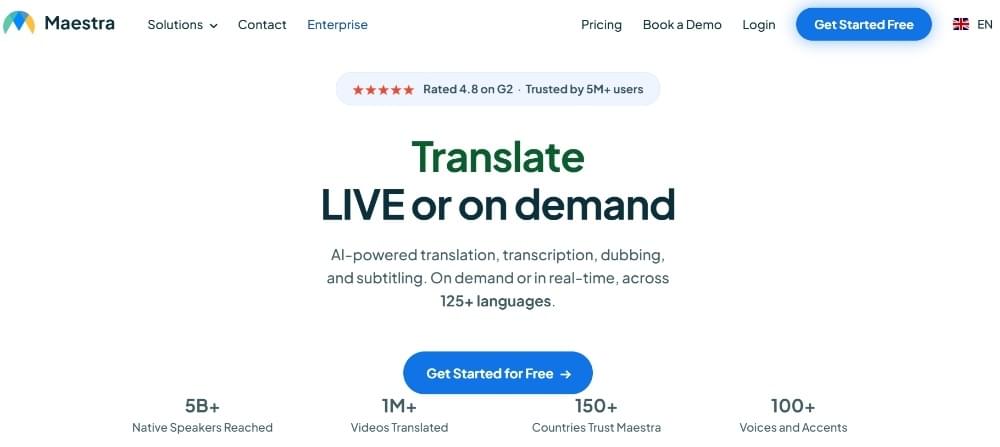
Maestra is an all-in-one AI subtitle generator that can handle transcription, translation, and dubbing across 125+ languages. It is powered by a multi-engine approach that cross-references results from different AI models. As a result, Maestra’s output requires less manual correction. Overall, Maestra is useful for users who are producing content for international audiences because the transcription and translation happen in one user-friendly interface.
Key features
- Auto-subtitle generation in 125+ languages
- Confidence meter for quick accuracy review
- CPS (characters per second) timing controls
- Supports exports in different file formats like SRT, VTT, SCC, STL, CAP, SBV, and TXT
- Live subtitling and translation for events
- Team workspaces
Pros and cons of using Maestra
| Pros | Cons |
|---|---|
| I liked the confidence meter as it helped me save editing time | All of the pricing and add-on charges are not fully listed on the website |
| Supports a wide range of languages (about 125+ languages) | Interface is focused on providing a lot of features in one place instead of user-friendliness |
| Professional-level export format support (SCC, STL for broadcast) | Less suitable for creating social media clips |
| Live subtitling is a unique feature for webinars and events that most of the other tools on this list do not have |
Pricing
- Free trial (no credit card required)
- Paid plans require custom quotes
Best for: Enterprises, media companies, and organizations needing professional-grade subtitle files and translation at scale.
3. CapCut AI
CapCut AI also offers an auto-captioning feature in both desktop and mobile versions. The accuracy is also good when compared to dedicated subtitle tools. You also get an extensive caption styling library.
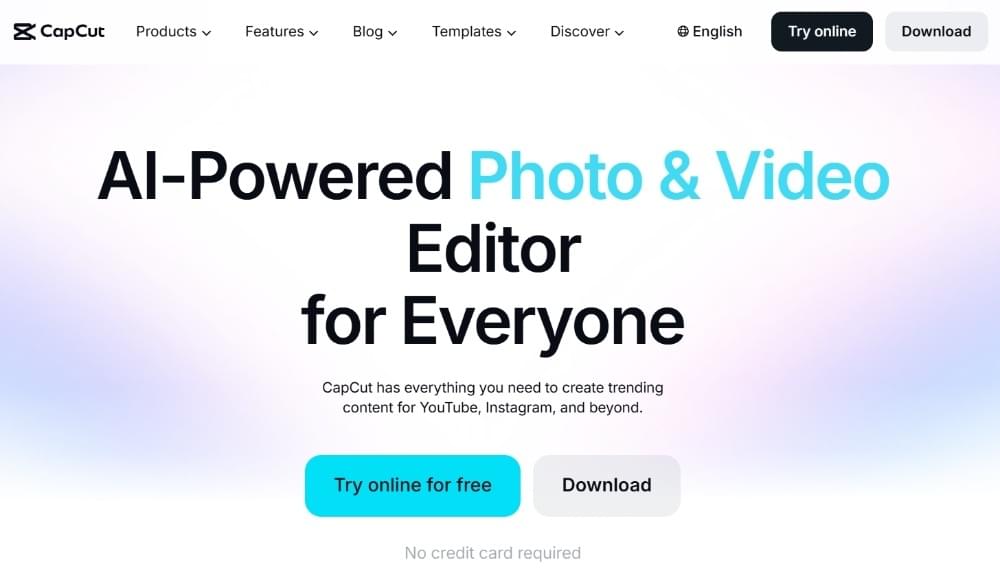
The good thing about CapCut is that it is completely free for standard use. It is especially popular among short-form content creators on Instagram Reels and TikTok, although you can also add captions to TikTok natively if you want to stay inside the app.
Key features
- Auto Captions feature provides word-by-word highlight animations
- A huge library of trendy text styles designed for short-form video
- Available on mobile and desktop
- Direct TikTok integration
- Basic video editing tools
Pros and cons of using CapCut AI
| Pros | Cons |
|---|---|
| The subtitle generation feature itself is free | Accuracy (~85%) is lower than most competitors |
| Modern caption styles match current social media trends | No SRT export on the free plan |
| Fast processing for short clips | Limited language support (~20 languages) |
| Mobile app is excellent for on-the-go editing and captioning | Some premium templates carry a “Pro” watermark |
| Not suitable for professional or long-form content |
Pricing
- Free: Unlimited subtitle generation, no watermark on basic exports
- Pro: ~$8/month — premium templates, additional effects
Best for: TikTok and Instagram Reels creators who prefer trendy styling over transcription accuracy.
4. HappyScribe
HappyScribe is known for offering both AI-generated and human-made subtitles. Hence, you get significant flexibility, depending on the level of accuracy you need. The AI subtitles are 85% to 95% accurate. HappyScribe supports 150+ languages and allows you to customize fonts, colors, and animations before exporting, which helps if you already know which subtitle fonts work best for your videos.
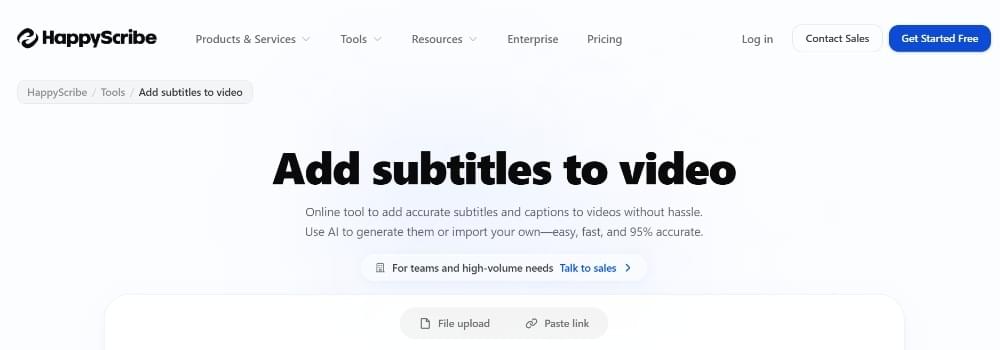
Overall, it is a reliable choice for media producers and content teams that require consistent quality.
Key features
- AI subtitles in 120+ languages
- Human-made subtitle option with 99% accuracy guarantee
- Interactive subtitle editor with waveform-based timing adjustment
- Style Guide feature for maintaining consistent formatting across projects
- Team workspaces for collaboration
- Export in SRT, VTT, STL, and multiple other formats
Pros and cons of using HappyScribe
| Pros | Cons |
|---|---|
| The human transcription option is a genuine differentiator for legal and compliance-sensitive content. | AI accuracy (85–95%) is a wide range and the lower end is behind top competitors |
| User-friendly and clean interface | Human transcription costs extra (approximately £1.50/min) |
| Style Guide feature is excellent for agencies handling multiple brands | Processing time is slightly longer than some competitors |
| Excellent integration ecosystem |
Pricing
- Free trial available
- Paid plans start at $10/month for AI transcription
- Human transcription priced per minute
Best for: Media companies, agencies, and professionals who need guaranteed accuracy and are willing to pay for human verification on important content.
5. Descript
Descript uses a text-based editing approach, which means you can edit your video by editing the transcript directly. It supports multi-speaker detection and offers a free tier that has 1 hour of transcription per month.
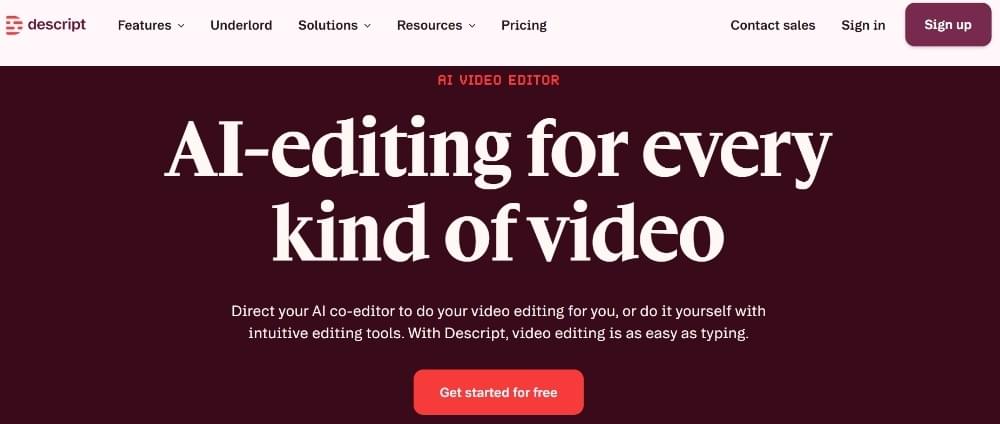
Descript is an ideal AI subtitle generator for podcasters and video editors who need a comprehensive editing tool, and it fits neatly into a well-planned podcast subtitles as workflow.
Key features
- Text-based video editing, which means you can edit videos by editing the transcript
- Auto-transcription in 25+ languages
- Filler word detection and removal (“um,” “uh,” “like”)
- Speaker detection with separate labels
- Studio Sound for audio quality enhancement
- SRT and VTT export
Pros and cons of using Descript
| Pros | Cons |
|---|---|
| The transcript-first editing approach is useful for podcasters and interviewers | Limited language support compared to most competitors (~25 languages) |
| Remove filler words quickly to reduce editing time | More expensive than dedicated subtitle tools due to variety of features |
| High accuracy on clear English audio (~95%) | Might seem complicated, especially if you just need subtitles |
| Integrates transcription, editing, and publishing in one dashboard | Significant learning curve for transcript-based editing |
Pricing
- Free: 1 hour of transcription
- Hobbyist: $24/month offers 10 hours of transcription
- Pro: $33/month offers unlimited transcription
Best for: Podcasters, YouTubers, course creators, and any user who produces long-form spoken content.
6. VEED.io
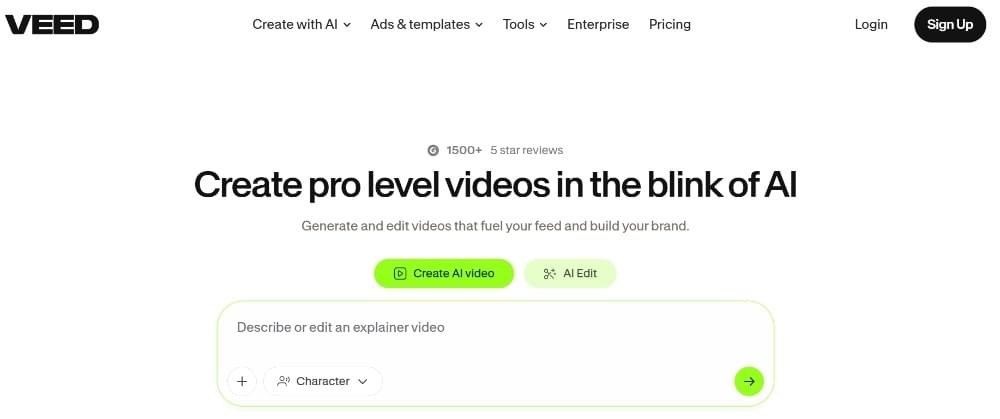
VEED.io can convert audio into clear and readable subtitles with a user-friendly interface. It has a clean interface with all the editing tools in one place. You can adjust timing, fix text, and apply styling options without switching between different screens. Overall, VEED is suitable for beginners who do not want to deal with a complicated setup.
Key features
- Auto-subtitle generation in 125+ languages
- Dynamic subtitles with word-by-word animations, highlights, and effects
- Full video editing features, including trimming, effects, templates, and text overlays
- Brand Kit to ensure consistent styling
- AI dubbing and translation (Pro plan)
- Supports multiple subtitle formats, such as SRT, VTT, and TXT export
Pros and cons of using VEED
| Pros | Cons |
|---|---|
| Excellent subtitle styling with dynamic captions available for social media | Free plan includes a VEED watermark |
| One-stop platform to edit, subtitle, resize, and export subtitles | Free plan is limited to 30 min/month of auto-subtitles at 720p |
| User-friendly interface suitable for non-technical users | Paid plans are expensive |
| Good accuracy on clean audio (reported accuracy is around 95%+) | Translation is limited to 20 min/month even on the Pro plan ($24/month) |
| Veed can lag on longer videos as per user reviews |
Pricing
- Free: Watermarked, 720p, 30 min/month subtitles
- Lite: $12/month (billed annually) — 1080p, no watermark, 12 hrs/year subtitles
- Pro: $24/month (billed annually) — AI tools, translation, brand kit
- Enterprise: Custom pricing
7. Kapwing
Kapwing is a comprehensive video editor with many different features, including subtitle generation. It can generate video captions word-by-word in numerous animated styling options. Moreover, the tool allows you to export videos for different social media platforms, so you do not have to manually match TikTok video dimensions or Reels sizing yourself. You also get access to team collaboration features in the premium plan.
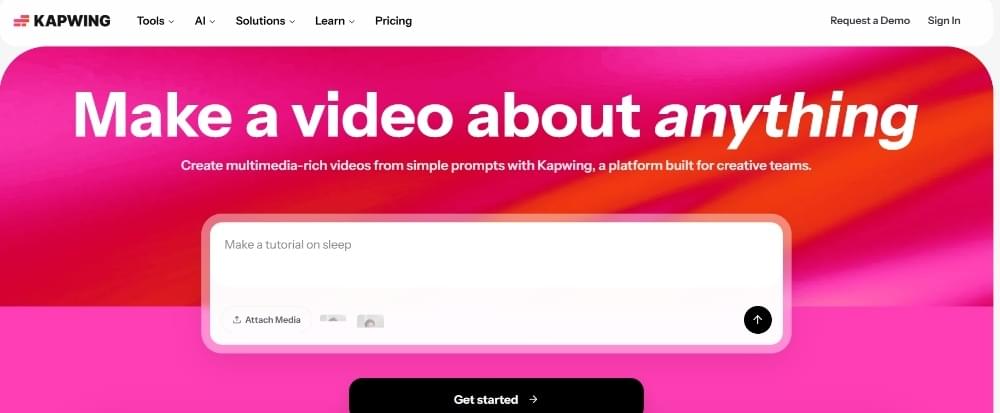
Overall, Kapwing has become one of the leading tools in the video editing industry by providing all the necessary editing, captioning, transcription, and translation features in the same dashboard.
Key features
- Auto-subtitle generation in 100+ languages
- Animated caption styles designed for different social media formats, including Instagram Reels, TikTok, and YouTube Shorts
- Speaker detection and separation
- Full closed caption support (FCC/ADA compliant)
- SRT export
- Team collaboration features
Pros and cons of using Kapwing
| Pros | Cons |
|---|---|
| Excellent features in the free plan | Free exports include a Kapwing watermark |
| Animated caption templates look appealing and professional without manual editing | If you only need subtitle-specific features, you might find the tool to be too cluttered |
| Speaker detection works well for podcasts and other long-form content | Translation quality varies by language pair |
| Good overall accuracy (~93%) |
Pricing
- Free: Watermarked exports with limited features
- Pro: $16/month and provides unlimited exports with watermark-free videos
Best for: Social media managers and creators who need stylish captions optimized for vertical video platforms.
8. Canva
Canva is primarily known as an online graphic design tool. However, it also added the auto-subtitle generation feature to make it easier for anyone using Canva for graphics or video presentations to create subtitles from the same dashboard.
Generating subtitles with Canva is also pretty simple. All you have to do is upload the video, use the captioning feature, and customize them using Canva’s design and editing tools. Once done, you can easily export the video in HD format on the Pro plan.
The trade-off of using Canva to caption videos is that only videos with burned-in subtitles can be exported, so it is worth knowing the difference between open captions and closed captions before you commit to Canva for subtitling work.
Key features
- Auto-subtitle generation from video audio
- Full Canva design toolkit for styling (fonts, colors, animations, stickers)
- Drag-and-drop subtitle customization
- Post directly to social media platforms from Canva
- Numerous editing and designing features, such as glow effects, text animations, and keyword highlighting to make the subtitles more appealing
Pros and cons of using Canva
| Pros | Cons |
|---|---|
| If you are already a Canva user, the subtitle feature is a great addition without an extra subscription | Language support is more limited (~20+ languages) compared to dedicated AI subtitle tools |
| Excellent styling and branding options | Cannot export SRT/VTT files. Only videos with burned-in subtitles can be exported |
| Auto subtitle generation feature is also available on the free tier of Canva | Not designed for high-volume subtitle work |
| Very easy to use for non-technical creators | Accuracy can drop with complex audio |
Pricing
- Free: Auto-subtitles available on the free Canva plan
- Pro: $13/month to get additional features and storage
Best for: Designers, marketers, small business owners, and users who already use Canva.
9. YouTube Studio
YouTube also provides an excellent auto-caption feature built into its Studio platform through which users upload the videos. The best part is that it’s a completely free feature that supports 100+ languages.
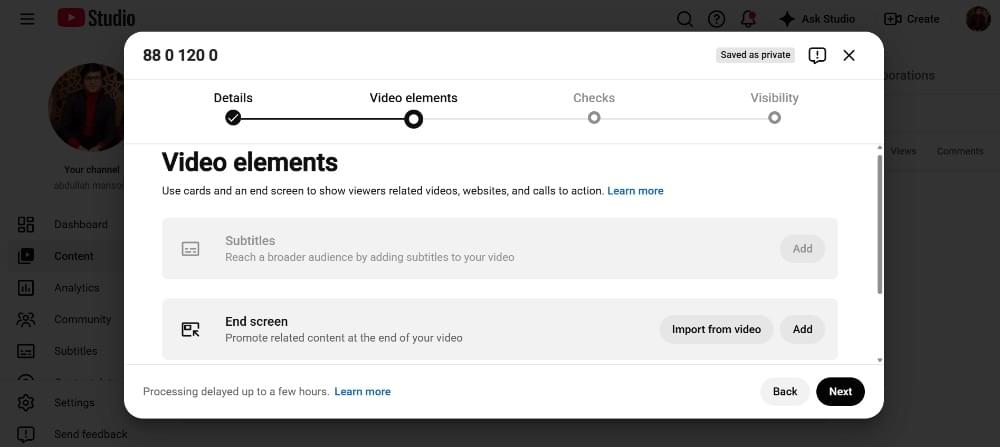
It’s a perfect solution for YouTube content creators who primarily want the subtitles for their YouTube videos. You don’t have to subscribe to a third-party subtitling tool. Instead, you can add captions directly to your videos when you are uploading content to YouTube from the Studio dashboard.
One key thing to remember is that the accuracy of YouTube Studio’s auto-subtitling feature is often criticized by users. I also tested it out and found that there were some issues with the captions. So, for professional-level caption quality, you might still want to subscribe to a dedicated AI subtitle generator.
Key features
- Automatic caption generation in 100+ languages from the same dashboard
- In-browser transcript editing
- SRT download to use on other platforms
- No usage limits or watermarks
- Completely free
Pros and cons of using YouTube Studio
| Pros | Cons |
|---|---|
| YouTube Studio is completely free with no restrictions | Captions are only generated after uploading to YouTube. You cannot process videos before publishing. |
| Accuracy is strong on clean English audio (~95%) | No burned-in subtitle option. Closed captions are added with a CC toggle (on/off button) |
| Captions improve video SEO and discoverability on YouTube | Very limited styling options |
| SRT files can be downloaded and used on other platforms | Cannot add subtitles to videos for other platforms (TikTok, Instagram, etc.) |
Pricing
- Free (unlimited)
Best for: YouTube-first creators who don’t need burned-in captions or extensive styling options.
10. Clipchamp (Microsoft)
Clipchamp is now part of Windows 11 and Microsoft 365. It offers unlimited auto-subtitle generation features at no additional charge. It is a great platform for anyone that’s part of the Microsoft ecosystem.
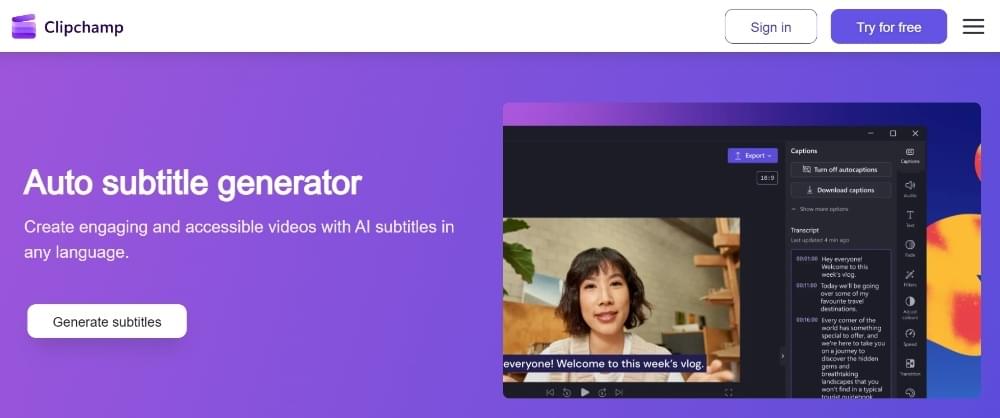
It offers unlimited auto-subtitle generation at no additional charge, which puts the platform alongside other free transcription services worth knowing about.
Key features
- Auto-subtitle generation in 100+ languages
- Unlimited subtitle generation (completely free)
- Offensive language filter
- Customizable fonts, colors, and text backgrounds
- Part of the Microsoft / Windows 11 ecosystem
Pros and cons of using Clipchamp
| Pros | Cons |
|---|---|
| Genuinely free and unlimited without any watermarks | Primarily designed for Windows |
| High accuracy on clear audio (~90%) | Video editing features are basic compared to dedicated subtitle generators |
| Quick and easy integration with Microsoft 365 and OneDrive | Fewer subtitle styling options |
| Clean and uncluttered interface | No team collaboration features |
Pricing
- Free with Windows 11 or Microsoft 365
Best for: Windows users and Microsoft 365 subscribers
Conclusion
Generally, AI subtitle generators play a vital role in improving the video production workflow by reducing the time and effort required to add accurate subtitles.
The tools discussed above are some of the best AI subtitle generators available in 2026, and each of them offers a unique set of features depending on your captioning needs.
It would not be wrong to say that subtitles are no longer optional for anyone serious about video content. So, whether you are a content creator or a business owner, you should use a reliable AI subtitle generator to reach a wider audience and improve the overall performance of your videos.



Add and translate your subtitles to more than 100 languages with high accuracy
Our solution
SubtitleBee
Make your video understandable by using SubtitleBee for free
Start now for freeTop Articles

Getting Started with AI-Powered SubtitleBee

3 Effective Ways To Add Subtitles To Video Online Without Watermark
VEED vs. Kapwing: Which Subtitle Generator wins?
Kapwing vs. SubtitleBee: Which subtitling tool should you choose?

5 Top Verbit Alternatives for Transcription