


video tutorials for social media
How to Add Captions in Canva: Auto Captions Step by Step
To add captions in Canva, open a video design, go to Text > Dynamic text > Captions, pick a style pack and select Generate captions. Canva transcribes the speech, adds the captions as a layer on your timeline and keeps them in the video when you download it as an MP4.
That covers the happy path. In practice you will also want to fix a few misheard words, change the look, maybe translate the text, and make sure the captions actually show up in the file you post. This guide walks through each step on desktop and mobile, the two caption features Canva has (they behave very differently), and what to do when the Captions button is missing or the text comes out wrong.
Two Kinds of Captions in Canva
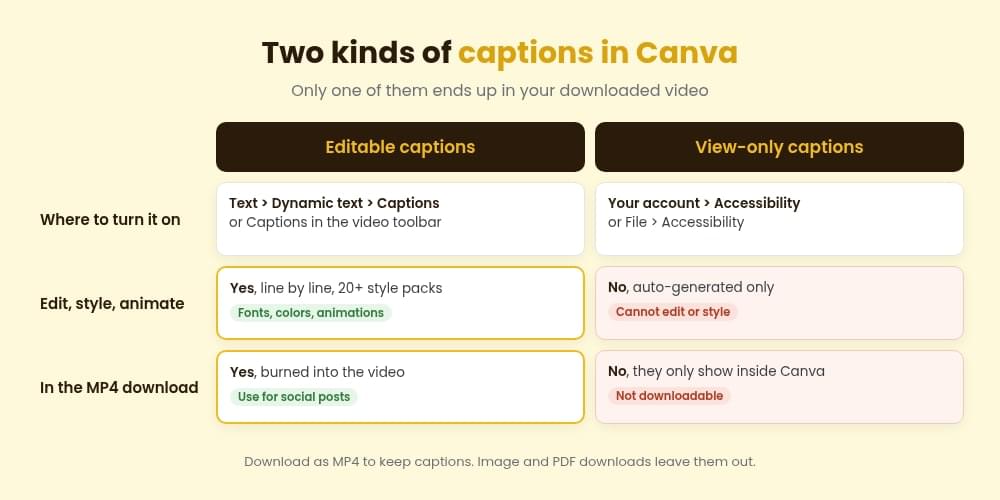
Canva has two separate caption features, and mixing them up is the most common reason people end up with a video that has no captions after download.
| Editable Captions | View-only (accessibility) captions | |
|---|---|---|
| Where you turn it on | Text > Dynamic text > Captions, or Captions in the video toolbar | Your account > Accessibility, or File > Accessibility |
| Can you edit the text? | Yes, line by line | No |
| Can you style or animate it? | Yes, style packs, fonts, colors, animations | No |
| Included in the MP4 download? | Yes | No, they only show inside Canva |
| Best for | Reels, TikToks, YouTube videos, anything you post | Watching or presenting a design inside Canva |
If you want captions people can see on Instagram, TikTok or YouTube, you need Editable Captions. The rest of this guide is about that feature, with a short section on view-only captions at the end.
Before You Start
Canva only offers captions when a few conditions are met:
- The design is a video or social media design, or a supported audio file (M4A, MP3, OGG, WAV or WEBM). Go to File and check the design type shown under the design name. A presentation or a document will not show the Captions option.
- The video contains speech. Music-only clips have nothing to transcribe.
- On desktop, the upload has finished. If you generate captions while the file is still uploading, it can fail.
Clean audio makes a big difference. Canva says captions can fail or come out wrong when speech is unclear, background noise is high, or music plays over the voice. If you recorded in a noisy room, run Audio tools > Enhance voice on the clip before generating.
How to Add Auto Captions in Canva (Desktop)
- Open or create a video design and add your clip from Uploads.
- Open the Captions panel. Use any of these routes:
- Go to Text, then under Dynamic text select Captions.
- Go to Apps and search for Captions.
- Select the video on the page or timeline, then select Captions in the toolbar.
- Pick a caption style pack. Canva has more than 20. Hover over one to see it animate before you apply it.
- Choose which clips to caption (optional). Under Apply captions to, untick any videos or audio you want to leave without captions.
- Set the spoken language (recommended). Canva detects the language automatically, but you can select Edit next to Automatically detect spoken language and pick it yourself. Canva notes this can improve accuracy.
- Choose a translation (optional). Under Translate captions into, pick a language if you want the captions in a different language from the speech.
- Select Generate captions.
Canva adds the captions as their own layer on the video timeline, so you can see exactly when each line appears.
How to Add Captions in Canva on Mobile
The Canva app on iPhone and Android follows the same flow with one difference: you do not need to upload the video first.
- Open your video design in the Canva app.
- Select the clip, then tap Captions (or open Text and find Captions under Dynamic text).
- Your camera roll videos appear directly in the Captions panel. Pick the clip. Canva processes only the audio, so captions generate faster.
- Choose a style pack, set the language if needed, and tap Generate captions.
If captions fail on mobile, Canva suggests removing the video from the design and re-adding it from your camera roll through the Captions panel.
How to Edit Captions in Canva
Auto captions are a first draft. Always read them through before you download, especially names, brand terms and numbers.
- Fix a word: select the caption segment on the timeline and type your correction. You can also open Captions from the toolbar and edit each line in the panel, which is quicker for long videos.
- Fix timing: select a caption segment and drag its start or end edge so it matches the speech. If you trimmed the video after captioning, play it back and check every cut.
- Delete one line: in the Captions panel, hover over the line and select the Delete icon.
- Delete one caption block: select it and choose Delete in the floating toolbar.
- Remove all captions: select any caption, open the Captions panel and choose Delete all captions.
- Move captions: drag the caption to a new position. Repeat on each page if your design has several.
If editing options do not appear at all, the captions were probably created with the accessibility feature, which cannot be edited. Turn those off and generate Editable Captions instead.
How to Style and Animate Canva Captions
Change the whole look at once. Select any caption segment, open Captions from the toolbar, go to the Styles tab and pick a different style pack. It applies to every caption in the video. If your team uses a Brand Kit, style packs that do not match it may be hidden.
Style one caption. Select a single segment and use the toolbar to change font, color, size or effects. Use this sparingly, for example to highlight a key line. Changing captions one at a time on a long video takes a while.
Animate captions. Select a caption, choose Animate in the menu bar and pick a caption animation: Reveal, Highlight or Snake. Canva is still rolling this out, so if you do not see it yet, update the app.
A few readability rules that work on every platform:
- Keep captions in the lower third, but above the area where TikTok and Reels place their own buttons and text.
- Use a bold sans-serif font and a dark outline or background box so the text reads on any footage. Our guide to the best subtitle fonts covers which fonts hold up on small screens.
- Aim for one or two short lines at a time. Long lines get cut off on vertical video.
How to Translate Captions in Canva
Canva translates while it generates. Open the Captions panel, choose a language under Translate captions into, then select Generate captions. Canva’s auto caption page says more than 100 translation options are available.
If your captions already exist in the original language, delete them first and generate again with the translation selected. Treat machine translation as a draft and have a native speaker check it before you publish.
If you need the same video in several languages, this gets repetitive in Canva because each language means another generate, review and download cycle. That is one of the cases where a dedicated subtitle tool is faster (more on that below).
How to Download a Canva Video With Captions
Editable Captions are included when you download your design as an MP4 video. They are burned into the picture, so they always show and viewers cannot turn them off.
Two things to watch:
- Choose MP4. Captions are not included in image formats or PDF downloads.
- View-only captions never download. If you only switched on accessibility captions, your MP4 will have no captions at all.
Canva does not document a way to export captions as a separate SRT or VTT file, and its caption help pages do not mention importing one either. If you need a caption file (for YouTube closed captions, a course platform or a web player), see the next section.
When to Use SubtitleBee Instead
Canva captions are a good fit when you are already designing the video in Canva and need one language burned in. It gets slower in a few situations, and that is where SubtitleBee is worth a look:
- You need a subtitle file, not only a video. SubtitleBee lets you download your subtitles as SRT or TXT on paid plans, plus VTT and ASS on Premium and Business. Upload the SRT to YouTube as closed captions viewers can switch on or off. Not sure which format you need? Our SRT vs VTT guide explains the difference.
- You need several languages. SubtitleBee generates subtitles in 60+ languages and can translate them into 100+ from a single upload, so you review each language in one editor instead of rebuilding the video.
- Your video is not in Canva. Upload a file or paste a YouTube or Vimeo link, generate the subtitles, proofread them and download the video with subtitles burned in.
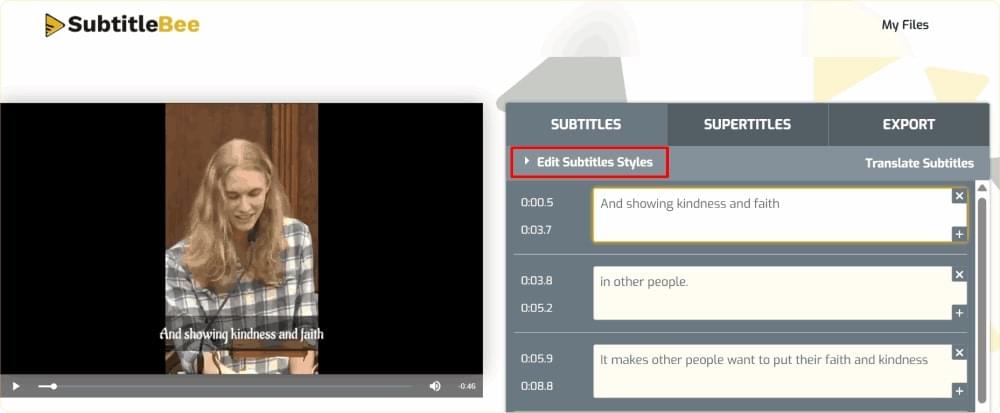
A workflow that combines both: design and edit your video in Canva, download the MP4 without captions, then upload it to SubtitleBee to generate, translate and proofread the subtitles. Download the burned-in version for social media and the SRT for YouTube.
How to Turn On View-Only Captions in Canva
View-only captions are useful when you share a Canva design as a link or present it, and you want viewers to be able to read along. They cannot be edited, styled or downloaded, and they are not supported on Canva websites yet.
- For all your media: select your account profile on the homepage, choose Your account, open Accessibility, then switch on the Captions toggle.
- For one design: open the design, select File > Accessibility, then Show view-only captions on media.
- For one video: select the clip in the timeline, choose More, then Show view-only captions.
- While presenting or watching through a link: hover over the bottom of the page and select Show view-only captions (under More if you do not see it).
Common Problems and How to Fix Them
The Captions option is missing. Check that the design type is a video, social media design or supported audio file (File shows the type), that the clip has speech, and that the upload has finished.
Captions did not generate. Lower background music, run Enhance voice, then try again. On desktop, re-upload the video from Uploads and add it back to the design. As a last resort, add captions manually with the Text tool.
Captions are in the wrong language. Delete them, set the spoken language manually under Automatically detect spoken language, and generate again.
Captions are out of sync after editing. Play the video, select the segment that drifts and drag its start or end edge to match the audio. Our guide on fixing out-of-sync subtitles covers the same problem in other players and editors.
My download has no captions. You either downloaded an image or PDF format, or you used view-only captions. Generate Editable Captions and download as MP4.
Some style packs are missing. They may be hidden by your Brand Kit settings, or not available in your language yet. Canva lists style packs for English, Spanish, Portuguese, French, Indonesian and German.
Frequently Asked Questions
Does Canva Have Auto Captions?
Yes. Canva’s Editable Captions feature transcribes the speech in your video or audio and adds the captions to the timeline. Open it from Text > Dynamic text > Captions or from the video toolbar.
Can You Add Captions in Canva for Free?
Canva’s caption help pages do not mention a plan restriction, but features and limits can change by account and region. Open the Captions panel in your account: if you see a crown icon or an upgrade prompt, that option needs a paid plan.
What Languages Do Canva Captions Support?
Canva lists 57 languages for captions, including English, Spanish, French, German, Portuguese, Arabic, Hindi, Japanese, Korean and Chinese. Caption translation offers more options than transcription.
Can I Export Captions From Canva as an SRT File?
Canva does not document an SRT export. Captions download as part of the MP4. If you need an SRT or VTT file, generate it with a subtitle tool such as SubtitleBee, or see our guide on how to add subtitles to YouTube videos for uploading the file once you have it.
Why Can’t I Edit My Captions in Canva?
They were most likely created with the accessibility (view-only) feature, which cannot be edited. Generate Editable Captions from the Captions panel instead.
Get Your Captions Right Before You Post
Canva makes it quick to add good-looking captions to a video you are already designing. Generate them, proofread every line, pick a readable style and download as MP4. When you need subtitle files, several languages or a video that lives outside Canva, try SubtitleBee to generate, translate and download your subtitles in your browser.
Related Reads

Add and translate your subtitles to more than 100 languages with high accuracy
Our solution
SubtitleBee
Make your video understandable by using SubtitleBee for free
Start now for freeTop Articles

Getting Started with AI-Powered SubtitleBee

3 Effective Ways To Add Subtitles To Video Online Without Watermark
VEED vs. Kapwing: Which Subtitle Generator wins?
Kapwing vs. SubtitleBee: Which subtitling tool should you choose?

5 Top Verbit Alternatives for Transcription