


video tutorials for social media
How to transcribe audio file to text
To transcribe audio files to text means turning spoken words into written text. Instead of listening to an entire recording on repeat, you get a text version to read, copy, search, or even edit. Today, audio-to-text transcription has become the norm. Students use it to turn lectures into notes. Podcasters repurpose episodes into blogs. Researchers use it to review interviews and the list goes on.
After the evolution of high-speed internet and cloud computing, speech-to-text technology has improved rapidly since the 1990s. Advanced audio to text technology transcribes long recordings in real time. This shift has made spoken content easier to use, easier to share, and much easier to manage.
Learning how to transcribe audio file to text can be tiring, especially if this is your first time doing it. However, some industry tricks can make the process a lot easier. In this guide, we’ll cover the 3 best ways to transcribe audio file to text, benefits and cons of using these audio to text transcript generators, and how you can manage audio file to text online transcription using some of the best tools available.
What is audio to text technology?
Audio to text technology converts spoken words into written text. This process is also called transcription. The base of this technology is speech recognition. Speech recognition software listens to audio and predicts what was said. Then it turns that into text.
In the past, transcription was mostly manual and was considered a specialized service. People listened to audio and typed every word. Today, automatic tools have changed everything. They give fast and accurate results in real time.
The main goal of transcription tools is to save time and effort. They also help make spoken content more useful and searchable. This is especially important online, where text can be indexed by search engines.
Why transcribe audio file to text?
Transcription brings many benefits. We will not go into the details, here are the main ones briefly:
Transcript saves time:
Instead of listening to an entire audio file, you can read specific parts.
Transcripts clarify meaning:
Audio can have background noise, accents, or unclear speech issues. Transcripts are texts with no such issue.
Transcripts increase visibility:
Many users prefer reading over listening. When a transcript is available, more people can engage with your content. People searching for specific phrases are more likely to find your content. This brings more traffic to your website or blog.
Transcripts boost SEO:
Search engines can read text. Texts include keywords and phrases that search engines recognize. This makes your content rank better.
3 Best ways to transcribe audio file to text
Here are 3 ways to transcribe audio file to text, each method has its own strengths. Your choice depends on your needs, budget, and how much accuracy you want. Let’s start with the easiest and most accurate one including transcription apps and services.
1. SubtitleBee’s AI speech-to-text
SubtitleBee’s AI is not only 95% accurate but also covers a wide range of languages (120+).
You don’t need technical skills to get started with SubtitleBee. It works brilliantly for videos, podcasts, interviews, lectures, etc. The output includes text that matches what was said in the audio. Once you have the transcript ready, you can edit, review, and export in whatever format you prefer.
Transcribing with SubtitleBee also gives you burned-in subtitles. This means you can turn your audio into video captions without extra steps.
Here’s how you can use SubtitleBee to transcribe audio files to text:
Here’s how you can transcribe audio files to text online with SubtitleBee:
- Go to features → transcription and click ‘Upload Audio File’.
- Select actual language and ‘Continue’.
- Upload the file.
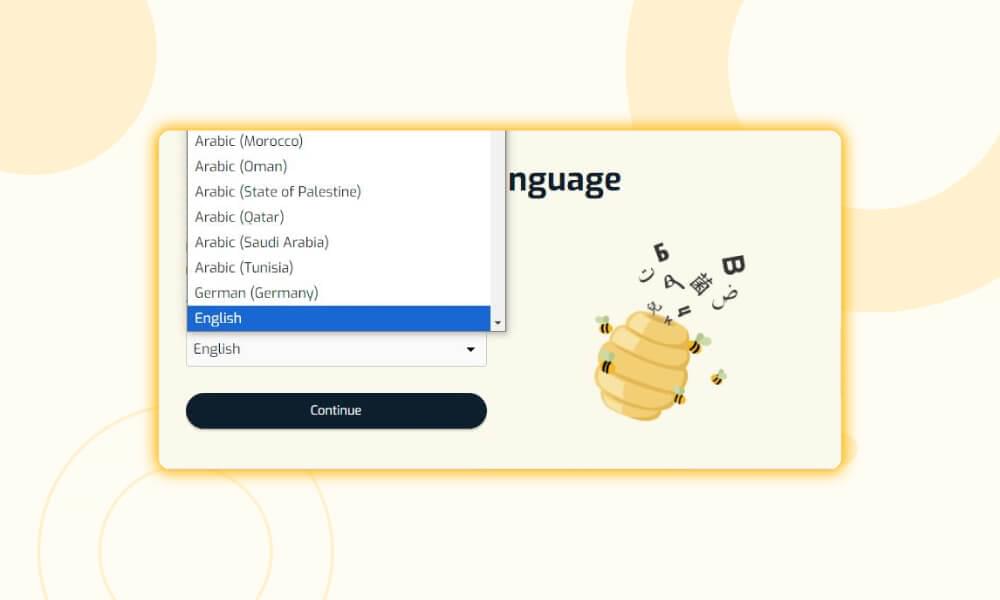
And that’s it! SubtitleBee gives you the transcript in seconds
- Review the transcript and edit if needed.
- Export transcript or subtitles. Download as a text file or subtitle format.
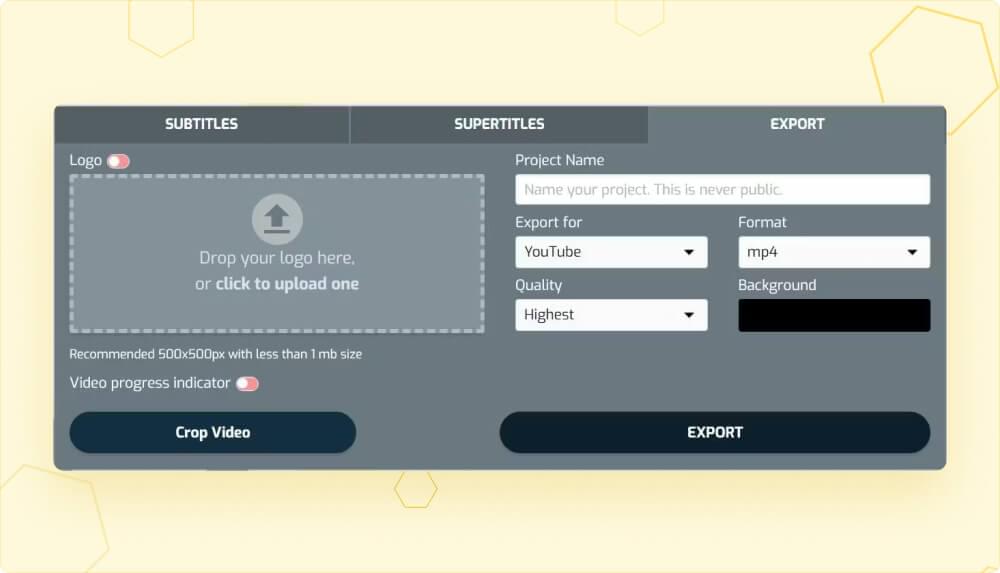
If you already have an account, log in to SubtitleBee first, and you can generate subtitles, translate texts, and add Supertitles.
Pros of transcribing audio file to text with SubtitleBee
- Easy-to-use interface, even for casual users.
- Up to 95% AI accuracy.
- 120+ language support so you can transcribe any audio from any part of the world.
- Wide file support for professionals, including MP4, AVI, MOV, SRT, TXT, ASS, VTT.
- Affordable plans support personal use, while discounts offer better deals to every user.
Cons of SubtitleBee
- Web-based only.
- Relies on the internet to work.
- No mobile app yet.
- No ‘Live’ transcription option
For those looking for ‘what is the easiest way to transcribe audio to text?’ The answer is uploading your audio file to SubtitleBee is the simplest way to transcribe audio file to text online.
2. Built-in voice typing tools
Be it Windows, Android, or Apple devices, modern devices have some sort of built-in speech-to-text conversion tools. These tools might not offer full features but they work best for simple audio files or dictation.
Here’s how you can transcribe audio file to text in Apple devices:
- Open the Notes app.
- Click on the microphone icon, and select Record Audio.
- Once you finish recording, click on the text button “💬” to see the transcript.
- You can use the Voice Memos app alternatively, record audio, from the options, tap on this text button “💬” to see the transcript.
To transcribe audio file to text in Windows, open MS Word. Using your keyboard, press the Windows logo key + H to activate the dictation feature.
If you want to upload audio files and get transcriptions, both Microsoft Word and OneNote allow you to record or upload audio. Go to Home → Dictate dropdown → Transcribe.
Google Docs voice typing is a browser-based free transcription service. It uses Google’s speech-to-text engine, which is quite accurate. Simply:
- Open a Google Docs document
- Go to ‘Tools’ → ‘Voice typing’ or press Ctrl+Shift+S.
- Click the microphone icon and speak.
Google Doc’s voice typing is not limited to any device, and is good for basic live transcription. People use Google Doc to transcribe short MP3 files by playing the audio into the microphone, which is a smart move. 🙂 For transcription of longer MP3 files, we recommend using SubtitleBee.
Here is how you can transcribe audio file to text on Android devices.
- Open any text app like ‘Notes’ app.
- Tap the microphone icon on Google Keyboard (Gboard).
- Start speaking, and it will type your words.
Android voice typing also supports multiple languages and is good for simple transcriptions.
The great thing about built-in voice typing tools is they are totally free and already on your device. You get a super simple interface and all the basic recording features without any hassle. Plus, everything stays private since it all happens right on your device.
The downside to built-in voice typing tools is they usually do not work with long audio files and need a really clear audio source. Most of the time, you will have to use live recording since uploading an audio file is not an option. They do not support many languages, and you do not get any audio-to-text editing tools either.
A lot of people ask on Google about free transcription services. Built-in tools like Google Docs are free and work for short recordings, but they do not let you upload files or do any editing. This is when you can use SubtitleBee.
You can read about Google Meet here: [Google Meet transcription feature, what it does](https://subtitlebee.com/blog/google-meet-transcription-feature/)
3. GPT Record mode
If you are subscribed to ChatGPT Plus or a higher plan, you are probably already aware of GPT Record. It is a highly useful notetaking feature found in ChatGPT for macOS. The feature was launched in July 2025 and immediately brought a significant increase in ChatGPT’s usage.
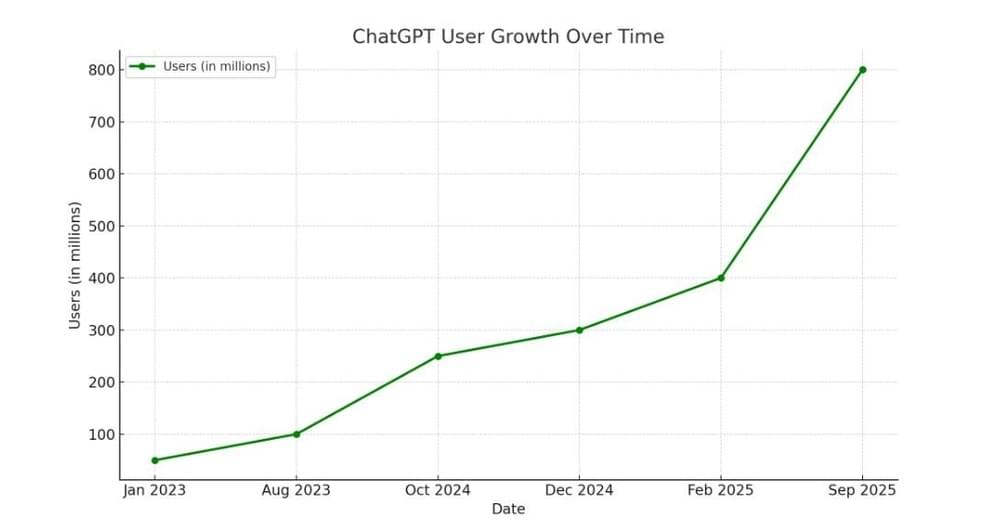
So, the ChatGPT app on your Mac is another reliable way to transcribe an audio file to text. All you have to do is click on the on the record button and access the floating window that allows you to record the audio. Once done, press the stop and send button to complete the process.
The Send button will result in the recorded file being sent to ChatGPT server, so you’ll be able to see a summary of the recording quickly.
Overall, ChatGPT Record is a great feature for all Mac users who want complete audio transcripts as well quick summaries. You can also give further prompts to the AI to refine the text. Since the transcription and chat will be stored in ChatGPT, you can easily access it on any other device.
With ChatGPT Record, you can use ChatGPT completely hands-free and record meetings for up to two hours. You can even get this feature for free on macOS with the ChatGPT Plus subscription.
However, there’s are a significant downsides as well:
- The app only works on macOS.
- You must have an active ChatGPT Plus (or higher) subscription.
- The 2-hour recording duration can get limiting
- App does not provide you finer transcript editing tools like speaker labeling controls or timeline corrections.
- GPT Record does not support versatile file formats to export audio transcripts in multiple formats.
Conclusion
Are you thinking if you can make a transcript from an audio file? Yep, just upload your audio to SubtitleBee and you are good.
If you are after the best transcription service, SubtitleBee is best because you get tons of editing options and great language support. It nails accuracy and makes exporting super easy.
Use built-in voice typing for quick notes you don’t need to keep, and go with ChatGPT record if you want to record meetings or get summaries right inside ChatGPT on macOS.
FAQs
Which free AI tool convert audio to text?
Google Docs voice typing is a free tool. It types what you speak into text, in the real time while you talk. But it does not let you upload audio files. If you want to upload files, SubtitleBee’s AI transcription gives you a free trial and works with tons of file types p.s you can edit the results.
Can I transcribe audio on my phone?
Yep, both Android and iOS phones have built-in voice typing or Gboard for live transcription. Just open a text app, start talking, and your words show up as text. You can not upload audio files, though if you want that, check out SubtitleBee on your desktop.



Add and translate your subtitles to more than 100 languages with high accuracy
Our solution
SubtitleBee
Make your video understandable by using SubtitleBee for free
Start now for freeTop Articles

Getting Started with AI-Powered SubtitleBee

3 Effective Ways To Add Subtitles To Video Online Without Watermark
VEED vs. Kapwing: Which Subtitle Generator wins?
Kapwing vs. SubtitleBee: Which subtitling tool should you choose?

5 Top Verbit Alternatives for Transcription