



video tutorials for social media
How to Translate Instagram Messages, Videos and Images
Instagram profiles are entirely global now. It is completely normal to stumble onto an Instagram profile that has an English bio, Spanish captions, a comment section filled with multiple languages, and videos recorded for an international audience. 🙂
To keep up with global communication demands, Instagram has updated its automatic translation tools so that creators and viewers don’t have to switch apps just to translate the language and understand each other.
Quick answer: To translate an Instagram DM, hold down on the message and tap Translate; the translation appears below the original. For captions, comments and bios, tap See Translation under the text. Reels a creator translated with Meta AI play in your language. For text inside a photo, use Google Lens, and for your own videos, add translated subtitles.
We have prepared this article to clarify how Instagram message translation feature works. To help you connect with a wider audience across all media formats we discuss exactly how to translate Instagram messages, videos, images and how automatic translation works on Instagram.
How to translate Instagram messages
If you receive Instagram direct messages in a language that you do not speak, I’m sure you know how disruptive the translation drill is.
To sort this, Instagram has had translation messages features since February 2025, which allows you to translate messages right in the DM. Currently, you can use this translation feature on mobile only and is unavailable on desktop.
Here’s how to translate Instagram messages within the Instagram app.
Step 1: Go to your Instagram DM
Tap and hold the incoming or outgoing message that you want to translate until you see the following options.
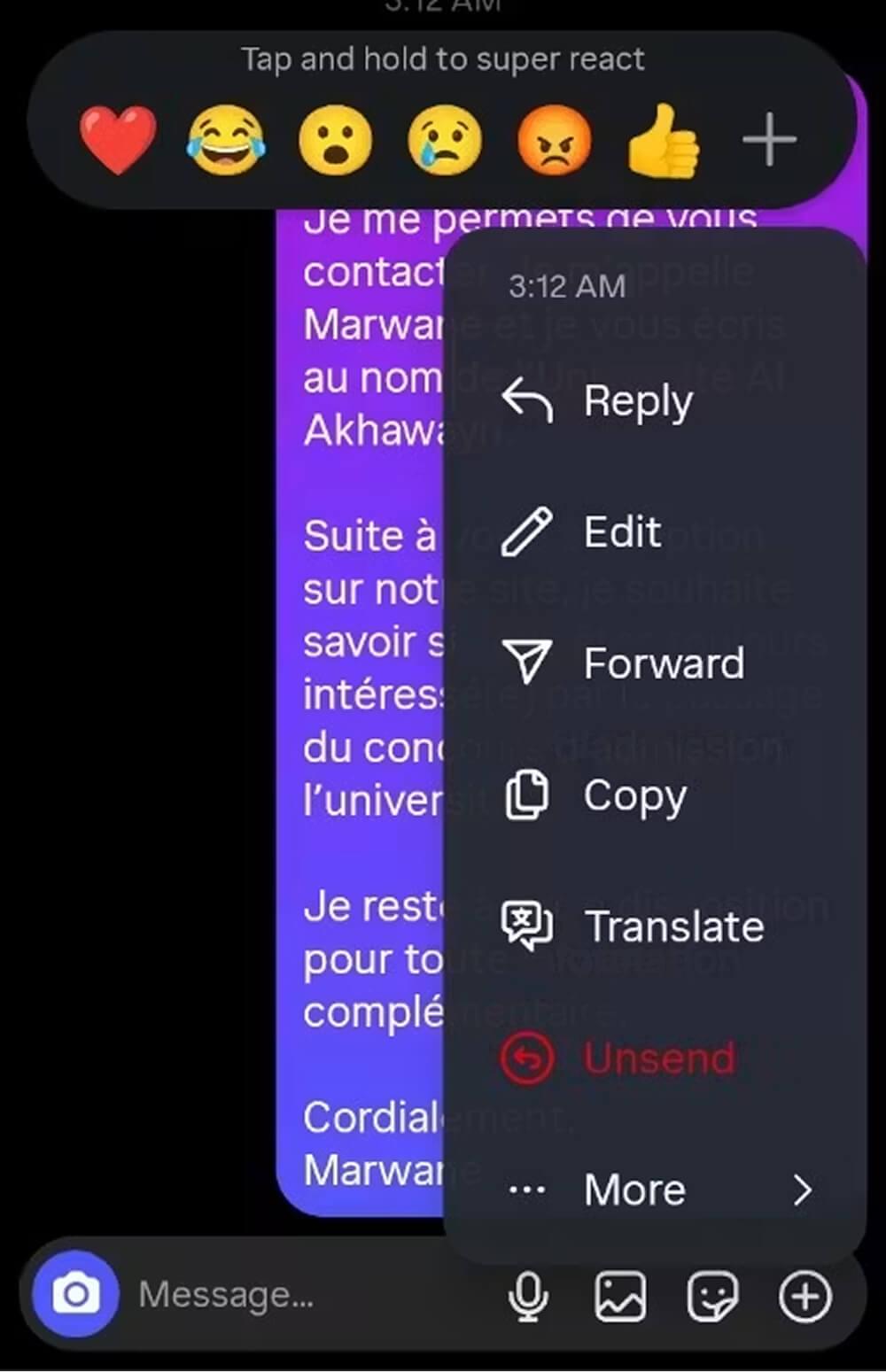
Step 2: Click “translate”
Click the translate option. If it is the first time you use this tool, a prompt saying “Read messages in your preferred language” will appear. It also says that “Text from messages you translate will be shared with Meta to provide translations.”
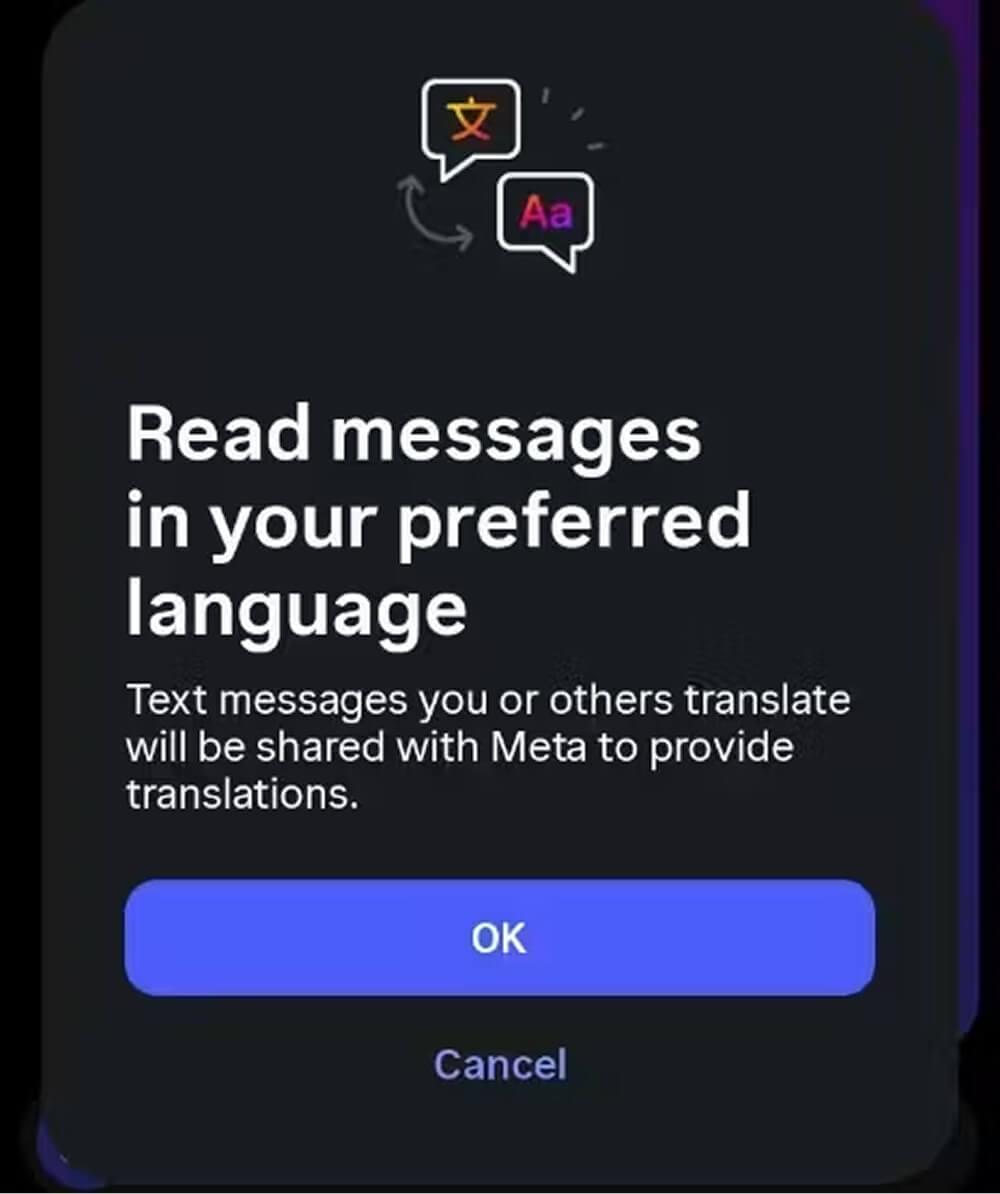
Click “OK.”
The translated message will appear in the same message bubble under the original message. The message is automatically translated into the default language set on your mobile device.
How to translate Instagram videos
Translating Instagram video content depends entirely on whether you are viewing public Reels or looking to localize your own uploaded content.
How to translate Instagram Reels as creator
Instagram has worked hard on artificial intelligence to improve how we watch video. The ultimate goal is for creators to be able to speak naturally in their native language while audiences across the globe could understand the content easily. For a long time, Instagram translation was limited to static text like post captions and comments.
That changed in August 2025 with the rollout of AI voice translation in Reels feature. The feature automatically dubs spoken audio in English, Spanish, Portuguese, and Hindi (including Bengali, Tamil, Telugu, Kannada, and Marathi). This feature has helped many creators expand their content reach.
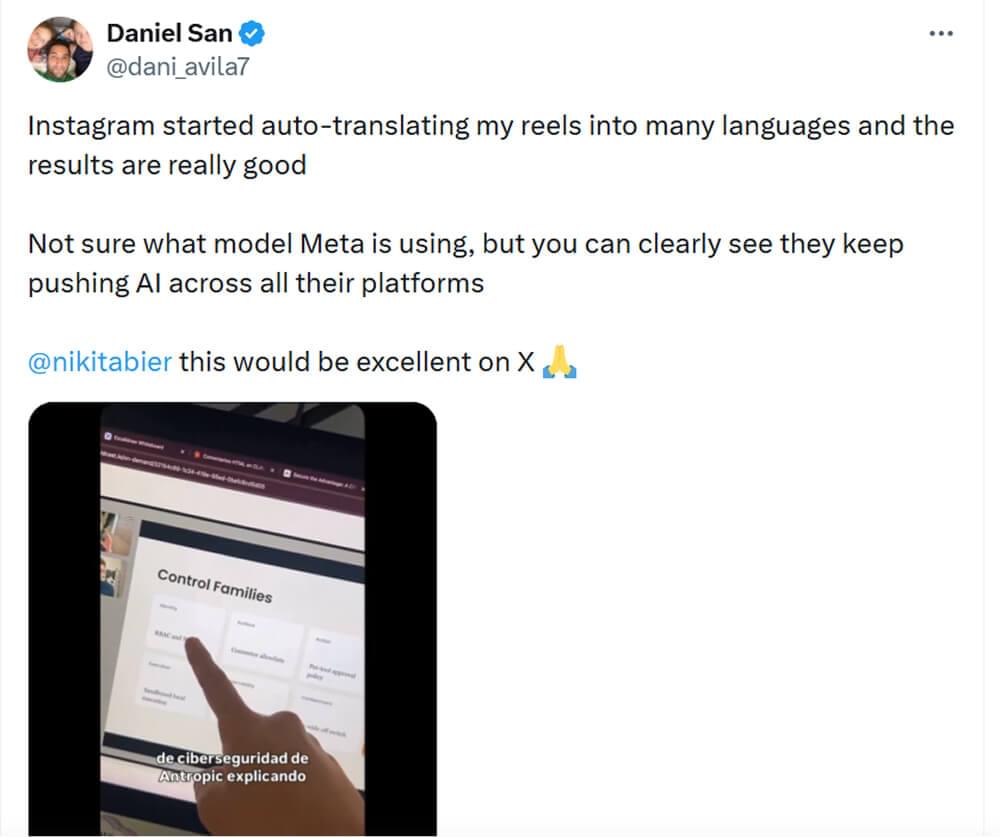
Here’s how you can translate Instagram videos as a creator.
- Record or upload your Reel format normally.
- On the final sharing screen, scroll down and tap More options.
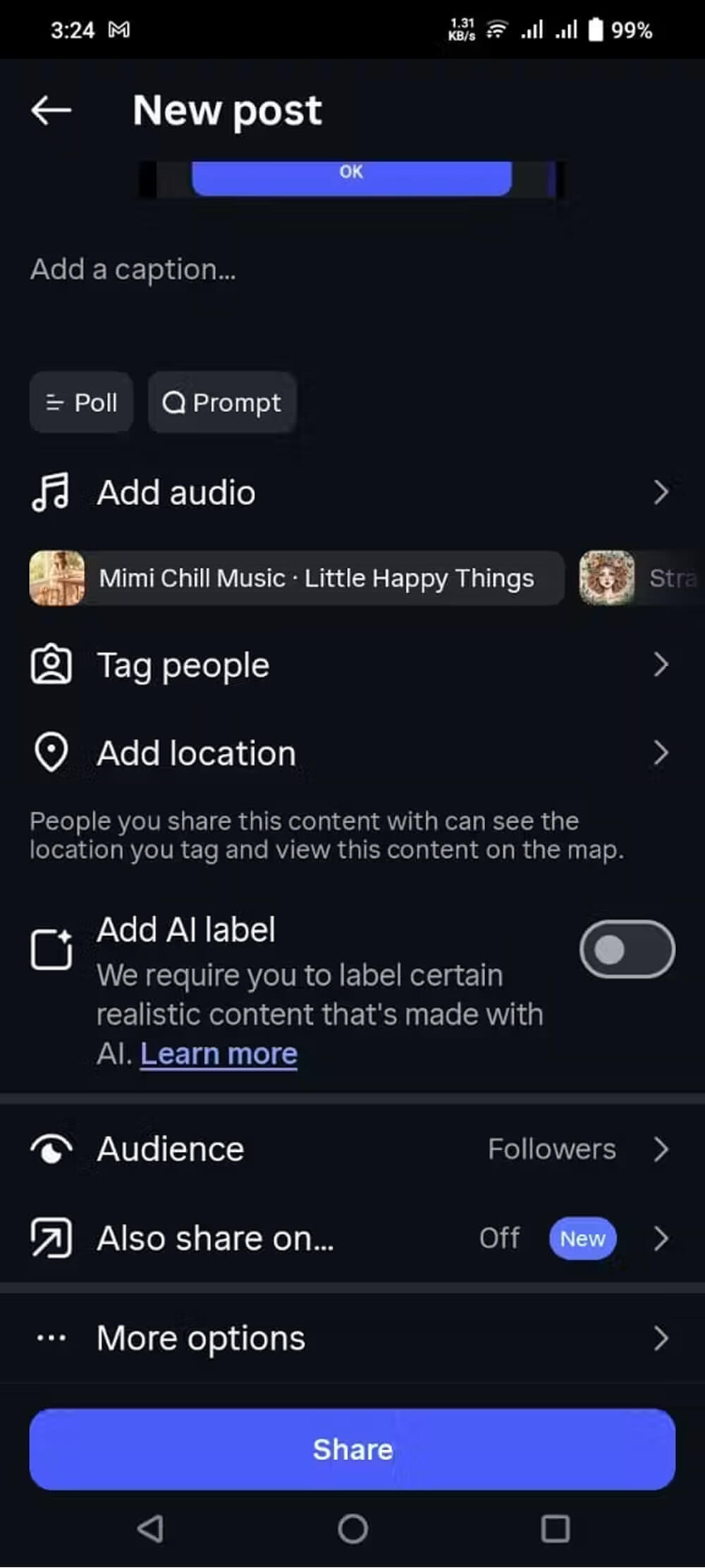
- Navigate to Accessibility and translation.
- Toggle on Translate voice with Meta AI and select Allow translations.
- Ensure Lip synchronization is checked to let the AI dynamically align your lip movements with the new audio track.
- Publish the video.
Enabling this option gives the viewer ‘See Translation’ option at the bottom-left corner of the screen. Tapping this updates the audio track to an AI-generated voiceover in their preferred language.
Why is the “See Translation” option missing on certain posts?
The ‘See translation’ option may fail to appear on an Instagram reel if:
- the content creator did not the toggle on the “Allow translations”
- Instagram has failed to recognize the language
- the text contains heavily stylized fonts/special characters
- or the text is embedded directly inside the video rather than typed into the caption box when creating.
Using SubtitleBee to translate Instagram video subtitles
Instagram translation tools are limited in a way that they do not allow you to download and edit the text for accuracy, or burn stylized, hardcoded subtitles directly onto the video layout. If you need to translate subtitles of a downloaded Instagram video for professional use, marketing campaigns, or cross-platform publishing, using an advanced AI platform like SubtitleBee is the most efficient solution. Here’s how you can use SubtitleBee to translate Instagram video subtitles.
1. Login to SubtitleBee
Open SubtitleBee and sign in (or sign up for a free account).
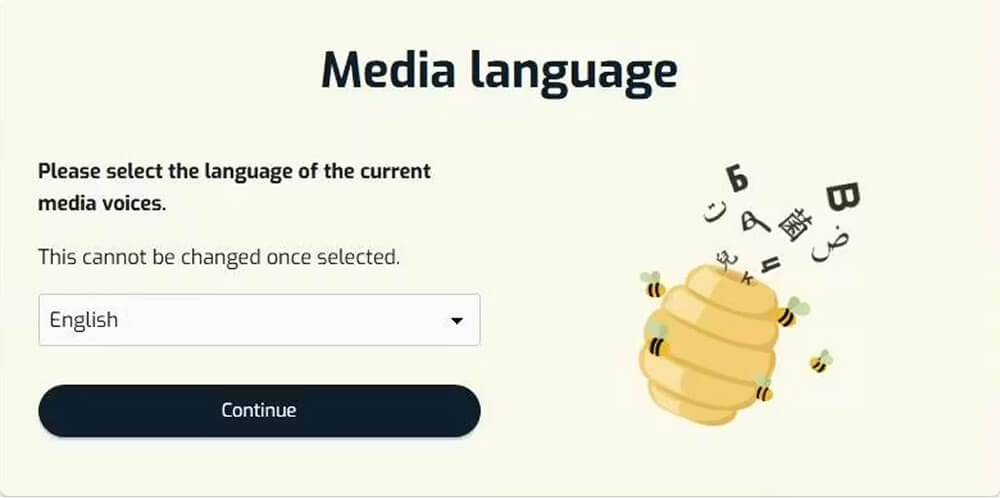
Click ‘Upload new file’ and then choose the default media language of your video. For example, if the language used in the video is Spanish, then choose Spanish from the dropdown menu. By default it is set to English.
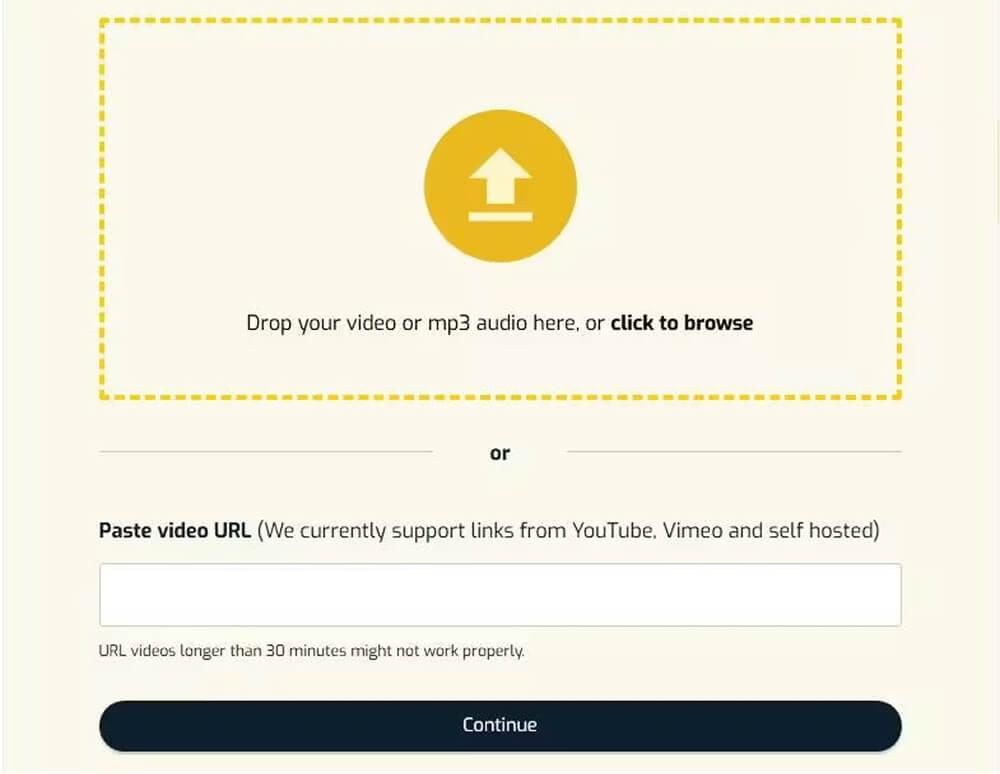
2. Upload video
Since SubtitleBee currently supports links from YouTube, Vimeo and self hosted links, you need to download the Instagram Reel or video to your device and then upload it to the SubtitleBee platform.
3. Review and edit the automated AI translation
SubtitleBee’s AI processing engine listens to your file and automatically transcribes the audio and perfectly time-syncs the subtitles to the video’s timeline.
Use the built-in editor to fix any technical terms or errors before moving to the translation phase. Do not skip this step.
4. Translate Instagram video subtitles
Once you have edited the auto-generated transcript, click the “Translate Subtitles” option to translate subtitles to your desired language. You can choose from 120+ languages offered by SubtitleBee.
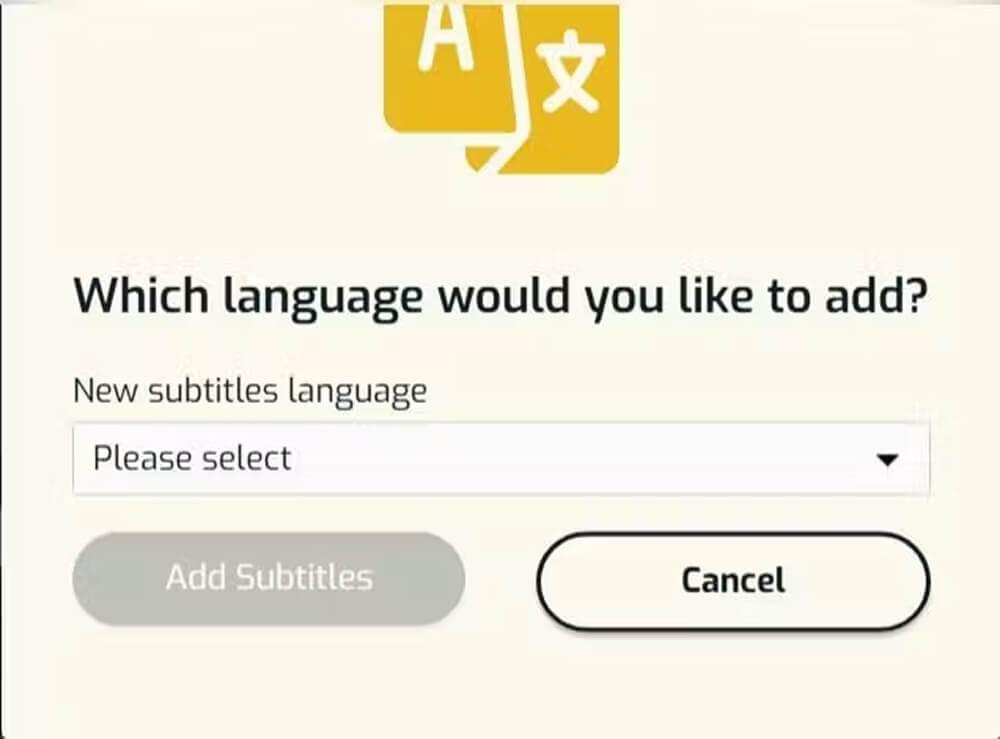
Click “Add Subtitles,” and the system will automatically translate Instagram video subtitles to your preferred language and will hardcode subtitles in the video.
You will then see both the default and preferred subtitle tracks on your dashboard.
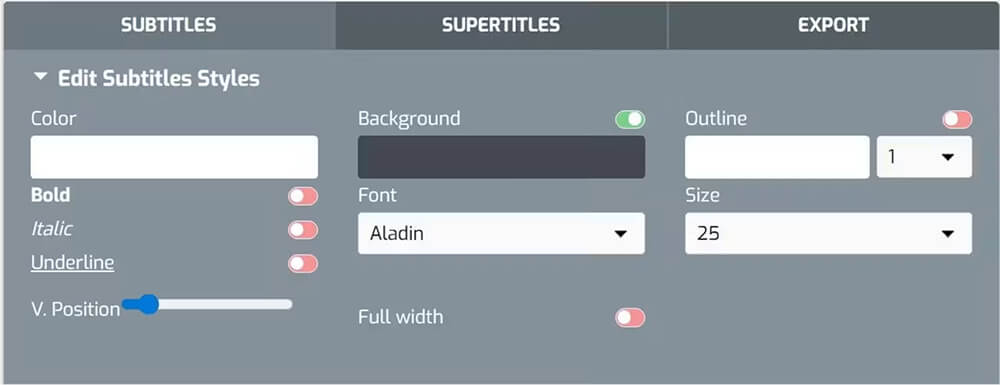
You can explore SubtitleBee’s built-in editor to change fonts, colors, background styles, and positioning to ensure the text remains fully readable and avoids Instagram’s “safe zones” (such as UI buttons and usernames).
5. Export Instagram video
Go to the “Export” tab. Assign a project name. Choose your preferred language from the “Language of subtitles to export” dropdown. This ensures the desired subtitle track is the one used for the final file.
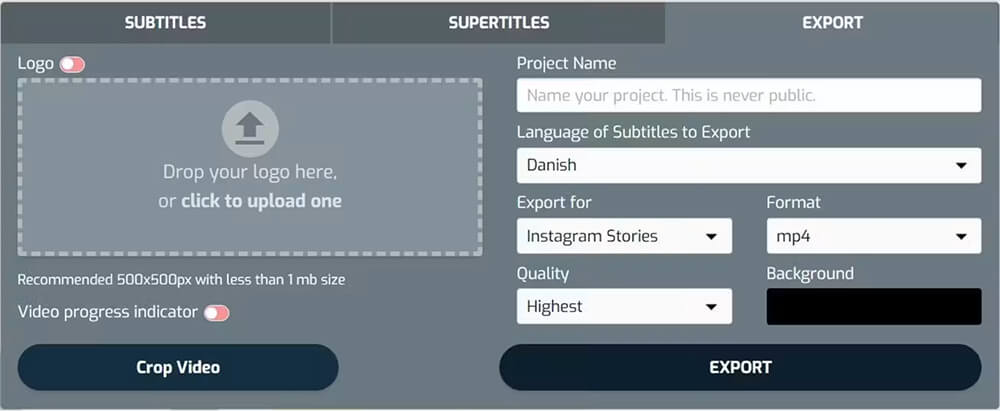
Export your newly localized Instagram video with permanent, burned-in subtitles to any platform, or download the translation as a separate SRT, TXT, ASS or VTT file for manual caption uploading.
How to translate Instagram images
Unlike Instagram videos, translating Instagram images is difficult as there is no audio for it. And the translated text sometimes is larger than the original text which disrupts the fonts. Instagram’s translation feature cannot read or translate text that is baked directly into a JPEG or PNG image post.
To translate Instagram image text on your mobile, take a screenshot of the Instagram image. Open the image inside Google Lens or Apple Photos Live Text, then tap the Translate button to overlay your mobile’s set language over the image graphic.
Desktop users can install a context-aware browser extension like Immersive Translate to translate Instagram images. These plugins use advanced OCR (Optical Character Recognition) engines to identify text fields inside images and display bilingual, side-by-side translations right on the page feed.
Can I change the default language or turn off Instagram translation?
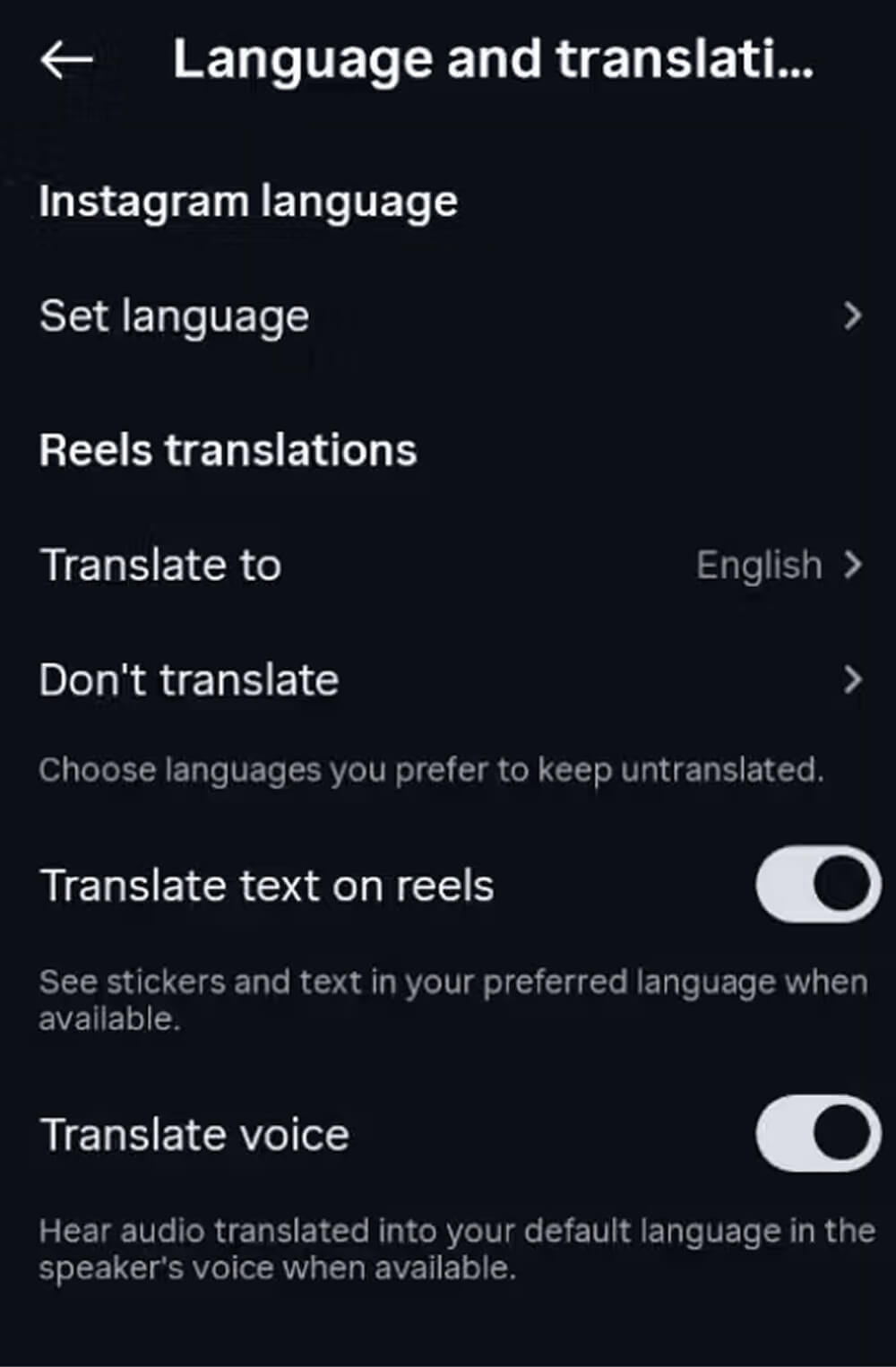
Yes. Instagram base translations match your app’s language settings. To change this or to turn off Instagram’s AI translation, go to your profile → tap the three horizontal lines in the top-right corner, select Language and translation.
Make changes to “Instagram language” and “Reel translation” options. All future “See Translation” prompts will adapt to this choice.
Conclusion
Translating Instagram messages feature is a popular choice of creators and users who take their communication and connections on social media more seriously than others.
Knowing how to handle translations on Instagram does more than fixing your daily workflow or better browsing experience. It changes how you create content. It changes how you look at your audience. Once you know how to easily translate Instagram messages, videos, and images you can plan and create content accordingly to reach new audiences, improve your user experience, or make communication more inclusive.
Read More:
How to Add Captions to Instagram Stories
Instagram Story Ratio: Right Dimensions & Resolutions
FAQs
How do i turn on auto-translate on Instagram?
To turn on auto-translate for all text (comments, captions, and bios), Instagram translates these automatically based on your app’s language settings. If you are a creator, to auto-translate your video reels, you can activate AI voice translation before posting.
How do I translate a chat message?
To translate a chat message on Instagram, long-press the individual message bubble and select the “Translate” option to translate Instagram messages. Instagram does not translate incoming DMs automatically.
Is there a way to translate Instagram messages?
Yes. You can translate Instagram messages within the official iOS and Android mobile apps. Long-press on any text bubble inside your direct messages and select Translate from the action menu.
If you are accessing Instagram via a desktop web browser, you will need to utilize a dedicated third-party translation extension available via the Chrome Web Store to translate incoming and outgoing chat scripts in real time.



Add and translate your subtitles to more than 100 languages with high accuracy
Our solution
SubtitleBee
Make your video understandable by using SubtitleBee for free
Start now for freeTop Articles

Getting Started with AI-Powered SubtitleBee

3 Effective Ways To Add Subtitles To Video Online Without Watermark
VEED vs. Kapwing: Which Subtitle Generator wins?
Kapwing vs. SubtitleBee: Which subtitling tool should you choose?

5 Top Verbit Alternatives for Transcription