



video tutorials for social media
How to Add Subtitles to a Video on iPhone and Android
To add subtitles to a video on your iPhone or Android phone, open the video in an editor with auto captions (CapCut, YouTube Create, or the TikTok and Instagram editors), tap Captions, generate them, then proofread and export. If you need a subtitle file, more than one language or a video longer than a minute, upload it to SubtitleBee in your phone’s browser instead.
Your phone does not have a built-in “add subtitles” button. iPhone and Android can show captions while you watch, but neither one writes subtitles into your own video. For that you need an app or a web tool, and each one has a catch: some only work inside one social app, some stop at 60 seconds, and some make you type every line by hand.
This guide walks through the options that work on both iPhone and Android, step by step, and helps you pick the right one for your video.
Your Options at a Glance
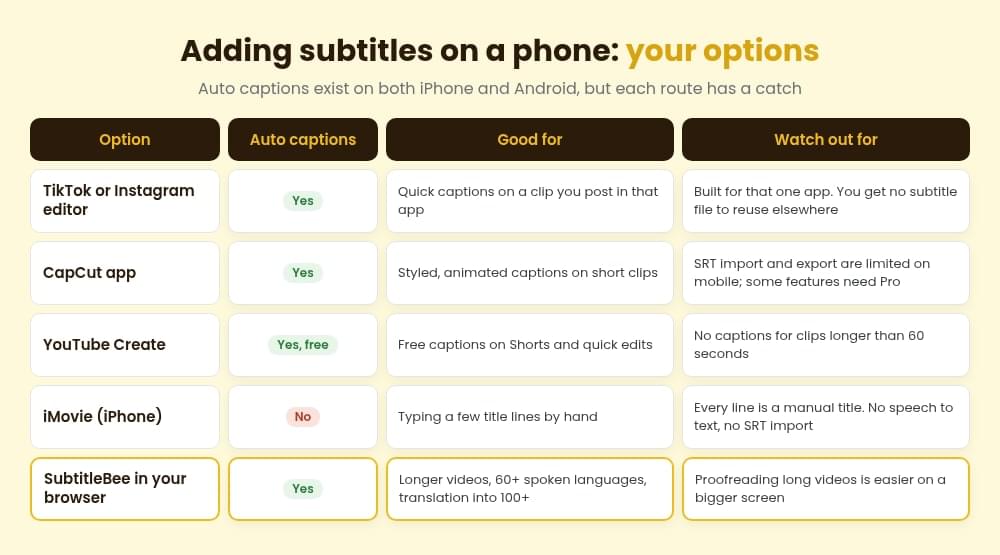
| Option | Auto captions | Works on | Best for | Main limit |
|---|---|---|---|---|
| TikTok or Instagram editor | Yes | iPhone, Android | A clip you post in that app | No subtitle file to reuse elsewhere |
| CapCut | Yes | iPhone, Android | Styled, animated captions on short clips | SRT import and export are limited on mobile |
| YouTube Create | Yes | iPhone, Android | Free captions on Shorts | Clips longer than 60 seconds are not captioned |
| iMovie | No | iPhone | A few title lines typed by hand | No speech to text, no SRT import |
| SubtitleBee (browser) | Yes | Any phone with a browser | Longer videos, translation, subtitle files | Long edits are easier on a bigger screen |
A quick rule: if the video is short and goes to one app, use that app’s captions. If it goes to several places, runs longer than a minute or needs another language, generate the subtitles once and reuse them.
Method 1: Add Subtitles in Your Browser With SubtitleBee
This route works the same on iPhone and Android, because nothing is installed. You get a captioned video and, on paid plans, a subtitle file you can upload to YouTube or a course platform.
- Open SubtitleBee in Safari or Chrome and sign up or log in.
- Upload your video. Tap upload and pick the clip from your Photos, Gallery or Files. You can also paste a YouTube or Vimeo link.
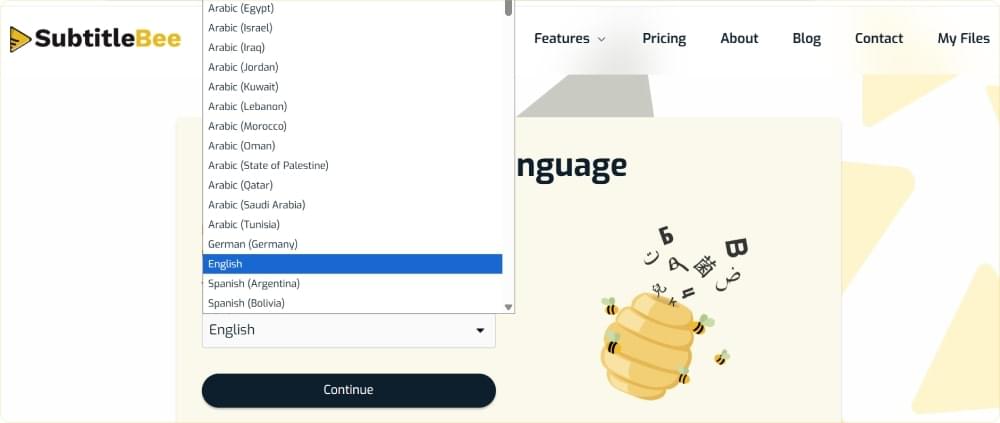
- Choose the media language, the language spoken in the video. SubtitleBee transcribes 60+ languages.
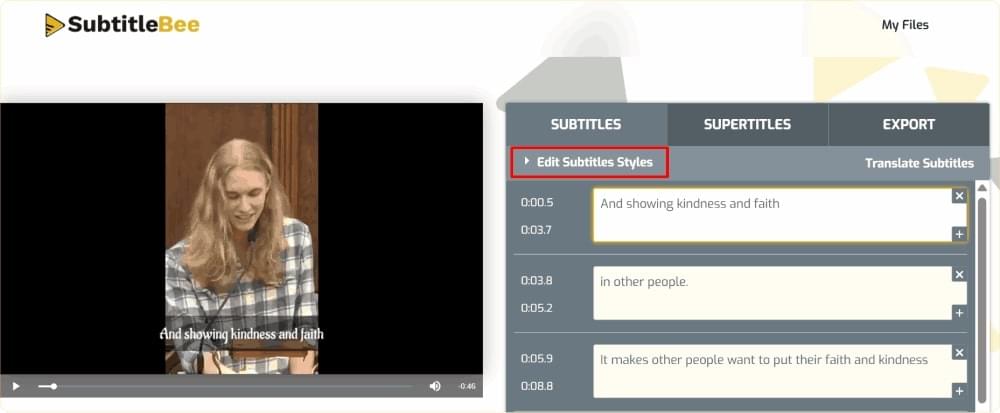
- Proofread the subtitles. Tap a line to fix a word, a name or the timing. Auto subtitles are a first draft, so check brand names and numbers before you export.
- Translate if you need to (optional). Add another language and SubtitleBee translates the subtitles into any of 100+ languages, so one upload can serve viewers in several countries.
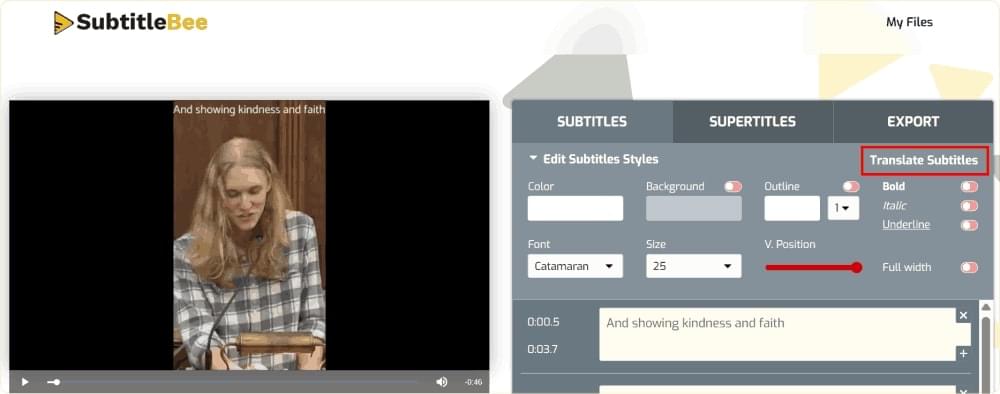
- Style and export. Pick a font, color and position, then download the video with subtitles burned in. On paid plans you can also download the subtitles as SRT or TXT, plus VTT and ASS on Premium and Business.
The upload, language and download steps are quick on a phone. For a long video with a lot of proofreading, you may prefer to start the upload on your phone and finish the edit on a laptop later.
Method 2: Use the TikTok or Instagram Editor
If the video is going to TikTok or Instagram Reels, the app’s own captions are the fastest option.
On TikTok: record or upload your video, tap Next, then find Captions in the editing tools on the right. TikTok transcribes the speech and lets you edit the text before you post. Viewers can hide these captions, and TikTok only offers the tool in languages and regions where auto captions are supported. Our guide on how to add captions to TikTok covers the details.
On Instagram: create a Reel, tap Next, open the sticker tray and choose Captions. Instagram transcribes the speech into a sticker you can edit and restyle. The sticker is not available in every country. See how to add captions to Reels for the full walkthrough.
The catch with both: the captions live inside that one post. You cannot reuse them on YouTube or LinkedIn, and you get no subtitle file.
Method 3: Use CapCut on iPhone or Android
CapCut’s mobile app has auto captions and plenty of caption styles, which is why so many short-form creators use it.
- Create a new project and add your video from your camera roll.
- Tap Captions in the bottom toolbar, then Auto captions. On some versions this sits under Text.
- Choose the spoken language. You can also pick a translation language here for bilingual captions.
- Tap Generate, then Edit captions to fix any mistakes and change the style.
- Export the video.
CapCut moves its buttons between versions, so if you do not see Auto captions, check both Text and Captions. Subtitle files are the weak spot on mobile: CapCut does not support importing an SRT in the phone app, and SRT export may only be available on desktop or web. Some features also need CapCut Pro. Our full CapCut subtitles guide covers desktop, mobile and web.
Method 4: Use YouTube Create (Free)
YouTube Create is Google’s free video editor for phones. It came to Android first and has been on iPhone since December 2025.
- Open a project and tap Captions in the toolbar.
- Choose what to transcribe: All videos (speech in your clips) or Voiceover (only voiceovers recorded in the app).
- Pick the language from the Language menu.
- Tap Generate, then fix any wrong words and change the size, font, color or background with the style tool.
Two limits to know. YouTube Create cannot generate captions for clips longer than 60 seconds. It also needs an iPhone XR or newer on iOS 17 or later, or an Android phone with at least 4 GB of RAM. That makes it a good free pick for Shorts and a poor one for longer videos.
Method 5: Type Subtitles by Hand in iMovie (iPhone)
iMovie is free on iPhone, but it has no speech to text and cannot import an SRT file. The only way to add subtitles is to type each line as a title:
- Open your project and tap the clip on the timeline.
- Tap the T (Titles) icon and choose a simple style, such as Standard.
- Type the line, then split the clip so the title only covers the matching speech.
- Repeat for every line.
This works for a 15 second clip with three lines. For anything longer, generate the subtitles with an auto tool first. Our iMovie captions guide shows how to combine both.
A note for longtime iPhone users: Apple’s Clips app, which had a Live Titles feature that turned speech into captions, was discontinued in October 2025. New users can no longer download it, and Apple points people to iMovie, which has no automatic captions.
Captions for Watching vs. Subtitles in Your Video
A lot of searches for “add CC on iPhone” are really about watching, not creating. Your phone can show captions for videos you watch, but these never end up in a video you post.
- iPhone: go to Settings > Accessibility > Subtitles & Captioning and turn on Closed Captions + SDH. Apps that support it will show captions when available. iPhone 11 and later also have Live Captions for real-time speech on screen.
- Android: many phones have Live Caption under Settings > Accessibility, which captions media playing on your phone.
If you want viewers to see subtitles on a video you made, use one of the methods above.
Tips for Subtitles People Can Read on a Phone
- Keep lines short. One or two short lines at a time. Long lines get cut off on vertical video.
- Stay clear of the app buttons. On TikTok and Reels, the right side and the bottom are covered by icons and the caption text. Place subtitles in the lower third, but above that area.
- Use a bold sans-serif font with an outline or background box so the text stays readable on bright footage. Our list of the best subtitle fonts covers which fonts hold up on small screens.
- Proofread names and numbers. Auto captions get common words right and specific ones wrong.
- Burn them in for social, keep a file for YouTube. Burned-in subtitles always show. A subtitle file lets YouTube viewers turn captions on or off. Not sure which you need? See hardcoded vs soft subtitles.
Frequently Asked Questions
How Do I Add Subtitles to a Video on My iPhone for Free?
Use the captions in the TikTok or Instagram editor if the video is going to that app, or YouTube Create for clips up to 60 seconds. Both are free. iMovie is free too, but you have to type every line by hand.
Can iPhone Automatically Add Captions to a Video?
Not in the built-in apps. Photos and iMovie have no automatic captions, and Apple’s Clips app, which had Live Titles, was discontinued in October 2025. You need a third-party app or a web tool such as SubtitleBee.
How Do I Add Subtitles to a Video on Android?
Open the video in CapCut or YouTube Create, tap Captions, generate them and export. For longer videos, other languages or a subtitle file, upload the video to SubtitleBee in Chrome.
Can I Add an SRT File to a Video on My Phone?
Most phone editors cannot import one. CapCut’s mobile app does not support SRT import and iMovie has no import option. Upload the video and SRT in a browser-based tool instead, or add the SRT on desktop.
How Do I Add Subtitles in Another Language on My Phone?
Generate subtitles in the spoken language first, then translate them. SubtitleBee translates subtitles into 100+ languages in your browser. Have a native speaker check the translation before you publish.
Pick the Method That Fits the Video
For a short clip going to one app, that app’s captions or YouTube Create will do the job for free. When the video is longer, goes to several platforms or needs more than one language, try SubtitleBee to generate, proofread and translate your subtitles in your phone’s browser, then download the captioned video or the subtitle file.
Related Reads


Add and translate your subtitles to more than 100 languages with high accuracy
Our solution
SubtitleBee
Make your video understandable by using SubtitleBee for free
Start now for freeTop Articles

Getting Started with AI-Powered SubtitleBee

3 Effective Ways To Add Subtitles To Video Online Without Watermark

VEED vs. Kapwing: Which Subtitle Generator wins?

Kapwing vs. SubtitleBee: Which subtitling tool should you choose?

5 Top Verbit Alternatives for Transcription