



video tutorials for social media
How to Add Subtitles in CapCut (Auto Captions and Manual)
To add subtitles in CapCut, put your video on the timeline, open Captions, choose Auto captions, pick the spoken language and select Generate. CapCut places timed caption blocks on the timeline for you to proofread, style and export. You can also type captions by hand or import an SRT. This guide covers both methods on desktop, mobile and web, plus translation, SRT export and when you will run into CapCut Pro.
Before You Start: Three Things to Know About CapCut Captions
CapCut runs as a desktop app (Windows and macOS), a mobile app (iOS and Android) and an online editor. The captioning tools are similar on all three, but buttons move between versions, and CapCut’s own help pages do not always agree on the menu path. If a button is not where we say, look under both Captions and Text.
- Auto captions and Pro. CapCut’s help center says that when a Standard (free) user sees a prompt to join Pro, it usually means a feature they used, such as auto captions, includes Pro-only functionality. Users also report limits on free auto captions in 2026, and CapCut does not publish the exact limit. Check for Pro badges before you build a workflow around it.
- Clean audio matters. Music, crosstalk and echo all lead to more recognition errors.
- Finish the edit first. If you cut the video after captioning, you will need to trim caption blocks by hand.
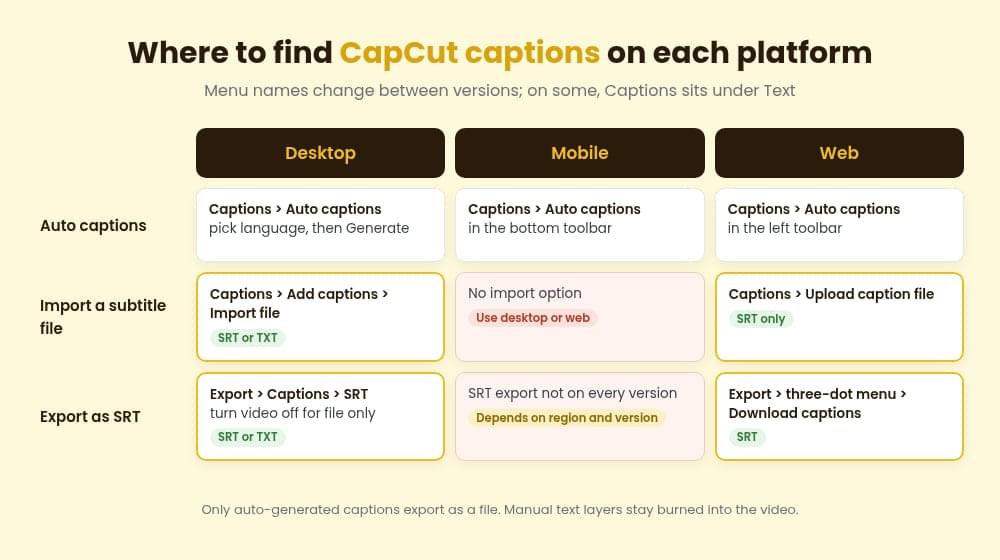
Method 1: How to Add Auto Captions in CapCut
Auto captions are the fastest way to add subtitles in CapCut. Its documentation also calls the feature “Recognise subtitles.”
CapCut Desktop (Windows and Mac)
- Open CapCut, start a new project and select Import to add your video. Drag it onto the timeline.
- Open the Captions tab at the top of the editor. In some versions auto captions sit under the Text tab instead.
- Select Auto captions.
- Choose the language spoken in the video. For a translated second line, turn on the bilingual option and choose a second language (more on this below).
- Select Generate (some versions label it Create). CapCut transcribes the audio and adds a caption track above your video.
The caption blocks are ordinary timeline items, so you can drag their edges to fix timing.
CapCut Mobile (iPhone and Android)
- Create a new project and add your video from your camera roll.
- Tap Captions in the bottom toolbar, then Auto captions. On some versions this sits under Text.
- Choose the recognition language. You can also pick a translation language here if you want bilingual captions.
- Tap Generate.
- Tap Edit captions to correct any mistakes.
Mobile suits short clips, but it is the most limited platform for subtitle files (see below).
CapCut Online Editor (Web)
- Open the online editor at capcut.com and upload your video.
- Select Captions in the left toolbar, then Auto captions.
- Pick the spoken language and select Generate.
- Review the captions, then select Export in the top right corner.
CapCut also offers a standalone AI captions tool on the web start page. CapCut’s own guide to that tool mentions a 20-minute maximum per video, so split longer recordings before you upload.
Proofread Before You Do Anything Else
Read every caption while the video plays. Speech recognition usually trips on brand names, product terms, numbers, people’s names and slang. Fix the text in the caption editor and check that each line appears when the words are spoken.
CapCut lets you batch edit auto captions. Select several lines in the caption editor, choose Edit to change the text, or Style to apply one font, size, color, background or animation to all selected lines. CapCut’s help page notes that batch editing only works on auto-generated captions.
Method 2: How to Add Subtitles in CapCut Manually
Go manual when auto captions do not cover your language, the audio is too messy, or you only need a few lines.
Add Text Line by Line
- Desktop: open the Text tab, choose Add text, drag the text block onto the timeline and type your line. Drag the edges of the block to match when the line is spoken.
- Mobile: tap Text, then Add text, type the line, then drag the text layer on the timeline to set its start and end.
- Web: open the Text panel, pick a text style and select the + icon to add it to the timeline.
To break one block into two, place the playhead and split it with Ctrl+B on Windows or Cmd+B on Mac, or right-click and choose Split.
There is a catch. CapCut’s help center says text added this way does not support batch editing of position, style or size. The workaround is to style one layer, then copy and paste it for each new line and change only the words. On a ten-minute video, that is a lot of clicks.
Import a Subtitle File
The faster manual route is importing a subtitle file. CapCut’s import help page lists:
- Desktop: go to Captions > Add captions > Import file and select an .srt or .txt file. CapCut reads the timecodes and creates an editable caption block for each line. The .txt file needs SRT-style timecodes to work.
- Web: open the Captions tab, select Upload caption file and choose an .srt file. TXT is not supported on the web.
- Mobile: direct import is not supported. CapCut suggests importing on desktop or web first, then opening the project on your phone through cloud sync.
Save the file as UTF-8 so accented letters and non-Latin scripts display correctly. Imported files also get around the language limit of auto captions.
If you have never looked inside a subtitle file, our guide on how to create an SRT file walks through the format line by line.
How to Style CapCut Captions
Select a caption on the timeline to open the styling options in the right-hand panel: font, size, color, background, position and animation. CapCut also offers preset caption templates, and the web AI captions tool can suggest styles.
A few styling rules work well for social video:
- Keep lines short. Two short lines read better on a phone.
- Add contrast. White text with a dark stroke or a semi-transparent background stays readable over bright footage.
- Stay out of the button zone. On TikTok, Reels and Shorts the like, comment and share buttons cover the right side and the bottom of the frame. Lift captions into the lower third, not the very bottom.
If you plan to export on the free plan, avoid templates and effects that show a Pro badge.
Languages and Translation in CapCut
CapCut does not publish a definitive list of auto caption languages. Its import help page describes auto captioning as covering around 30 languages, and the language picker shows what your version supports. If your language is missing, type the captions by hand or import an SRT made elsewhere.
For translation, CapCut offers bilingual subtitles on all three platforms: you choose the recognition language, then a translation language, and CapCut generates both. If you only want the translation, delete the original caption track. In the web AI captions tool, open the Subtitles tab and select Translate to pick the original and target languages.
Treat machine translation as a first draft and have a native speaker check it.
How to Export Subtitles From CapCut as SRT
- Desktop: select Export in the top right corner, scroll down to Captions, turn it on and choose SRT or TXT. Turn off the video export if you only need the subtitles.
- Web: select Export, open the three-dot menu beside Download and choose Download captions.
- Mobile: CapCut’s help center describes selecting only Caption export in SRT or TXT, but another CapCut help page says SRT export may only be available on desktop or web depending on region and version. Do not count on it from your phone.
Before you rely on it:
- Only auto captions export. CapCut’s help page on failed exports says only captions created through auto caption recognition can be exported as a file. Manual text layers do not qualify, and imported caption tracks may not either.
- Encoding and file paths. If the export fails, CapCut recommends saving to a folder path with plain English (ASCII) characters, and converting the SRT to UTF-8 if the characters come out garbled. If SRT still fails, export as TXT and convert it.
- It may need Pro. CapCut’s help text on caption export does not mention a subscription, but a guide updated in September 2026 points out a Pro badge beside Captions in CapCut’s own desktop help example, and a 2024 guide called SRT export a paid feature. Access seems to vary by account and region, so check your export dialog: a Pro badge or upgrade prompt next to Captions means you need Pro for that export.
For YouTube captions that viewers can switch on and off, you need that SRT. Our guide on how to add subtitles to YouTube videos shows where to upload it.
How to Burn In Captions in CapCut
Burned-in captions are the default in CapCut. Caption and text layers on your timeline are rendered into the video frames when you export the video, so viewers cannot turn them off. That suits TikTok, Reels and other feeds where people watch on mute.
For a clean video plus a separate caption file, hide or remove the caption track before the video export and export the SRT on its own. Our guide to hardcoding subtitles explains when burned-in text is the better choice and when a sidecar file wins.
When SubtitleBee Is the Faster Route
CapCut is a strong choice when you are already editing in it and need one language burned in. It gets slower in a few situations, and that is where SubtitleBee is worth a look.
- You need several languages. SubtitleBee can translate subtitles into more than 100 languages from a single upload.
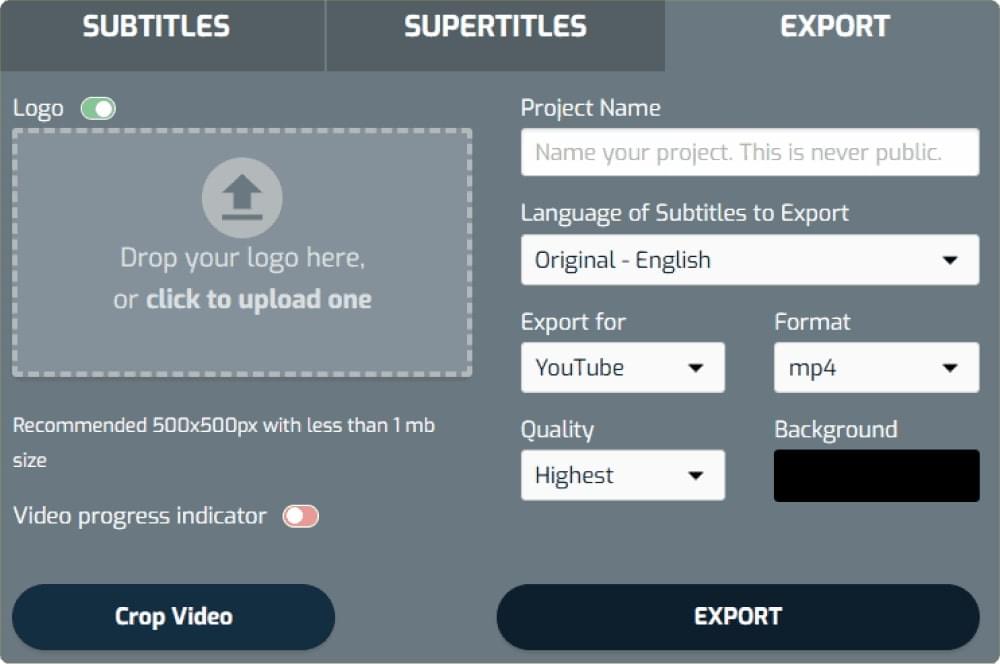
- You need a subtitle file, not only a video. SubtitleBee downloads subtitles as SRT or TXT on paid plans, plus VTT and ASS on Premium and Business, including lines you corrected by hand. See our guide to VTT files if your web player needs that format.
- You want to work in the browser without installing anything. Upload a video from your computer or paste a YouTube or Vimeo link, generate the subtitles, then proofread, style and download.
- You want both outputs. Download the video with subtitles burned in, or the subtitle file separately, from the same project.
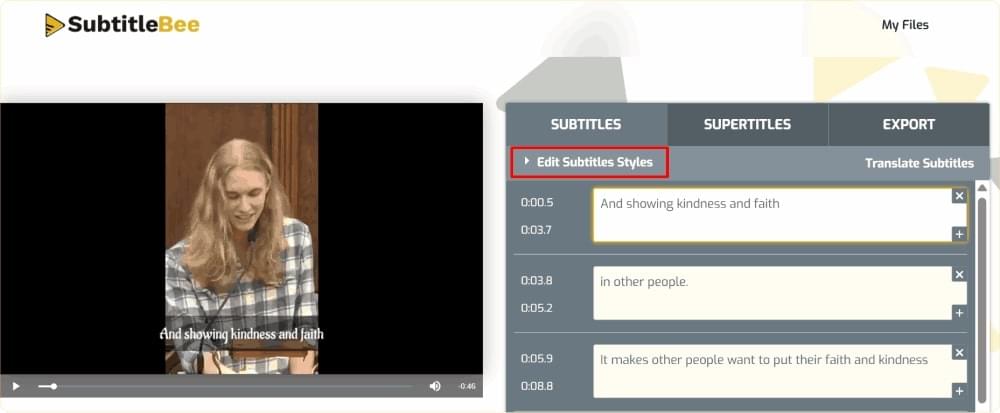
AI subtitles work best on clear audio, so you should still proofread names and technical terms. The free trial lets you generate and review subtitles, and downloads are enabled on paid plans.
A practical combined workflow: generate and translate your subtitles in SubtitleBee, download the SRT for each language, then import the one you need into CapCut desktop with Captions > Add captions > Import file and style it there. The file also works in other editors, such as DaVinci Resolve.
Common Problems and How to Fix Them
Auto captions come out wrong. Check the spoken language setting and lower the music under the dialogue.
You see a Pro prompt when exporting. A template, effect or the auto captions feature is using Pro-only functionality. Swap Pro styles for free ones, or import an SRT made elsewhere.
Captions drift after an edit. Caption last. If you must cut afterward, move or trim the caption blocks together with the video. For bigger drift, see our guide to fixing out of sync subtitles.
Frequently Asked Questions
Does CapCut Have Auto Captions?
Yes, on desktop, mobile and web. Open Captions, choose Auto captions, pick the spoken language and generate. Some functionality may require CapCut Pro to export.
Is the CapCut Subtitle Generator Free?
Partly. You can generate and preview auto captions as a Standard user, but CapCut’s help center says auto captions can include Pro-only functionality, and users report usage limits on the free plan. Check for Pro badges before you export.
Can I Export Subtitles From CapCut as an SRT File?
Yes, on desktop and web, though your account may show a Pro badge. Only captions created with auto captions can be exported as a file.
Can I Import an SRT File Into CapCut?
Yes, on desktop through Captions > Add captions > Import file, and on the web through Upload caption file. The mobile app does not support direct import.
Get Your Subtitles Ready Before You Open CapCut
CapCut is great for styling captions on short social clips. Getting the words right, in more than one language, with a file you can reuse anywhere, is the slow part. Try SubtitleBee to generate, proofread and translate your subtitles in your browser, then burn them in or import the SRT into CapCut.
Related Reads


Add and translate your subtitles to more than 100 languages with high accuracy
Our solution
SubtitleBee
Make your video understandable by using SubtitleBee for free
Start now for freeTop Articles

Getting Started with AI-Powered SubtitleBee

3 Effective Ways To Add Subtitles To Video Online Without Watermark

VEED vs. Kapwing: Which Subtitle Generator wins?

Kapwing vs. SubtitleBee: Which subtitling tool should you choose?

5 Top Verbit Alternatives for Transcription