



video tutorials for social media
TikTok Transcript Generator: Turn Clips Into Content
A TikTok transcript generator turns the speech in a TikTok video into text you can copy, edit and reuse. Some tools work from a pasted TikTok link, others need you to upload the video file. If you are a creator, the most useful setup is one that lets you edit the transcript and export it as TXT or SRT, so every video you post can also become captions, blog content, newsletter copy and translations.
This guide explains how these tools work, what separates a good one from a frustrating one, and how to build a simple weekly workflow that turns a stack of TikToks into a library of reusable content.
If you only want the quick steps for one video, our guide on how to transcribe a TikTok video walks through it. This post is for creators who want to do it regularly.
What Is a TikTok Transcript Generator?
It is a tool that listens to a TikTok video and writes down what is said. The output is a transcript: the spoken words as plain text, sometimes with timestamps.
That is different from captions on the video itself. Captions are shown on screen while the video plays. A transcript is a separate document you can search, quote, edit and publish somewhere else. Many tools give you both, because a timed transcript is basically a subtitle file.
People use TikTok transcripts to:
- Turn short videos into blog posts, threads and newsletters
- Add accurate subtitles before reposting to other platforms
- Translate a video for viewers who speak another language
- Keep a searchable archive of everything they have said on camera
- Review their own hooks and scripts to see what works
Does TikTok Have a Built-In Transcript?
TikTok can show auto-generated captions while you watch, but it does not hand you a transcript file. According to TikTok’s Help Center, viewers can turn captions on or off on posts that contain them:
- In the TikTok app, go to the post with captions.
- Tap the Share button on the side of the post.
- Tap Captions at the bottom (you may need to scroll across).
- Turn Show captions on or off.
Note the condition: you can only manage captions when the post contains them. We could not find an option in TikTok’s Help Center to download or export that caption text. So captions are good for reading along, and a transcript generator is what you need when you want the words as text. For the on-screen side, see how to turn on captions on TikTok and how to add captions to TikTok.
Two Types of TikTok Transcript Generators
Most tools fall into one of two groups. Knowing which one you are using saves a lot of confusion.
Link-Based Transcript Extractors
You paste a TikTok URL and get text back. Many of the free tools that rank for this search work this way, and several of them say they only handle public videos.
They are fast for a one-off look at what a video says. The trade-offs:
- They depend on the video being public and reachable, so private or deleted videos will not work.
- Editing is usually limited to copying the text into another app.
- Export options vary a lot. Some give plain text only.
- Because anyone can paste any link, it is easy to forget the rights question (more on that below).
Upload-Based AI Transcription Tools
You upload the video file and the tool transcribes it. SubtitleBee works this way for TikTok: you upload the file, pick the spoken language, then review and edit the transcript before you export it.
This takes one extra step (getting the file), but it fits creators better:
- It works on drafts and videos you have not posted yet.
- You can fix names, slang and brand terms in an editor.
- You can export TXT for writing and SRT or VTT for subtitles.
- The same transcript can be translated or burned into the video as captions.
| Link-based extractor | Upload-based AI transcription | |
|---|---|---|
| Input | Public TikTok link | Video file you own |
| Works before posting | No | Yes |
| Edit the transcript | Usually limited | Yes, in an editor |
| Timed subtitle files (SRT, VTT) | Varies by tool | Yes on SubtitleBee (paid plans) |
| Translation and captions | Varies by tool | Yes, from the same transcript |
| Best for | A quick look at one public video | Creators repurposing their own content |
What to Look For in a TikTok Transcript Generator
Whatever tool you try, run it through this checklist with one of your own videos.
1. Export formats. Plain text is enough for a blog draft. If you want subtitles on YouTube Shorts, Reels or in a video editor, you need SRT or VTT with timestamps. Our explainer on SRT vs VTT covers the difference.
2. An editor you will actually use. AI transcription is a first draft. TikTok audio is full of trending sounds, fast speech, slang and product names, and those are exactly where errors show up. A tool that lets you correct lines while the video plays saves a lot of time.
3. Language support. Check that the tool supports the language you speak in your videos, including your regional variant. SubtitleBee transcribes 60+ languages, with regional options such as Spanish (Mexico) or French (Canada).
4. Handling of music. Many TikToks have a track under the voice. Test a video with background music, not just a clean talking-head clip. SubtitleBee’s own FAQ notes that videos with heavy music are prone to errors, which is true of AI transcription in general.
5. What the free tier actually includes. “Free” often means a time limit, a watermark or no downloads. On SubtitleBee, the free plan lets you auto subtitle up to 10 minutes of video so you can review the result, and downloads need a paid plan.
6. Translation. If you have viewers in other countries, a tool that can translate the transcript into subtitles in other languages turns one video into several versions.
7. Rights and privacy. Only transcribe and republish content you made or have permission to use. A pasted link does not change who owns the video.
How to Generate a TikTok Transcript With SubtitleBee
Here is the short version for one video. The full walkthrough is in how to transcribe a TikTok video.
Step 1: Get Your Video File
The cleanest source is the original file on your phone, before TikTok adds overlays. TikTok’s Help Center also describes two ways to save your videos:
- Before posting: on the Post screen, tap More options and turn on Save to device.
- After posting: open the video, tap Share, then Save video. If the option is missing, the creator does not allow downloads.
Step 2: Upload and Pick the Language
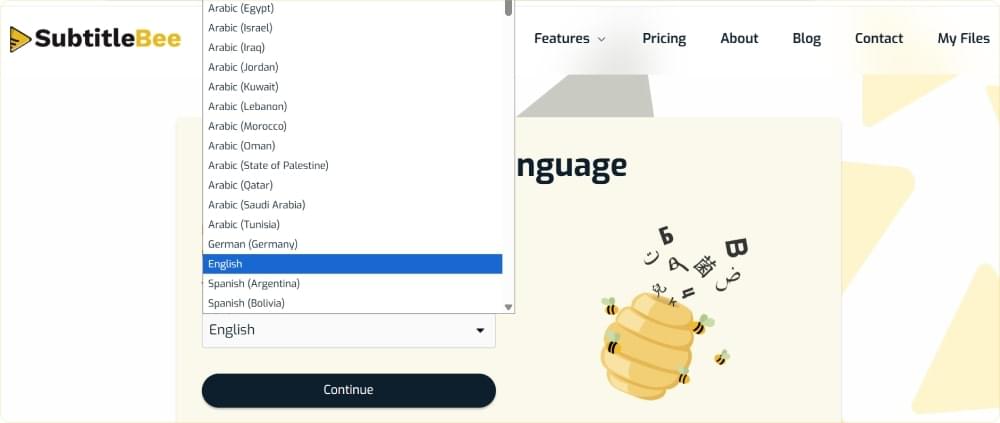
Upload the video. SubtitleBee accepts MP4, MOV, WMV, AVI, WebM and other common formats in any aspect ratio, so vertical 9:16 TikToks are fine. Choose the language spoken in the video carefully, because it cannot be changed once selected.
Paste-a-link works for YouTube, Vimeo and self-hosted video links. TikTok links are not on that list, so upload the file.
Step 3: Review the Transcript
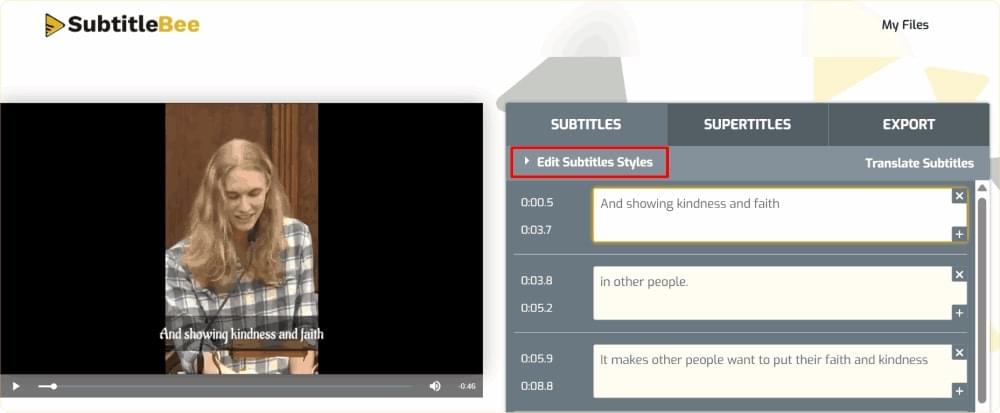
SubtitleBee’s AI writes the transcript and syncs each line to the speech. Play the video once and read along. Fix misheard words, brand names and any line where music covers your voice.
Step 4: Export the Format You Need
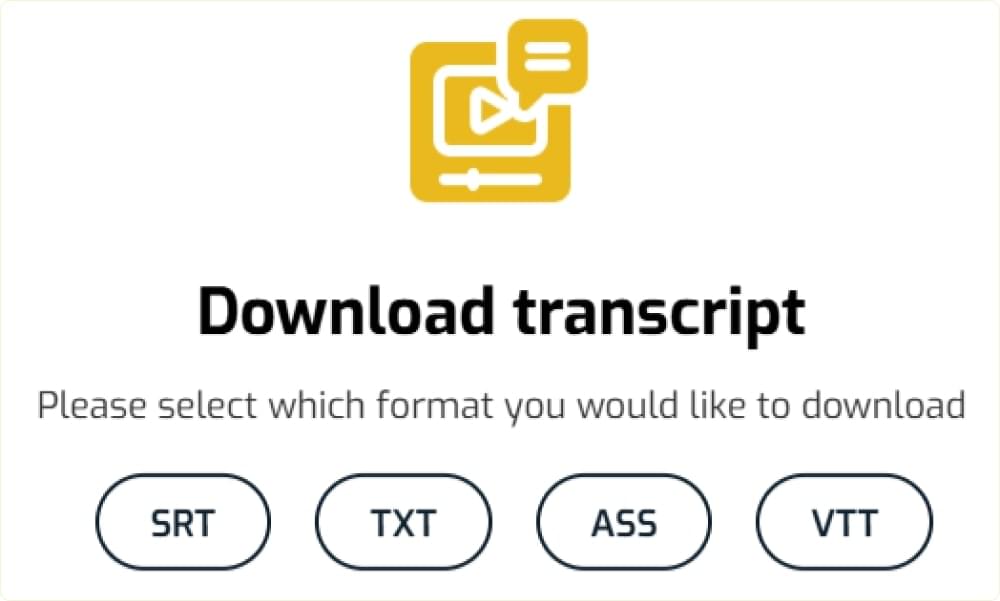
Download the transcript from your dashboard:
- TXT for writing: blog drafts, captions, scripts and show notes.
- SRT for timed subtitles on other platforms and in video editors. See what an SRT file is if you have not used one before.
- VTT and ASS are available on the Premium plan.
From One Clip to a Content System: A Weekly Transcript Workflow
Transcribing one video is easy. The value comes from doing it for every video, the same way, so the text piles up into something you can use. Here is a simple routine that takes about an hour a week once it is set up.
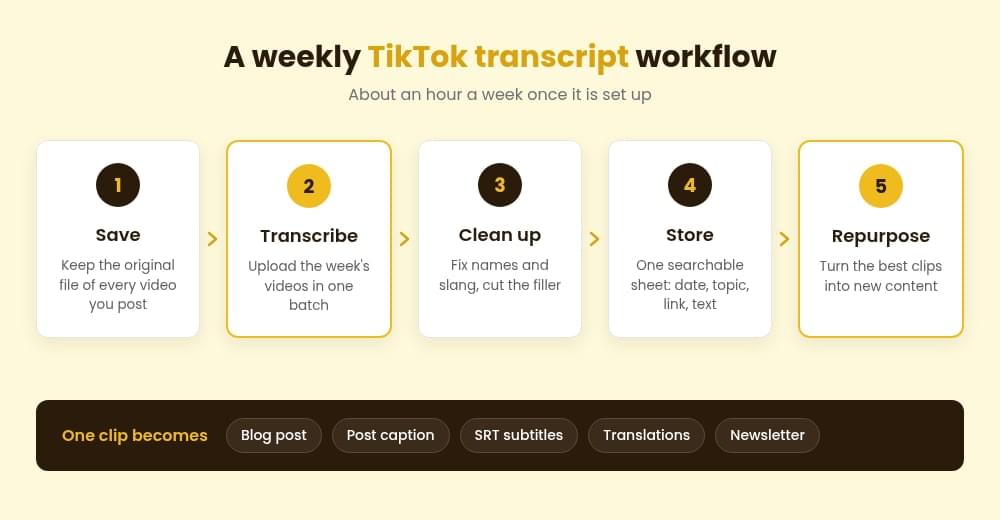
1. Save Every Video as You Post It
Turn on Save to device when you post, or keep the original recordings in one folder. Name each file with the date and a short topic, for example 2026-10-20-pricing-tips.mp4. Future you will thank you when you are searching for that one clip.
2. Transcribe in One Weekly Batch
Pick one day a week and upload that week’s videos together. Batching keeps the work small and makes it a habit instead of a chore you forget.
3. Do a Quick Clean-Up Pass
Read each transcript once. Fix names and terms, delete filler like “um” and “so basically” if you plan to publish the text, and mark anything you cannot hear as [inaudible] instead of guessing.
4. Store the Text Where You Can Search It
Paste the clean transcripts into one document or spreadsheet with columns for date, topic, video link and the transcript itself. After a few months you have a searchable record of everything you have said on camera. When a viewer asks a question you have answered before, you can find the clip in seconds.
5. Repurpose the Best Ones
Not every TikTok deserves a second life. Pick the ones that performed well or explained something clearly, and turn them into:
- Blog posts. Three or four related TikToks on one topic can become a full article with headings and a bit of extra detail. Our list of ways to repurpose videos and transcriptions has more ideas.
- Captions and descriptions. Pull your strongest line into the post caption. For inspiration on the caption itself, see our TikTok caption ideas.
- Subtitled reposts. Use the SRT file to add subtitles when you post the same clip as a YouTube Short or an Instagram reel.
- Translated versions. Translate the transcript into 100+ languages and post subtitled versions for viewers abroad.
- Newsletter or email copy. A good 60 second explanation is often the right length for one newsletter section.
6. Review Your Hooks
Once you have a month of transcripts, put the first sentence of each video next to its views. Patterns show up quickly: questions vs statements, numbers vs no numbers, how fast you get to the point. Use that to plan the next batch. If you want more growth ideas, see our tips on how to get more views on TikTok.
Tips for Better TikTok Transcripts
- Record clean audio. A cheap clip-on mic does more for transcript quality than any software setting.
- Keep music low under speech. Add the trending sound quietly, or transcribe the original voice recording before you add music.
- Speak brand names clearly. If you say a product name often, expect to correct it the first time, then watch for it in later transcripts.
- Pick the right regional language. Spanish (Spain) and Spanish (Mexico) are separate options for a reason.
- Burn in captions too. Many people watch with the sound off. Adding subtitles to your TikTok videos helps them follow along. Check the TikTok video size before you export.
Frequently Asked Questions
Is There a Free TikTok Transcript Generator?
Yes. Several free tools turn a public TikTok link into text, and many AI transcription tools have a free tier. Check what “free” includes: download limits, watermarks and length caps are common. SubtitleBee’s free plan lets you auto subtitle up to 10 minutes of video and review the result, and downloading the transcript needs a paid plan.
Can I Get a Transcript From a TikTok Link?
Some link-based tools do this for public videos. SubtitleBee’s link option supports YouTube, Vimeo and self-hosted links, not TikTok, so save the video and upload the file instead.
Does TikTok Generate Transcripts Automatically?
TikTok can show auto-generated captions on posts that contain them, and viewers can turn them on through Share, then Captions. We found no option in TikTok’s Help Center to export that text as a transcript.
Can I Download a TikTok Transcript as an SRT File?
Yes, if your tool supports it. In SubtitleBee you can download the transcript as SRT or TXT on paid plans, with VTT and ASS on the Premium plan.
Is It OK to Transcribe Someone Else’s TikTok?
Reading or taking notes for yourself is different from republishing. If you plan to post, quote heavily or reuse someone else’s video, ask for permission first. When in doubt, stick to your own content. This is not legal advice.
Turn Your TikToks Into More Than Videos
A TikTok transcript generator is most useful when it is part of a routine: save, transcribe, clean up, store, repurpose. Pick a tool that lets you edit the text and export it in the formats you need, and give it one hour a week. Try SubtitleBee to transcribe your next TikTok in 60+ languages and export it as TXT or SRT.


Add and translate your subtitles to more than 100 languages with high accuracy
Our solution
SubtitleBee
Make your video understandable by using SubtitleBee for free
Start now for freeTop Articles

Getting Started with AI-Powered SubtitleBee

3 Effective Ways To Add Subtitles To Video Online Without Watermark
VEED vs. Kapwing: Which Subtitle Generator wins?
Kapwing vs. SubtitleBee: Which subtitling tool should you choose?

5 Top Verbit Alternatives for Transcription