



video tutorials for social media
Instagram Transcript: How to Transcribe Reels and Videos
Instagram does not give you a transcript download. You can turn on automatic captions to read along inside the app, but to get the words as text you can copy, edit or publish, you need a separate step. The fastest route for your own content is to take the original video file (or download your reel), upload it to an AI transcription tool such as SubtitleBee, correct the draft, and export it as a TXT or SRT file. For short clips, typing it out by hand also works.
This guide covers three ways to get an Instagram transcript, what each one is good for, and what to do with the text once you have it.
One ground rule first: transcribe reels you made, or videos you have permission to use. Downloading and republishing someone else’s content can break Instagram’s rules and copyright law, even if the reel is public.
Can You Get a Transcript Directly From Instagram?
Not as a file. Instagram can generate captions on screen, but we could not find any option in Instagram’s Help Center to download, copy or export that caption text as a transcript. What Instagram offers is closer to subtitles than a transcript: words appear at the bottom of the reel while it plays, and that is where they stay.
That is still useful in two cases. If you only need to read what someone says, captions do the job. And if you are the creator, turning captions on makes your reels easier to follow for people watching with the sound off.
Method 1: Use Instagram’s Automatic Captions
Instagram’s Help Center says it uses speech recognition to create closed captions for reels automatically, written out at the bottom of the video. Creators control them per reel. If you are new to the format, our guide on how to use Instagram Reels covers the basics.
For a new reel (iPhone steps from Instagram’s Help Center):
- Tap Create and choose Reel.
- Select a video from your camera roll, then tap Next, and Next again.
- At the bottom, tap More options.
- Turn on the toggle next to Enable closed captions. There is also a separate toggle for Translate closed captions.
For a reel you already posted:
- Go to your profile and open the reel.
- At the top, tap Options, then Edit.
- Tap More options and use the same caption toggles.
As a viewer, whether you can see captions depends on where you are: Instagram notes that viewer captions are only available in some locations. Menu names also shift between app versions, so if your screen looks different, check Instagram’s page on managing closed captions for reels.
Where it falls short: you cannot pull the text out, and you cannot use it outside Instagram. If you want a blog post, a caption draft, a subtitle file or a translation, you need Method 2 or Method 3.
What About Instagram’s Edits App?
Meta’s Edits app has a Captions option for projects. According to Instagram’s Help Center, you can pick the spoken language, choose a style, adjust transcription controls (punctuation, title case, whether to show curse words), then tap Generate Captions and edit them. That gives you burned-in captions on the video, which is helpful for posting, but it is still not a text transcript you can export.
Method 2: Transcribe an Instagram Video With SubtitleBee
This is the method to use when you want the words as a document. SubtitleBee’s transcription runs in your browser, so there is nothing to install.
Step 1: Get the Video File
Start with the cleanest copy you have:
- The original file. If you filmed the reel on your phone, it is probably still in your camera roll without Instagram’s overlays. This is the best source.
- A downloaded reel. Instagram lets people download reels from public accounts unless the creator turns it off, and no one can download reels from private accounts. Instagram’s Help Center notes that downloaded reels include an Instagram watermark, your username and audio attribution. The watermark does not affect the transcript, since only the audio matters.
- Your account data export. Instagram lets you export a copy of your information from Accounts Center, under Your information and permissions, and you can choose the media quality. It is slower, but it can help if you have lost the originals.
For more ways to save reels, see our roundup of tools to download Instagram reels. Again, only download videos you own or have permission to use.
Step 2: Upload the Video
Sign up, then upload the file. SubtitleBee accepts MP4, MOV, WMV, AVI, WebM and other common video formats, in any aspect ratio, so vertical 9:16 reels are fine (our Instagram video size guide lists the specs for reels and feed posts). Reels are short, so file size is rarely a problem.
You can also paste a video link, but the upload page lists support for YouTube, Vimeo and self-hosted links. Instagram links are not on that list, so upload the file instead.
Step 3: Pick the Spoken Language
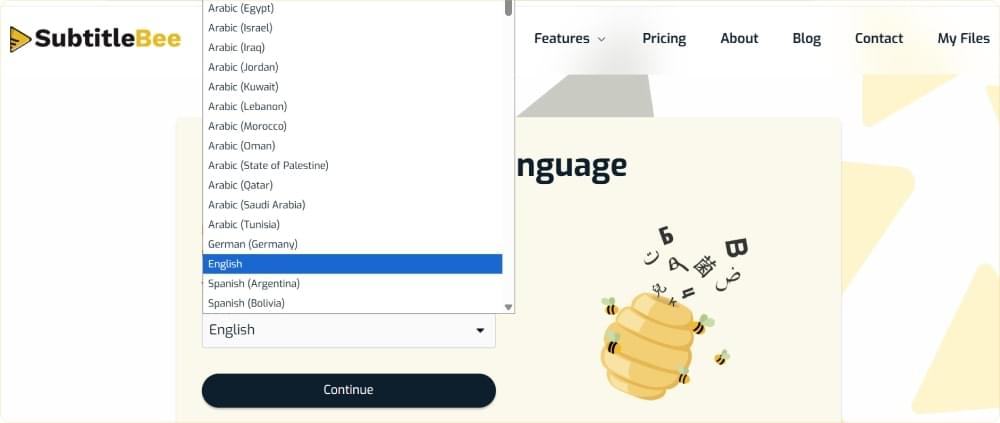
Choose the language spoken in the video. SubtitleBee transcribes 60+ languages, including regional variants such as Spanish (Mexico) or French (Canada). Pick the right one carefully: the upload screen notes that the language cannot be changed once selected.
Step 4: Review and Edit the Transcript
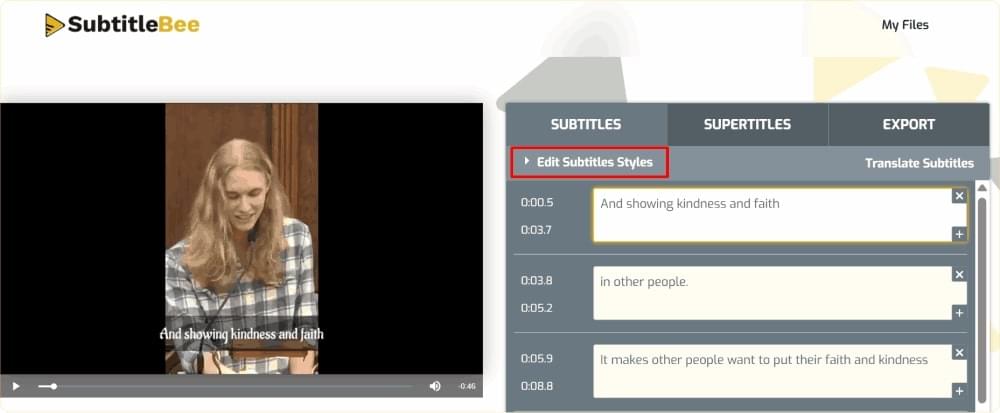
SubtitleBee’s AI generates the transcript and syncs each line to the speech. Accuracy depends on audio quality, so read it through once while the video plays. Reels often have background music, fast speech, slang and brand names, which are the usual sources of errors. Fix those in the editor.
A tip for reels with music: SubtitleBee’s own FAQ notes that videos with heavy music are prone to errors. If the speech is buried under a track, expect to correct more lines, or transcribe the original voice recording before you added the music.
Step 5: Export as TXT or SRT
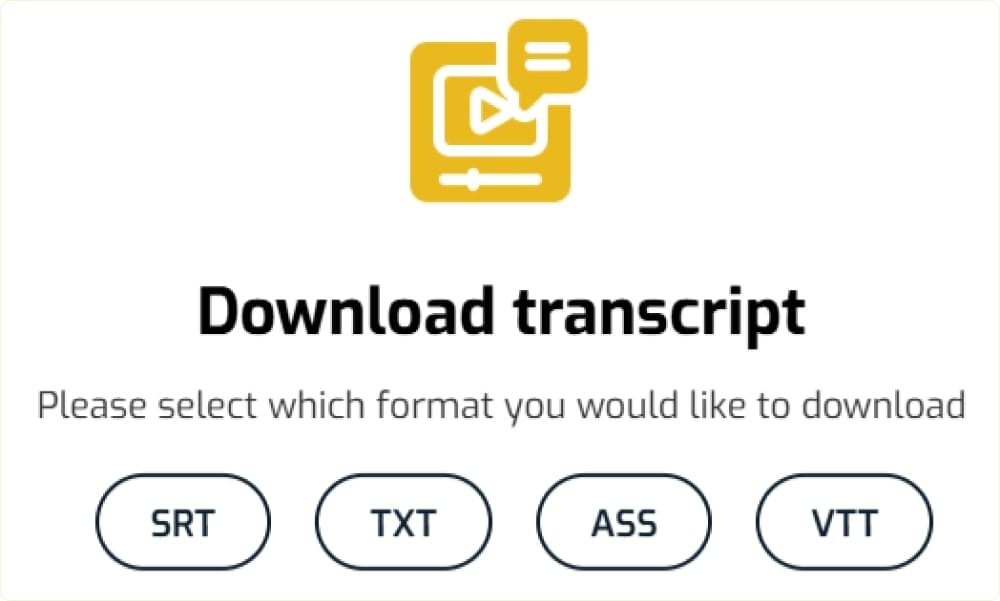
Download the transcript from your dashboard in the format you need:
- TXT for plain text: blog drafts, captions, show notes, quotes.
- SRT for timed subtitles you can upload to other platforms or video editors. Our explainer What Is an SRT File shows how the timecodes work.
- VTT and ASS are available on the Premium plan.
Downloads require a paid plan. The free plan lets you auto subtitle up to 10 minutes of video and review the result first, and free trial downloads are disabled.
Method 3: Transcribe It Manually or With Other Tools
For a 15 second reel, manual transcription is often quicker than any setup. Play the reel at a slower speed if your player allows it, type a sentence at a time, then play it once more from the start while reading along. Mark anything you cannot hear as [inaudible] instead of guessing.
Other options worth knowing:
- Phone dictation or voice typing. Some people play a video out loud and let their phone’s dictation feature type it. It works on clean speech in a quiet room, and struggles with music and background noise.
- Other AI transcription tools. Plenty of tools can turn a video file into text. Whatever you use, check which languages it supports, whether you can edit the result, which file formats you can export, and what the free tier actually lets you download.
Our guide to automated vs manual transcription goes deeper on when each approach makes sense.
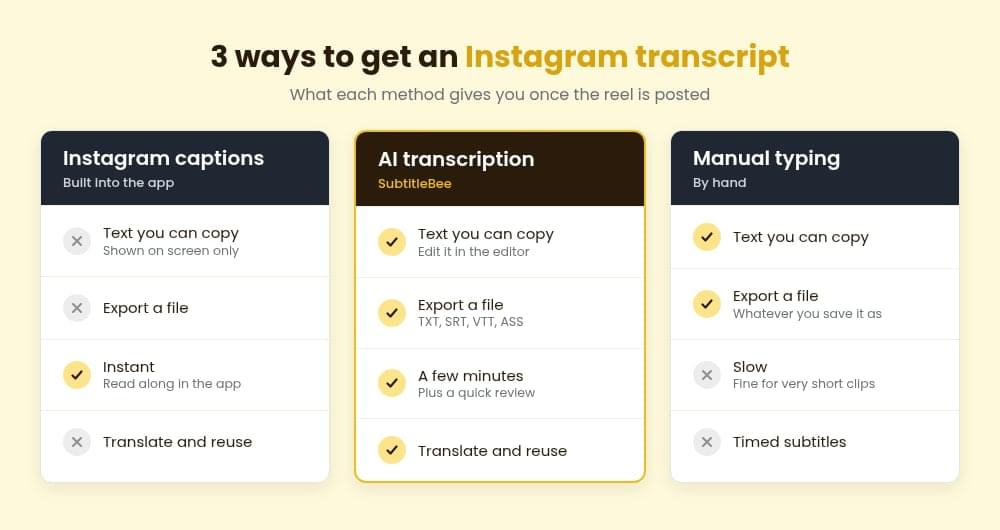
Which Method Should You Use?
| Instagram auto captions | AI transcription (SubtitleBee) | Manual typing | |
|---|---|---|---|
| Text you can copy or export | No | Yes, TXT, SRT, VTT, ASS | Yes |
| Editable | Shown on screen only | Yes, in the editor | Yes |
| Best for | Reading along in the app | Repurposing, subtitles, translation | Very short clips |
| Time for a 1 minute reel | Instant | A few minutes plus review | Several minutes or more |
What to Do With an Instagram Transcript
A transcript is raw material. A few ways to use it:
- Turn reels into blog posts. A run of reels on one topic can become a full article with light editing. Add headings, cut the filler and link the original reels. Our list of ways to repurpose videos and transcriptions has more ideas.
- Write better post captions. Pull the strongest line from the transcript into your caption, or summarize the reel for people who scroll without sound. To make key words stand out, see how to italicize Instagram captions.
- Make your content accessible. Captions and transcripts help deaf and hard of hearing viewers, and anyone watching muted. You can also add burned-in captions before posting, see our guides on adding captions to reels and adding captions to Instagram stories, and check the Instagram story size and ratio before you export.
- Translate for new audiences. Once you have a clean transcript in one language, you can translate the subtitles into others. For Instagram specifically, see how to translate Instagram messages, videos and images.
- Reuse across platforms. The same process works for short videos elsewhere, see how to transcribe a TikTok video. If your longer videos live on YouTube, here is how to share a YouTube video on Instagram.
- Grow your account. Captioned reels are easier to follow on mute and give people a reason to watch to the end. For more tactics, see our tips on how to grow your Instagram.
Frequently Asked Questions
Can You Get a Transcript of an Instagram Reel?
Yes, but not from Instagram itself. Instagram can show automatic captions on screen, but we found no option to export them as text. To get a transcript, save the video file and run it through a transcription tool, or type it out by hand.
How Do I Turn On Auto Captions for My Instagram Reels?
When sharing a reel, tap More options and turn on Enable closed captions. For a reel you already posted, open it, tap Options, then Edit, then More options. These are the iPhone steps from Instagram’s Help Center and may change between app versions.
Can I Paste an Instagram Link to Transcribe It?
SubtitleBee’s upload page lists support for YouTube, Vimeo and self-hosted links, not Instagram links. Download the reel or use the original file, then upload it.
Is It Legal to Transcribe Someone Else’s Instagram Video?
Transcribing a video for your own private notes is different from republishing it. If you plan to publish, quote heavily or repost someone else’s content, get their permission first. When in doubt, stick to content you created. This is not legal advice.
How Accurate Is AI Transcription for Instagram Videos?
It depends mostly on the audio. Clear speech close to the microphone transcribes well. Loud music, crosstalk and slang lower accuracy, so always review the transcript before you publish it.
Get Your Instagram Transcript
Instagram’s captions are fine for reading along, but they will not give you text you can use. For that, take your original video, upload it, correct the draft and export the file. Try SubtitleBee to transcribe your next reel in 60+ languages and download it as TXT or SRT.


Add and translate your subtitles to more than 100 languages with high accuracy
Our solution
SubtitleBee
Make your video understandable by using SubtitleBee for free
Start now for freeTop Articles

Getting Started with AI-Powered SubtitleBee

3 Effective Ways To Add Subtitles To Video Online Without Watermark
VEED vs. Kapwing: Which Subtitle Generator wins?
Kapwing vs. SubtitleBee: Which subtitling tool should you choose?

5 Top Verbit Alternatives for Transcription